

Adding a second monitor can boost your productivity, multitasking, and overall computing experience—but choosing the right one isn’t always easy. This guide walks you through everything you need to know, from screen size and resolution to connectivity and ergonomics, so you can buy a secondary monitor with confidence.
So, you’ve decided to level up your desktop setup by adding a second screen. Smart move! Whether you’re crunching spreadsheets, editing photos, coding, or just want to keep your email open while streaming a tutorial, a secondary monitor can make a world of difference. But here’s the thing—buying a second monitor isn’t as simple as grabbing the cheapest one on the shelf. There’s more to it than just screen size and price.
Think about it: you’re going to be staring at this thing for hours. You want it to feel natural, not like an awkward add-on that clashes with your main display. Maybe your primary monitor is a sleek 27-inch 4K panel with vibrant colors, and you’re eyeing a budget 1080p screen with washed-out visuals. That mismatch can be distracting and even strain your eyes over time. The goal isn’t just to add screen real estate—it’s to create a cohesive, comfortable, and efficient workspace.
That’s where this guide comes in. We’ll walk you through every step of how to buy a secondary monitor, from understanding key specs to matching it with your existing setup. No jargon, no fluff—just practical advice to help you make a smart, informed decision. Whether you’re a student, a remote worker, a creative pro, or a casual gamer, we’ve got you covered.
Key Takeaways
- Match your primary monitor: For a seamless experience, choose a secondary monitor with similar resolution, color accuracy, and refresh rate.
- Consider screen size and aspect ratio: A 24–27-inch monitor is ideal for most desks; ultrawide screens offer more space but require more room.
- Check connectivity options: Ensure your PC has the right ports (HDMI, DisplayPort, USB-C) to connect your new monitor.
- Prioritize ergonomics: Look for height, tilt, and swivel adjustments to reduce neck and eye strain during long work sessions.
- Think about use case: Gamers need high refresh rates, while designers need color-accurate panels—pick based on your main tasks.
- Budget wisely: You don’t need to spend a fortune—many excellent secondary monitors cost under $200.
- Don’t forget cables and stands: Some monitors don’t include cables, and a monitor arm can free up desk space.
📑 Table of Contents
- Why Add a Secondary Monitor?
- Matching Your Secondary Monitor to Your Primary Display
- Choosing the Right Size and Aspect Ratio
- Connectivity: Making Sure It Works with Your PC
- Ergonomics and Adjustability
- Budget and Value: Getting the Most for Your Money
- Setting Up Your Dual Monitor System
- Final Tips Before You Buy
Why Add a Secondary Monitor?
Before we dive into the nitty-gritty of specs and shopping, let’s talk about why you’d want a second monitor in the first place. It’s not just a luxury—it’s a productivity powerhouse.
Imagine this: you’re working on a report in Word, and you need to reference a PDF. Without a second screen, you’re constantly Alt+Tabbing, minimizing and maximizing windows, or squinting at a split-screen view that cuts off important info. Now, picture having that PDF open on your second monitor while your document takes up the full screen on your primary display. No more switching back and forth. Just smooth, uninterrupted workflow.
But it’s not just about convenience. Studies show that dual monitors can increase productivity by up to 42%. That’s not a small number. Programmers can keep their code on one screen and documentation or a terminal on the other. Video editors can have their timeline on one monitor and preview window on the second. Even casual users benefit—streaming music or videos on one screen while browsing the web on the other is a game-changer.
And let’s not forget gaming. While not all games support multi-monitor setups, many simulation, strategy, and flight games do. Having a secondary screen for maps, inventory, or chat can give you a serious edge. Plus, you can keep Discord or a walkthrough open without alt-tabbing out of your game.
Boosting Productivity Across Professions
Different jobs benefit in different ways. For accountants and analysts, a second monitor means keeping Excel spreadsheets, financial models, and data sources visible at all times. No more scrolling through endless rows or losing your place. For writers and researchers, it’s about having sources, notes, and drafts open simultaneously.
Designers and photographers rely on color accuracy and screen real estate. A secondary monitor can serve as a dedicated space for tool palettes, layer panels, or reference images—freeing up your main screen for the actual artwork. Even students can benefit, using one screen for lectures or readings and the other for taking notes or writing essays.
In short, a secondary monitor isn’t just a nice-to-have—it’s a tool that can transform how you work, learn, and play.
Matching Your Secondary Monitor to Your Primary Display
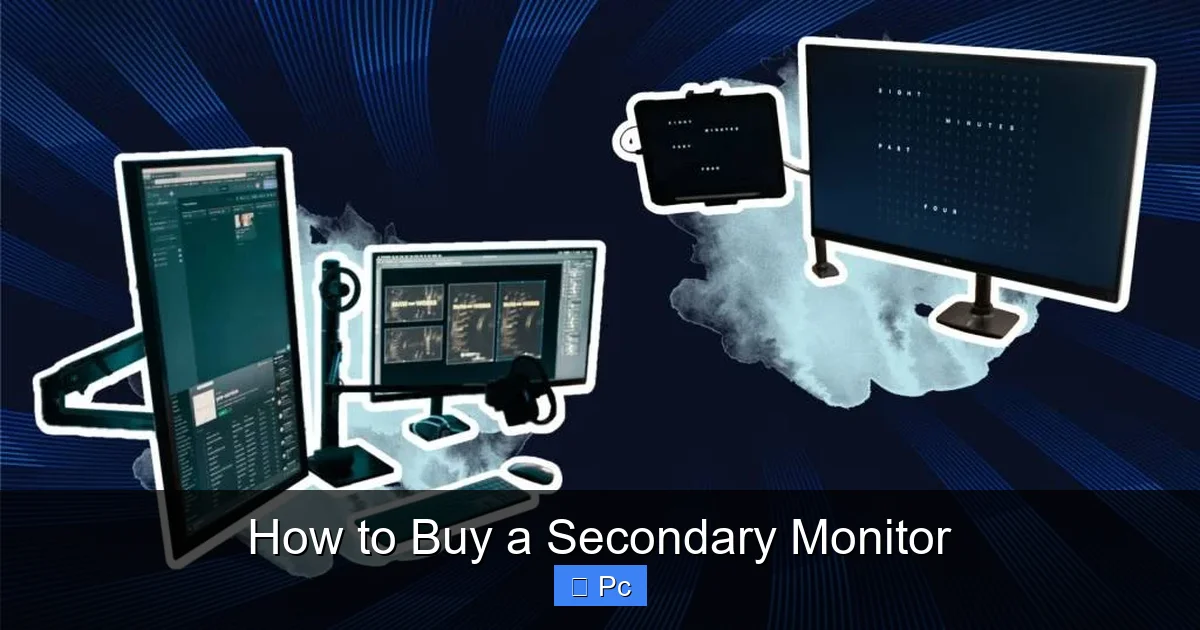
Visual guide about How to Buy a Secondary Monitor
Image source: theaudioinsights.com
One of the biggest mistakes people make when buying a secondary monitor is ignoring how it compares to their main screen. You might think, “As long as it displays something, it’s fine.” But mismatched monitors can create a jarring experience.
Let’s say your primary monitor is a 27-inch 1440p (QHD) panel with an IPS display and 75Hz refresh rate. You then buy a 24-inch 1080p monitor with a TN panel and 60Hz refresh rate. The difference in sharpness, color, and motion smoothness will be noticeable. Your eyes will constantly adjust, which can lead to fatigue. Worse, if you drag a window from one screen to the other, the change in scale and clarity can be disorienting.
Resolution and Pixel Density
Resolution refers to the number of pixels on the screen—higher resolution means sharper images. Common resolutions include:
– 1920×1080 (Full HD or 1080p)
– 2560×1440 (QHD or 1440p)
– 3840×2160 (4K UHD)
When choosing a secondary monitor, aim for the same resolution as your primary screen, or at least something close. If your main monitor is 1440p, a 1080p secondary will look noticeably softer, especially on a 27-inch screen. That’s because pixel density (pixels per inch, or PPI) drops as screen size increases at the same resolution.
For example, a 24-inch 1080p monitor has about 92 PPI, while a 27-inch 1080p monitor drops to around 82 PPI. But a 27-inch 1440p monitor bumps that back up to about 109 PPI—much sharper. So if your primary is 27-inch 1440p, a 24-inch 1080p secondary might feel underwhelming.
Panel Type and Color Accuracy
There are three main types of LCD panels: TN (Twisted Nematic), IPS (In-Plane Switching), and VA (Vertical Alignment). Each has pros and cons:
– TN: Fast response times, good for gaming, but poor viewing angles and color reproduction.
– IPS: Excellent color accuracy and wide viewing angles, ideal for design and media, but slightly slower response times.
– VA: Great contrast and color, good for movies, but can have motion blur in fast scenes.
If your primary monitor is IPS, try to match it with another IPS panel. This ensures consistent colors and brightness across both screens. Mixing TN and IPS can lead to noticeable differences in how images appear, especially when viewed side by side.
Refresh Rate and Response Time
Refresh rate (measured in Hz) tells you how many times the screen updates per second. A 60Hz monitor refreshes 60 times per second; a 144Hz monitor does it 144 times. Higher refresh rates make motion look smoother, which is great for gaming and fast-paced work.
Response time (measured in milliseconds) refers to how quickly pixels can change color. Lower is better—5ms or less is ideal for gaming.
If your primary monitor is 75Hz or 144Hz, a 60Hz secondary might feel sluggish in comparison. While it won’t affect most productivity tasks, it can be noticeable when dragging windows or scrolling. For general use, 60Hz is fine, but if you’re a gamer or work with video, try to match or get close to your primary’s refresh rate.
Choosing the Right Size and Aspect Ratio

Visual guide about How to Buy a Secondary Monitor
Image source: directbids.com
Screen size and aspect ratio play a big role in how your secondary monitor fits into your workflow—and your desk.
Screen Size: Bigger Isn’t Always Better
Monitor sizes typically range from 21 inches to 34 inches or more. For a secondary monitor, 24 to 27 inches is the sweet spot for most people. Here’s why:
– 24-inch: Great for tight desks, budget builds, or as a dedicated task monitor (e.g., for chat, notes, or system monitoring). Pairs well with 27-inch primary displays.
– 27-inch: Offers more screen real estate without being overwhelming. Ideal if you want both monitors to feel balanced.
– 32-inch and up: These are more suited for primary use. As a secondary, they can dominate your desk and force you to move your head too much.
Remember, bigger screens need more desk space. Measure your setup before buying. Also, consider viewing distance—sitting too close to a large monitor can cause eye strain.
Aspect Ratio: Standard vs. Ultrawide
Most monitors use a 16:9 aspect ratio—the same as HDTVs. It’s great for movies, gaming, and general use. But there’s another option: ultrawide monitors with a 21:9 aspect ratio.
Ultrawide screens are fantastic for multitasking. You can have three browser windows side by side, or a video call on one side and a document on the other. However, they’re wider and often more expensive. They also require more desk depth.
If you’re using your secondary monitor for reference materials, chat, or system monitoring, a standard 16:9 screen is usually sufficient. But if you want to maximize horizontal space, an ultrawide could be worth the investment—just make sure your desk can handle it.
Connectivity: Making Sure It Works with Your PC
Visual guide about How to Buy a Secondary Monitor
Image source: directbids.com
You can have the perfect monitor, but if your PC can’t connect to it, it’s just a fancy paperweight. So before you buy, check your computer’s video outputs.
Common Video Ports
Here are the most common ports you’ll find on monitors and PCs:
– HDMI: The most common port. Supports audio and video. Most modern monitors and laptops have at least one HDMI port. HDMI 2.0 supports 4K at 60Hz; HDMI 2.1 supports 4K at 120Hz and 8K.
– DisplayPort: Preferred by gamers and professionals. Supports higher resolutions and refresh rates than HDMI. DisplayPort 1.4 can handle 4K at 120Hz or 8K at 60Hz.
– USB-C (with DisplayPort Alt Mode): Found on newer laptops and monitors. Can carry video, audio, data, and power over a single cable—great for docking stations.
– DVI: Older standard, mostly found on older PCs and monitors. Doesn’t support audio and is limited in resolution (max 1080p at 60Hz for single-link).
– VGA: Analog signal, very outdated. Avoid unless you’re using very old hardware.
Matching Ports and Cables
Check what ports your PC has. If your laptop has HDMI and your monitor has DisplayPort, you’ll need an HDMI-to-DisplayPort cable or adapter. But be careful: not all adapters work both ways. An HDMI-to-DisplayPort adapter usually only works from HDMI source to DisplayPort display, not the reverse.
Also, some monitors don’t include cables in the box. Check the product description to see what’s included. If not, you’ll need to buy the right cable separately.
Multi-Monitor Support
Most modern graphics cards and integrated graphics support at least two monitors. But check your GPU specs. If you’re using a laptop, some models only support one external monitor unless you use a docking station or USB-C hub.
If you plan to connect more than two monitors, consider a dedicated GPU with multiple outputs or a USB-to-HDMI adapter (though these are usually lower quality and not ideal for gaming or video).
Ergonomics and Adjustability
You’re going to be looking at this monitor for hours. Comfort matters.
Adjustable Stands
Look for a monitor with a stand that offers:
– Height adjustment: Lets you raise or lower the screen to eye level.
– Tilt: Allows you to angle the screen up or down.
– Swivel: Lets you rotate the monitor left or right—useful for sharing your screen or aligning with your primary display.
– Pivot (rotation): Turns the screen into portrait mode, great for coding, reading long documents, or social media management.
Many budget monitors only offer tilt adjustment. If ergonomics are important, consider spending a bit more or buying a third-party monitor arm.
VESA Mount Compatibility
VESA is a standard mounting pattern (measured in millimeters, like 100×100 or 75×75). If your monitor supports VESA, you can attach it to a monitor arm or wall mount. This frees up desk space and allows for more flexible positioning.
Even if the monitor doesn’t come with a VESA-compatible stand, you can often buy a separate arm that attaches to the VESA holes on the back.
Blue Light and Flicker-Free Technology
Long screen time can strain your eyes. Look for monitors with:
– Blue light filters: Reduce the amount of blue light emitted, which can disrupt sleep and cause eye fatigue.
– Flicker-free technology: Eliminates screen flicker, which can cause headaches and eye strain over time.
These features are especially important if you’ll be using your secondary monitor in the evening or for extended periods.
Budget and Value: Getting the Most for Your Money
You don’t need to break the bank to get a great secondary monitor. But you also don’t want to buy the cheapest option and regret it later.
Price Ranges
– Under $150: Basic 24-inch 1080p monitors with 60Hz refresh rate. Good for casual use, but may lack adjustability and color accuracy.
– $150–$250: Sweet spot for most users. You’ll find 24–27-inch 1080p or 1440p monitors with IPS panels, better color, and some ergonomic features.
– $250–$400: High-end 1440p or 4K monitors with high refresh rates, HDR, and premium build quality. Great for gaming or creative work.
– Over $400: Ultrawide, curved, or professional-grade monitors. Usually overkill for a secondary screen unless you have specific needs.
When to Splurge
Spend more if:
– You’re a designer, photographer, or video editor (color accuracy is critical).
– You’re a gamer (high refresh rate and low response time matter).
– You want a seamless dual-monitor experience (matching resolution and panel type).
Save money if:
– You’re using it for basic tasks like email, chat, or system monitoring.
– Your primary monitor is already high-end, and the secondary is just for reference.
Refurbished and Open-Box Options
Consider buying refurbished or open-box monitors from reputable sellers like Amazon Renewed, Best Buy Outlet, or manufacturer-certified programs. These can save you 20–40% and often come with warranties.
Just make sure to check the return policy and warranty terms.
Setting Up Your Dual Monitor System
Once you’ve bought your secondary monitor, it’s time to set it up.
Physical Placement
Position the monitors so the tops are aligned and the screens are at eye level. The secondary monitor should be placed to the side of your primary, not behind or too far away. Ideally, the edges should touch or be very close to create a seamless flow.
If one monitor is taller than the other, use books or a monitor stand to level them.
Software Configuration
After connecting the monitor, your PC should detect it automatically. But you’ll need to configure the display settings:
– On Windows: Right-click the desktop > Display settings. Arrange the monitors to match your physical setup. Set the primary display and adjust resolution and orientation.
– On macOS: Go to System Settings > Displays. Use the arrangement tab to position the screens.
You can also enable “Extend these displays” to use both screens independently, or “Duplicate” to show the same image on both.
Calibration and Color Matching
If color consistency is important, calibrate both monitors using built-in tools or a hardware calibrator like a Spyder or ColorMunki. This ensures whites look white and colors match across both screens.
Final Tips Before You Buy
– Read reviews: Check user and professional reviews for real-world performance.
– Check return policy: Make sure you can return or exchange if the monitor doesn’t meet your expectations.
– Think long-term: A good monitor can last 5–7 years. Invest in quality if you plan to keep it.
– Don’t forget accessories: You might need cables, a monitor arm, or a stand.
Adding a secondary monitor is one of the best upgrades you can make to your PC setup. It’s not just about more screen—it’s about smarter, more efficient work. With the right choice, you’ll wonder how you ever worked with just one screen.
Frequently Asked Questions
Do I need a powerful graphics card for a secondary monitor?
Not necessarily. Most modern integrated graphics (like Intel UHD or AMD Radeon Vega) can handle two monitors at 1080p or 1440p. Only high-refresh-rate gaming or 4K multi-monitor setups require a dedicated GPU.
Can I use a TV as a secondary monitor?
Yes, but TVs often have higher input lag, lower pixel density, and poor text clarity compared to monitors. They’re better for media than productivity.
What’s the best size for a secondary monitor?
A 24-inch monitor is ideal for most desks and budgets. It provides enough space without overwhelming your setup or forcing you to move your head too much.
Do I need matching monitors for dual setup?
Not required, but matching resolution, panel type, and refresh rate creates a smoother, more comfortable experience—especially when dragging windows between screens.
Can I connect a secondary monitor to a laptop?
Yes, most laptops have HDMI or USB-C ports for external displays. Some support only one external monitor unless you use a docking station.
Is a curved monitor good as a secondary screen?
Curved monitors are designed for immersive single-screen use. As a secondary, they can feel awkward and distract from your primary display. Stick to flat panels for dual setups.
