

Chromebooks are improving for video editing, but they’re not ideal for heavy-duty projects. With cloud-based tools and newer hardware, lightweight editing is now possible—just know the limitations before diving in.
Key Takeaways
- Chromebooks are best for light to moderate video editing: They handle 1080p editing well but struggle with 4K or complex effects.
- Cloud-based editing apps are key: Tools like WeVideo, Clipchamp, and Adobe Premiere Rush work well on Chromebooks.
- Hardware matters more than ever: Look for models with at least 8GB RAM, SSD storage, and Intel Core or AMD Ryzen processors.
- Storage is limited: Most Chromebooks have small internal storage, so rely on Google Drive or external drives.
- External monitors and peripherals help: A larger screen and mouse improve the editing experience significantly.
- Not all software is compatible: Traditional desktop apps like Adobe Premiere Pro or Final Cut Pro won’t run natively.
- Future potential is promising: With Android app support and Linux compatibility, Chromebooks are slowly catching up.
📑 Table of Contents
- Are Chromebooks Good for Video Editing? A Realistic Look in 2024
- Understanding Chromebooks: What Makes Them Different
- Hardware Requirements for Video Editing on Chromebooks
- Best Video Editing Software for Chromebooks
- Real-World Performance: What Can You Actually Edit?
- Tips to Improve Video Editing on a Chromebook
- Who Should Use a Chromebook for Video Editing?
- Future of Video Editing on Chromebooks
- Conclusion: Should You Use a Chromebook for Video Editing?
Are Chromebooks Good for Video Editing? A Realistic Look in 2024
If you’ve been eyeing a Chromebook for casual use—browsing, streaming, schoolwork—you might be wondering: can it handle video editing? It’s a fair question. After all, video editing used to be the domain of beefy laptops with powerful processors, dedicated graphics, and tons of RAM. But times are changing. Chromebooks are no longer just lightweight web browsers; they’re evolving into capable machines that can tackle more than just Google Docs and YouTube.
So, are Chromebooks good for video editing? The short answer is: it depends. If you’re editing short social media clips, vlogs, or home videos in 1080p, a modern Chromebook might surprise you. But if you’re working on cinematic 4K projects with multiple layers, color grading, and complex effects, you’ll likely hit a wall—fast.
In this guide, we’ll break down what Chromebooks can and can’t do when it comes to video editing. We’ll explore the hardware requirements, the best software options, real-world performance, and tips to get the most out of your Chromebook. Whether you’re a student, content creator, or hobbyist, this article will help you decide if a Chromebook is the right tool for your video editing needs.
Understanding Chromebooks: What Makes Them Different

Visual guide about Are Chromebooks Good for Video Editing
Image source: i.ytimg.com
Before diving into video editing, it’s important to understand what a Chromebook actually is. Unlike traditional Windows or macOS laptops, Chromebooks run on ChromeOS—a lightweight operating system developed by Google. It’s built around the Chrome browser and relies heavily on cloud services like Google Drive, Gmail, and Google Workspace.
This cloud-first approach has both advantages and limitations. On the plus side, Chromebooks boot up in seconds, receive automatic updates, and are generally more secure and affordable than their Windows counterparts. They’re also excellent for multitasking across web apps and Android apps, thanks to Google’s ecosystem.
But here’s the catch: Chromebooks weren’t originally designed for resource-intensive tasks like video editing. Most models come with modest hardware—entry-level processors, 4GB to 8GB of RAM, and limited storage (usually 32GB to 128GB). That’s fine for browsing and streaming, but it can be a bottleneck when rendering video or working with large files.
However, the landscape is shifting. In recent years, manufacturers like Acer, ASUS, Lenovo, and HP have released higher-end Chromebooks with more powerful specs. Some even feature Intel Core i5 or i7 processors, 16GB of RAM, and 256GB SSDs—specs that were unheard of in Chromebooks just a few years ago.
Additionally, ChromeOS now supports Linux apps and Android apps, opening the door to more advanced software. You can install Linux-based video editors like Kdenlive or Shotcut, or use Android apps like PowerDirector. This expanded compatibility is a game-changer for users who need more than just web-based tools.
So while Chromebooks still can’t match the raw power of a MacBook Pro or a high-end Windows laptop, they’re no longer the underpowered devices they once were. With the right setup and realistic expectations, they can be a viable option for certain types of video editing.
Hardware Requirements for Video Editing on Chromebooks

Visual guide about Are Chromebooks Good for Video Editing
Image source: i.pinimg.com
When it comes to video editing, hardware is everything. Even the best software can’t compensate for a slow processor, insufficient RAM, or sluggish storage. So, what should you look for in a Chromebook if you plan to edit videos?
Processor (CPU)
The CPU is the brain of your Chromebook and plays a critical role in video editing. For smooth performance, aim for at least an Intel Core i3, i5, or AMD Ryzen 3 or 5 processor. These chips offer better multitasking and faster rendering compared to entry-level Celeron or Pentium processors.
For example, the Acer Chromebook Spin 714 features an Intel Core i5-1235U, which handles 1080p editing with ease. In contrast, a Chromebook with a MediaTek or older Celeron chip will struggle even with basic cuts and transitions.
RAM (Memory)
RAM is crucial for handling multiple tasks and large video files. While 4GB might work for simple web browsing, it’s not enough for video editing. We recommend at least 8GB of RAM—16GB is even better if you’re working with higher-resolution footage or multiple layers.
Why? Video editing software loads clips, effects, and previews into memory. With only 4GB, your Chromebook will constantly swap data to storage, causing lag and slowdowns. More RAM means smoother playback and faster exports.
Storage
Most Chromebooks come with 32GB to 128GB of eMMC or SSD storage. While this is fine for apps and documents, video files are huge. A single minute of 1080p video can take up 1–2GB of space. 4K footage? That can be 10GB or more per minute.
This is where cloud storage becomes essential. Google Drive offers 15GB for free, and you can expand that with a Google One subscription. Alternatively, use an external SSD or USB drive to store your projects. Just make sure your Chromebook has USB-C or USB-A ports for connectivity.
Graphics (GPU)
Unlike Windows laptops, most Chromebooks don’t have dedicated graphics cards. They rely on integrated graphics like Intel UHD or Iris Xe. While these aren’t powerful enough for GPU-intensive tasks like 3D rendering, they’re sufficient for basic video editing—especially when paired with hardware acceleration in supported apps.
Some newer Chromebooks, like the ASUS Chromebook Flip CX5, feature Intel Iris Xe graphics, which offer a noticeable boost in performance for video playback and effects.
Display Quality
A good screen matters for accurate color grading and detail. Look for a Chromebook with at least a 1080p (Full HD) display. IPS panels offer better viewing angles and color accuracy than TN panels. If possible, choose a model with 300 nits or higher brightness for comfortable editing in well-lit environments.
Some premium Chromebooks, like the Lenovo Chromebook Duet 5, even feature OLED displays with vibrant colors and deep blacks—ideal for visual work.
Ports and Expandability
Video editing often requires external devices: cameras, microphones, hard drives, and monitors. Make sure your Chromebook has the right ports. USB-C (preferably with Thunderbolt 4) is ideal for fast data transfer and connecting external displays. HDMI, USB-A, and SD card slots are also helpful.
For example, the HP Chromebook x360 14c has two USB-C ports, one USB-A, an HDMI port, and a microSD slot—making it a solid choice for content creators.
Best Video Editing Software for Chromebooks
Visual guide about Are Chromebooks Good for Video Editing
Image source: i.ytimg.com
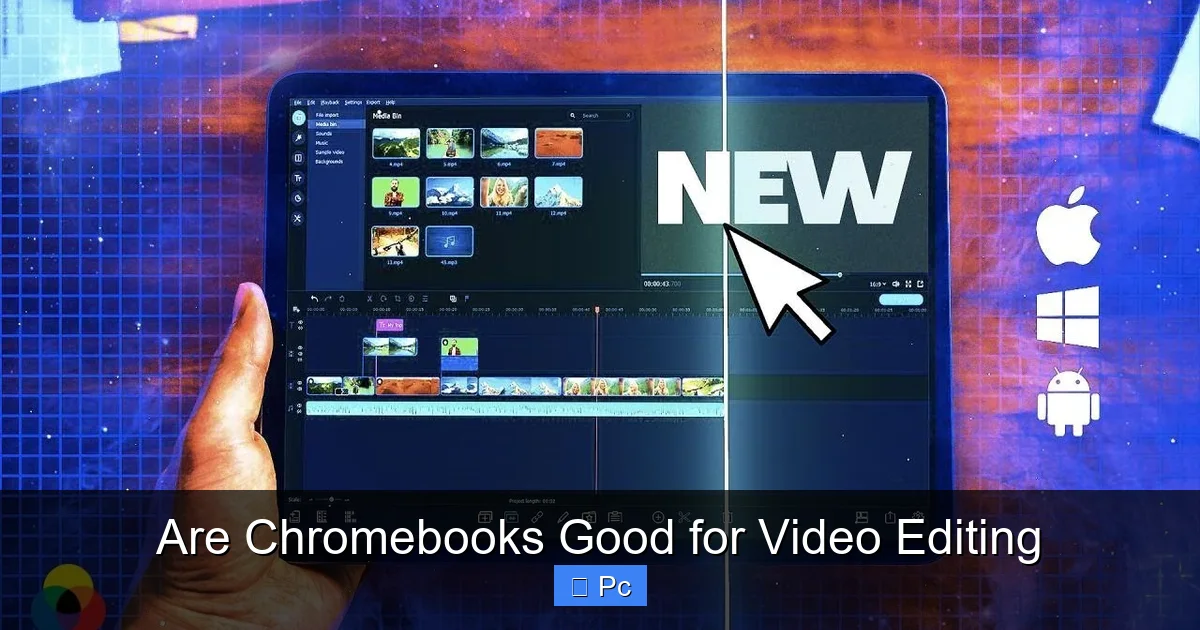
One of the biggest challenges with Chromebooks is software compatibility. Most professional video editing tools—like Adobe Premiere Pro, Final Cut Pro, or DaVinci Resolve—are designed for Windows or macOS and don’t run natively on ChromeOS.
But that doesn’t mean you’re out of options. Thanks to cloud-based platforms, Android apps, and Linux support, there are several capable video editors available for Chromebooks.
Cloud-Based Editors (Web Apps)
These run directly in your browser and store projects in the cloud. They’re perfect for Chromebooks because they don’t rely on local hardware as much.
- WeVideo: One of the most popular cloud editors. It offers drag-and-drop editing, green screen effects, motion titles, and audio tools. The free plan is limited, but the paid plans (starting at $4.99/month) are affordable and powerful. WeVideo supports 1080p exports and works smoothly on mid-range Chromebooks.
- Clipchamp: Acquired by Microsoft, Clipchamp is now free for Windows users—but it also works in Chrome. It has a user-friendly interface, stock footage, and AI-powered tools like auto-captioning. Great for quick social media edits.
- Adobe Premiere Rush: A simplified version of Premiere Pro, Rush is available as a web app and mobile app. It syncs projects across devices and offers basic color correction, audio mixing, and export options. Ideal for YouTubers and TikTok creators.
- Kapwing: A browser-based editor focused on short-form content. It’s great for memes, subtitles, and quick cuts. Kapwing is free with watermark; paid plans remove it and offer more features.
Android Apps
Chromebooks can run Android apps from the Google Play Store, opening up a world of mobile video editors.
- PowerDirector: One of the most powerful Android video editors. It supports 4K editing, multi-track timelines, chroma key, and slow motion. The free version has ads and watermarks, but the premium version ($5.99/month) is worth it for serious editors.
- InShot: Popular among TikTok and Instagram creators. It’s simple, fast, and packed with filters, stickers, and music. Perfect for quick edits on the go.
- Kinemaster: Offers professional-grade features like layer-based editing, blending modes, and audio ducking. Requires a subscription ($4.99/month), but it’s one of the best mobile editors available.
Linux Apps (Advanced Users)
If your Chromebook supports Linux (most newer models do), you can install desktop-grade video editors.
- Shotcut: A free, open-source editor with support for 4K, HDR, and a wide range of formats. It has a steep learning curve but is surprisingly capable.
- Kdenlive: Another powerful open-source editor with multi-track editing, keyframes, and effects. It’s similar to Premiere Pro in functionality.
- OpenShot: Simpler than Shotcut or Kdenlive, but still robust. Great for beginners who want more control than web apps offer.
To enable Linux on your Chromebook, go to Settings > Advanced > Developers > Turn on Linux. Once set up, you can install these apps via the terminal.
Real-World Performance: What Can You Actually Edit?
So, how well do Chromebooks actually perform when editing video? Let’s look at some real-world scenarios.
1080p Editing (Social Media, Vlogs, YouTube)
For most casual creators, 1080p is the sweet spot. A Chromebook with an Intel Core i5, 8GB RAM, and SSD storage can handle this with ease. Apps like WeVideo, PowerDirector, and Premiere Rush run smoothly, allowing you to cut clips, add music, apply filters, and export in under 10 minutes.
For example, editing a 5-minute vlog with transitions, text overlays, and background music takes about 15 minutes on a mid-range Chromebook—comparable to a budget Windows laptop.
4K Editing (Limited Support)
4K video is where Chromebooks start to struggle. While some apps like PowerDirector and Shotcut support 4K editing, the process is slow. Playback may be choppy, and exports can take a long time—especially on models with weaker processors.
That said, if you’re willing to proxy edit (editing lower-resolution copies of your footage), it’s possible. WeVideo and Premiere Rush offer proxy workflows, but they require a stable internet connection and can be cumbersome.
Multi-Track and Effects-Heavy Projects
If your project involves multiple video layers, color grading, motion graphics, or complex transitions, a Chromebook will likely choke. These tasks demand more RAM and GPU power than most Chromebooks can provide.
For instance, adding a green screen effect, background music, and animated titles to a 3-minute clip might cause lag or crashes on a 4GB Chromebook. Upgrading to 8GB or 16GB helps, but it’s still not ideal for professional work.
Audio Editing and Syncing
Audio is often overlooked, but it’s crucial for video quality. Most Chromebooks have decent built-in microphones and speakers, but for serious work, you’ll want an external mic and headphones.
Apps like Audacity (available via Linux) or online tools like Audiotool let you clean up audio, remove background noise, and sync sound. However, real-time audio processing can be taxing on lower-end hardware.
Exporting and Rendering Times
Exporting is one of the biggest bottlenecks. On a Chromebook with 8GB RAM and an SSD, exporting a 5-minute 1080p video takes 5–10 minutes. On a 4GB model, it could take 15–20 minutes or more.
Cloud-based editors can speed this up by offloading rendering to remote servers, but that depends on your internet speed. A slow connection will negate any benefits.
Tips to Improve Video Editing on a Chromebook
Even with limitations, you can optimize your Chromebook for better video editing performance. Here are some practical tips:
Use an External SSD
Store your video files on a fast external SSD instead of the internal drive. This frees up space and improves read/write speeds. Look for USB-C SSDs with at least 500MB/s transfer rates.
Close Unnecessary Apps
Video editing uses a lot of system resources. Close all other apps—especially browser tabs—to free up RAM and CPU. Use Chrome’s Task Manager (Shift + Esc) to monitor usage.
Enable Hardware Acceleration
In Chrome settings, go to System > Turn on “Use hardware acceleration when available.” This helps the GPU assist with video playback and rendering.
Use Proxy Editing
If you’re working with 4K footage, create lower-resolution proxy files for editing. Most cloud editors support this. Once done, relink to the original files for final export.
Upgrade Your Internet
Cloud editing requires a fast, stable connection. Aim for at least 25 Mbps download and 5 Mbps upload. Use Ethernet via a USB-C adapter if Wi-Fi is unreliable.
Connect an External Monitor
A larger screen gives you more workspace for timelines and previews. Use a USB-C to HDMI adapter to connect a 24-inch or larger monitor.
Use a Mouse and Keyboard
Touchscreens are great for browsing, but a mouse and external keyboard make editing much faster and more precise.
Keep Your Chromebook Updated
Google regularly releases updates that improve performance and compatibility. Make sure your Chromebook is running the latest version of ChromeOS.
Who Should Use a Chromebook for Video Editing?
Not everyone needs a high-end laptop for video editing. Here’s who might benefit from using a Chromebook:
- Students: Editing school projects, presentations, or short films. Chromebooks are affordable and easy to use.
- Content Creators: YouTubers, TikTokers, and Instagrammers who focus on short, engaging clips.
- Hobbyists: People who edit home videos, travel vlogs, or family events occasionally.
- Remote Workers: Those who need to create training videos or marketing content on a budget.
- Beginners: New editors who want to learn the basics without investing in expensive hardware.
On the other hand, avoid Chromebooks if you:
- Work with 4K or RAW footage regularly
- Need advanced color grading or VFX
- Edit long-form content like documentaries or films
- Require professional software like Premiere Pro or After Effects
Future of Video Editing on Chromebooks
The future looks promising. Google is investing heavily in making Chromebooks more capable. With Android app integration, Linux support, and cloud advancements, the gap between Chromebooks and traditional laptops is narrowing.
We’re already seeing Chromebooks with 12th-gen Intel processors, 16GB RAM, and high-resolution displays. As AI-powered editing tools become more common—like auto-editing, smart trimming, and voice-to-text captions—Chromebooks could become even more viable for casual creators.
Additionally, Google’s partnership with Adobe means more Creative Cloud apps may come to ChromeOS. Adobe Express is already available, and future versions of Premiere Rush could gain more features.
While Chromebooks may never replace high-end editing rigs, they’re becoming a legitimate option for lightweight, cloud-based video editing. For the right user, they offer a perfect balance of affordability, portability, and performance.
Conclusion: Should You Use a Chromebook for Video Editing?
So, are Chromebooks good for video editing? The answer is: yes, but with caveats.
If you’re editing short videos in 1080p, using cloud-based tools, and don’t need advanced features, a modern Chromebook can absolutely get the job done. With the right hardware—8GB RAM, SSD storage, and a decent processor—you can create professional-looking content without breaking the bank.
However, if you’re working with 4K footage, complex effects, or multi-layer timelines, you’ll be better off with a Windows laptop or MacBook. Chromebooks simply don’t have the horsepower for heavy-duty editing.
The key is to match your Chromebook to your needs. For students, hobbyists, and social media creators, a Chromebook is a smart, cost-effective choice. For professionals and filmmakers, it’s still a compromise.
As Chromebooks continue to evolve, so will their capabilities. With cloud computing, AI, and better hardware on the horizon, the line between “light” and “pro” editing will keep blurring. Until then, know your limits—and enjoy the freedom of editing anywhere, anytime.
Frequently Asked Questions
Can I edit 4K video on a Chromebook?
It’s possible, but not ideal. Some apps like PowerDirector and Shotcut support 4K editing, but performance will be slow on most Chromebooks. Proxy editing and strong hardware help, but expect longer render times.
Do I need an internet connection to edit videos on a Chromebook?
It depends on the software. Cloud-based editors like WeVideo require a connection, while Android and Linux apps can work offline. For best results, a stable internet connection is recommended.
Can I use Adobe Premiere Pro on a Chromebook?
No, Adobe Premiere Pro doesn’t run on ChromeOS. However, Adobe Premiere Rush is available as a web and mobile app and works well on Chromebooks for basic editing.
What’s the best Chromebook for video editing?
Look for models with at least an Intel Core i5, 8GB RAM, SSD storage, and USB-C ports. Top picks include the Acer Chromebook Spin 714, ASUS Chromebook Flip CX5, and HP Chromebook x360 14c.
Can I connect an external hard drive to my Chromebook?
Yes, most Chromebooks have USB-C or USB-A ports for external drives. Use an SSD for faster performance when editing large video files.
Is Linux safe to use on a Chromebook?
Yes, Linux on Chromebooks runs in a secure container. Just be careful when installing software and avoid downloading from untrusted sources.
