

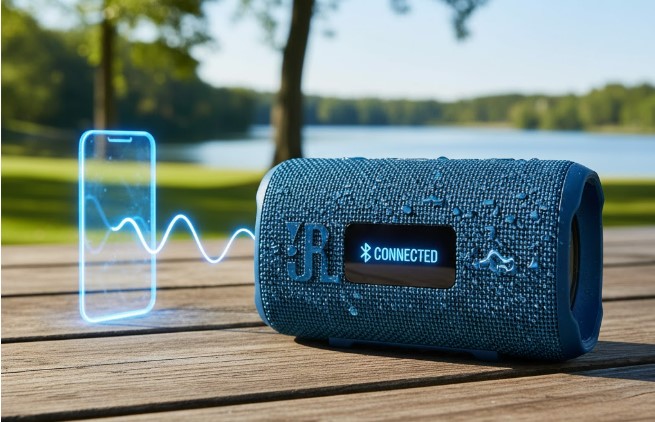
Is your JBL speaker connected but stubbornly silent? Don’t worry! This guide will help you troubleshoot common issues, from simple volume checks to Bluetooth settings, so you can enjoy your music again.
Key Takeaways
- Check JBL speaker volume and mute settings.
- Verify Bluetooth connection stability and source device volume.
- Update device drivers and JBL firmware for optimal performance.
- Test with a different audio source or cable for isolation.
- Reset your JBL speaker and source device if issues persist.
JBL Speaker Connected But No Sound? Let’s Fix It!
You’ve paired your JBL speaker, the Bluetooth light is on, and your phone or laptop says it’s connected. Yet, silence. It’s a frustrating situation, isn’t it? Many of us have been there, eager to fill our space with sound only to be met with an unnerving quiet. This common problem with JBL speakers, while confusing, is often quite solvable with a few straightforward checks.
Whether you’re using a JBL Flip, Charge, Xtreme, or any other model, the underlying reasons for a connected-but-silent speaker are usually similar. In this guide, I’ll walk you through a series of easy-to-follow steps, starting with the simplest solutions and moving towards more advanced troubleshooting. By the end, you’ll have a clear understanding of why your JBL speaker might not be playing sound and how to get it working beautifully again.
Step 1: The Obvious Checks – Volume and Mute
Before diving into complex technicalities, let’s cover the basics. It sounds simple, but often the culprit is overlooked.
Is the Volume Turned Up?
This might seem silly, but check the volume on both your source device (phone, tablet, computer) and the JBL speaker itself. Sometimes, the speaker volume might be turned down low, or even muted, making it seem like there’s no sound at all.
- On your Source Device: Look for the volume slider or buttons and ensure they are not at the lowest setting.
- On your JBL Speaker: Most JBL speakers have physical volume buttons. Press the ‘+’ button a few times to increase the volume. Some models also have a mute function; ensure it’s not activated.
Is the Source Device Muted?
Sometimes, your device might be muted directly. On smartphones and tablets, there’s usually a dedicated mute switch or a volume setting that includes a silent mode. On computers, check the audio settings and the speaker icon in the taskbar to ensure it’s not muted and the volume is up.
Step 2: Verify the Bluetooth Connection
A stable Bluetooth connection is crucial for audio playback. Even if it says “connected,” the connection might be weak or experiencing interference.
Check Bluetooth Signal Strength
Bluetooth has a limited range, typically around 30 feet (10 meters) in open spaces. Walls, furniture, and other electronic devices can interfere with the signal.
- Try moving your JBL speaker and source device closer to each other.
- Remove any potential obstructions between the two devices.
- Turn off other Bluetooth devices nearby that might be causing interference.
Reconnect the Bluetooth Device
Sometimes, simply disconnecting and reconnecting Bluetooth can resolve minor glitches.
- On your source device, go to Bluetooth settings.
- Find your JBL speaker in the list of paired devices.
- Tap or click to “Disconnect” or “Forget” the device.
- Turn off Bluetooth on your source device for about 10 seconds.
- Turn Bluetooth back on and re-pair your JBL speaker.
Clear Bluetooth Cache (for Mobile Devices)
On Android devices, clearing the Bluetooth cache can sometimes fix persistent connection issues. Navigate to Settings > Apps > (Show System Apps) > Bluetooth > Storage > Clear Cache. The exact path may vary depending on your Android version and manufacturer.
Step 3: Test with Another Audio Source or App
To determine if the problem lies with your JBL speaker or your source device/app, try a different audio source.
Play Audio from a Different App
If you were trying to play music from one streaming app, try another one. The issue might be with the app itself rather than the speaker. For example, if Spotify isn’t working, try YouTube Music or a locally stored audio file.
Try a Different Device
If possible, try connecting your JBL speaker to a different phone, tablet, or computer. If the speaker works fine with another device, the problem is likely with your original source device. If it still doesn’t produce sound, the issue is more likely with the speaker itself.
Step 4: Check Your JBL Speaker’s Firmware and Software Updates
Like any electronic gadget, JBL speakers can benefit from firmware updates, which often fix bugs and improve performance. Similarly, your source device’s operating system and audio drivers need to be up to date.
Update JBL Speaker Firmware
Many JBL speakers can be updated via the JBL Connect or JBL Portable app. Download the relevant app for your speaker model from your device’s app store. Connect your speaker to the app and follow the prompts to check for and install any available firmware updates.
Note: Ensure your speaker is sufficiently charged and connected to Wi-Fi (if applicable) during the update process.
Update Source Device Software/Drivers
- Smartphones/Tablets: Go to Settings > System Update (or Software Update) and check for available updates for your operating system.
- Computers:
- Windows: Go to Settings > Update & Security > Windows Update. Also, check your computer manufacturer’s website for specific driver updates, especially for Bluetooth and audio drivers.
- macOS: Go to System Preferences > Software Update.
Keeping your software current is a key aspect of preventing many common tech glitches, including audio issues. According to Microsoft, out-of-date drivers are a frequent cause of hardware problems. Their support pages offer detailed guidance on updating drivers for various Windows versions.
Step 5: Wired Connection vs. Bluetooth
If your JBL speaker has an auxiliary (AUX) input, try connecting it using a 3.5mm audio cable. This helps determine if the problem is specific to the Bluetooth connection or a more general audio issue with the speaker.
Using an AUX Cable
- Ensure your JBL speaker has an AUX input port.
- Connect one end of the 3.5mm audio cable to your source device’s headphone jack.
- Connect the other end to the AUX input on your JBL speaker.
- Switch your JBL speaker to AUX mode (if it has a button for this).
- Play audio from your source device.
If you get sound via the AUX cable but not Bluetooth, the issue is almost certainly with the Bluetooth functionality. If there’s still no sound, the problem might be with the speaker’s internal audio components, the cable, or the source device’s audio output.
Step 6: Reset Your JBL Speaker and Source Device
A factory reset can clear out any corrupted settings or software glitches that might be preventing sound output.
Factory Reset Your JBL Speaker
The procedure for resetting a JBL speaker varies by model. Always consult your speaker’s user manual for the exact steps. However, common methods include:
- Holding Power and Volume Up Buttons: On many models, holding the power button and the volume up (+) button simultaneously for about 10-20 seconds can initiate a reset.
- Using the JBL App: Some speakers can be reset through the JBL Connect or JBL Portable app. Look for a “Factory Reset” or “Restore Defaults” option in the settings menu.
Important: A factory reset will erase all previous settings and connections. You’ll need to re-pair your speaker with your devices afterward.
Restart Your Source Device
A simple restart can resolve many temporary software issues on your phone, tablet, or computer. Turn off your device completely, wait for a minute, and then turn it back on. This is a fundamental troubleshooting step that can often fix a surprising number of problems.
Step 7: Check for Device-Specific Settings
Some devices have specific audio settings that might affect external speaker output.
Audio Output Settings
On both mobile and desktop operating systems, ensure that your JBL speaker is selected as the default audio output device.
- Windows: Right-click the speaker icon in the taskbar, select “Sound settings,” and under “Output,” choose your JBL speaker.
- macOS: Go to System Preferences > Sound > Output, and select your JBL speaker.
- Android/iOS: When connected via Bluetooth, the audio should automatically route. However, some apps might have their own audio output settings.
Exclusive Mode (Windows)
On Windows, some applications can take “exclusive control” of audio devices, preventing other apps or system sounds from playing. In the Sound settings (as mentioned above), go to “Device Properties” for your JBL speaker, then “Advanced,” and ensure that “Allow applications to take exclusive control of this device” is checked, or uncheck it if you suspect it’s causing issues (though usually, having it checked is preferred).
Step 8: Examine the Audio Cable (if applicable)
If you’re using an AUX cable, a damaged cable can prevent sound from passing through.
- Inspect the cable for any visible signs of damage, such as fraying or bent connectors.
- Try using a different 3.5mm audio cable to rule out a faulty cable.
Pro Tip: Keep Your JBL Speaker Clean
Dust and debris can accumulate in speaker ports and connections, potentially affecting audio quality or even preventing sound. Periodically clear out any debris from your speaker’s grille and ports using a soft brush or compressed air. Ensure the device is turned off before cleaning.
Troubleshooting Table: Common JBL No-Sound Scenarios
Here’s a quick reference to help diagnose your JBL speaker’s silence:
| Symptom | Likely Cause(s) | Solution |
|---|---|---|
| Connected, but faint sound or no sound when volume is high. | Source device volume is low; Speaker mute is on. | Turn up source device volume; Unmute speaker. |
| No sound from one specific app. | App glitch; App settings blocking speaker. | Restart app; Check app audio settings; Try another app. |
| No sound via Bluetooth, but works with AUX cable. | Bluetooth interference; Bluetooth connection issue; Speaker Bluetooth hardware problem. | Move devices closer; Re-pair Bluetooth; Reset speaker; Update firmware. |
| No sound at all, even with AUX and after resets. | Speaker internal fault; Source device audio output issue. | Test speaker with different source; Test source with different speaker; Contact JBL support. |
| Sound cuts in and out. | Weak Bluetooth signal; Interference; Low battery. | Move devices closer; Reduce interference; Charge speaker and source. |
When to Consider Professional Help or Replacement
If you’ve gone through all these steps and your JBL speaker still isn’t producing any sound, it’s possible there’s a more significant hardware issue. In such cases, you have a few options:
- Contact JBL Support: Visit the official JBL support website. They offer troubleshooting guides, FAQs, and contact information for customer service. If your speaker is still under warranty, this is your best bet for a repair or replacement.
- Check Warranty Status: Your speaker might be covered by a manufacturer’s warranty. Check your purchase receipt or the JBL website for warranty details.
- Professional Repair Shop: For out-of-warranty speakers, a local electronics repair shop might be able to diagnose and fix the issue, though this can sometimes be costly.
- Consider Replacement: If the speaker is older, out of warranty, and the repair costs are high, it might be more economical to purchase a new speaker.
Frequently Asked Questions (FAQ)
Q1: How do I reset my JBL speaker if I don’t have the manual?
A: For many JBL models, you can try holding the Power button and the Volume Up (+) button simultaneously for about 10-20 seconds. However, always try to find your specific model’s manual online for the most accurate reset procedure.
Q2: Can a low battery on my phone cause my JBL speaker to have no sound?
A: While a low battery on your phone won’t directly cause the JBL speaker to have no sound, a critically low battery can sometimes lead to unstable Bluetooth connections or reduced performance of the phone’s Bluetooth transmitter, indirectly affecting audio playback.
Q3: Why does my JBL speaker only work sometimes?
A: Intermittent sound issues are often caused by unstable Bluetooth connections due to distance, interference, or low battery. It could also indicate a faulty Bluetooth module in either the speaker or the source device, or a loose internal connection.
Q4: Does updating the JBL app update the speaker’s firmware?
A: The JBL app (like JBL Connect or JBL Portable) is a tool to manage your speaker. You need to open the app, connect to your speaker, and then look for a firmware update option within the app’s settings. Updating the app itself doesn’t update the speaker.
Q5: Is it possible my JBL speaker is broken?
A: Yes, it’s possible. If you’ve tried all the troubleshooting steps, including resetting the speaker and testing with different devices and cables, and there’s still no sound, there might be an internal hardware problem.
Q6: How do I force my computer to use my JBL speaker for audio?
A: On Windows, right-click the speaker icon in the system tray, select “Sound settings” or “Playback devices,” and make sure your JBL speaker is selected as the default playback device. On macOS, go to System Preferences > Sound > Output and choose your JBL speaker.
Conclusion
Experiencing silence when you expect music is certainly a letdown, but as we’ve explored, there are many common reasons why your JBL speaker might be connected but not producing sound. By systematically working through these troubleshooting steps – from simple volume checks and Bluetooth re-pairings to firmware updates and factory resets – you can often resolve the issue yourself.
Remember, technology can sometimes be a bit quirky, but usually, a little patience and methodical troubleshooting will get your JBL speaker singing again. If you’ve exhausted all options, don’t hesitate to reach out to JBL support for further assistance. Happy listening!
