

Matching a CPU and GPU correctly ensures your PC runs smoothly without bottlenecks. This guide walks you through performance tiers, compatibility, and real-world examples to help you build a balanced system.
Key Takeaways
- Balance is key: A high-end GPU paired with a weak CPU will limit performance, and vice versa.
- Understand performance tiers: Match your CPU and GPU from the same performance tier (budget, mid-range, high-end).
- Check for bottlenecks: Use bottleneck calculators and benchmarks to ensure components work well together.
- Consider your use case: Gaming, video editing, and streaming have different CPU and GPU demands.
- Power supply matters: Ensure your PSU can handle both components’ power needs.
- Future-proofing: Choose components that allow for upgrades without major bottlenecks.
- Monitor compatibility: Your display’s resolution and refresh rate influence the ideal GPU choice.
📑 Table of Contents
Introduction: Why Matching a CPU and GPU Matters
Building a PC is like assembling a sports car. You wouldn’t put a race engine in a go-kart, right? The same logic applies when matching a CPU and GPU. These two components are the heart and soul of your system, and if they’re not in sync, your PC will either underperform or waste money on overkill parts.
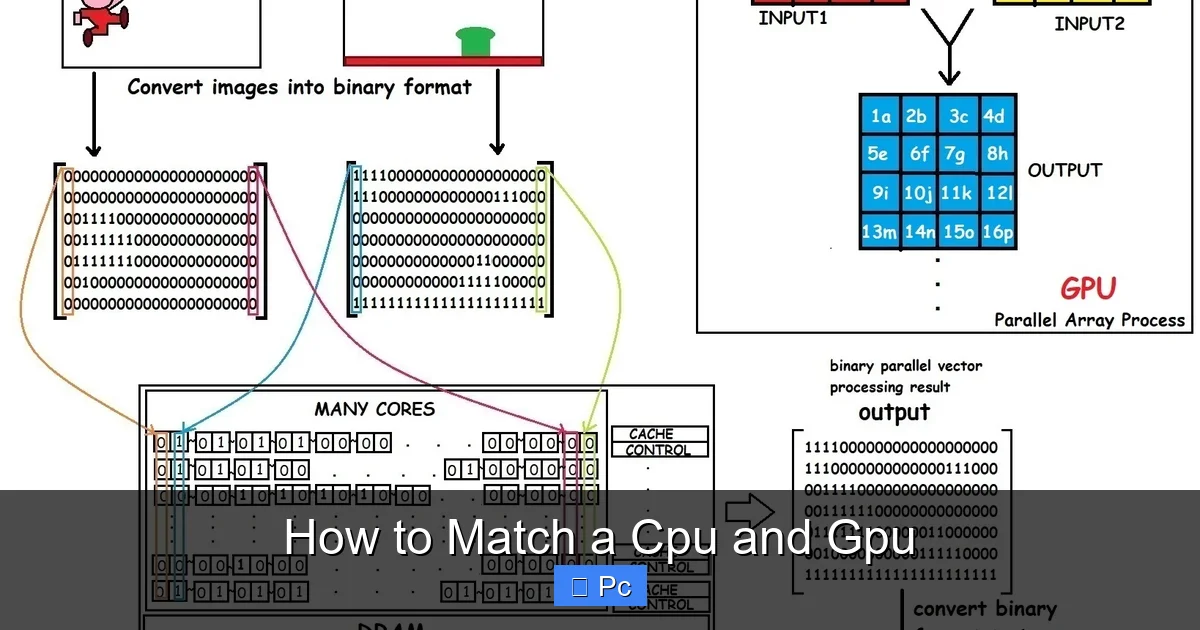
The CPU (Central Processing Unit) handles general tasks like running your operating system, managing applications, and processing game logic. The GPU (Graphics Processing Unit), on the other hand, is specialized for rendering images, animations, and video. In gaming and creative work, both need to work in harmony. If one is too powerful for the other, you get a bottleneck—where one component waits for the other, slowing everything down.
Think of it like a relay race. If one runner is much faster than the other, the team’s overall time won’t improve. The same goes for your PC. A high-end GPU like an RTX 4080 won’t reach its full potential if it’s paired with an old dual-core CPU. Conversely, a top-tier CPU like the Ryzen 9 7950X might be overkill for a budget GPU like a GTX 1650. Matching them properly ensures smooth performance, better frame rates, and a more enjoyable experience.
Understanding CPU and GPU Roles

Visual guide about How to Match a Cpu and Gpu
Image source: 64.media.tumblr.com
To match a CPU and GPU effectively, you first need to understand what each one does and how they interact.
What Does the CPU Do?
The CPU is often called the “brain” of the computer. It executes instructions from software, manages system resources, and handles tasks like physics calculations in games, AI behavior, and multitasking. In gaming, the CPU is responsible for things like:
- Game logic (enemy movements, scoring, etc.)
- Physics simulations (explosions, cloth movement)
- Loading game assets from storage
- Managing background processes (Discord, browsers, etc.)
A strong CPU ensures your game runs smoothly, especially in CPU-intensive titles like strategy games (e.g., Civilization VI), MMOs (e.g., World of Warcraft), or simulation games (e.g., Microsoft Flight Simulator). These games rely heavily on the CPU because they process thousands of units or complex environments in real time.
What Does the GPU Do?
The GPU is the “artist” of your PC. It’s designed to handle thousands of parallel tasks, making it perfect for rendering graphics. Its main jobs include:
- Rendering 3D scenes and textures
- Applying lighting, shadows, and effects
- Outputting frames to your monitor
- Accelerating video encoding and AI tasks
In gaming, the GPU determines how pretty your game looks and how many frames per second (FPS) you get. A powerful GPU can run games at 4K resolution with ray tracing enabled, while a weaker one might struggle at 1080p.
How They Work Together
The CPU and GPU don’t work in isolation. They communicate constantly. Here’s a simplified breakdown of how they interact during gameplay:
- The CPU prepares game data (positions, animations, AI decisions).
- It sends this data to the GPU via the motherboard’s PCIe slot.
- The GPU processes the data and renders the frame.
- The frame is sent to your monitor for display.
If the CPU is too slow, it can’t prepare data fast enough, causing the GPU to sit idle—this is a CPU bottleneck. If the GPU is too weak, it can’t render frames quickly, even if the CPU is sending data fast—this is a GPU bottleneck.
The goal is to minimize these bottlenecks by matching the CPU and GPU to similar performance levels.
Performance Tiers: Matching Components by Tier
Visual guide about How to Match a Cpu and Gpu
Image source: 64.media.tumblr.com
One of the easiest ways to match a CPU and GPU is to align them by performance tier. This ensures neither component is significantly stronger than the other.
Budget Tier (Under $300 Total)
Perfect for casual gaming, office work, and light multitasking. You’re aiming for 1080p gaming at 60 FPS in older or less demanding titles.
- CPU Examples: AMD Ryzen 3 5300G, Intel Core i3-12100
- GPU Examples: NVIDIA GTX 1650, AMD RX 6400
- Use Case: Fortnite, Minecraft, League of Legends, web browsing
These CPUs have strong integrated graphics, so you might not even need a dedicated GPU for basic tasks. But adding a budget GPU improves gaming performance.
Mid-Range Tier ($300–$600 Total)
Ideal for 1080p and 1440p gaming at high settings. Great for most modern games and light content creation.
- CPU Examples: AMD Ryzen 5 5600, Intel Core i5-12400
- GPU Examples: NVIDIA RTX 3060, AMD RX 7600
- Use Case: Cyberpunk 2077 (medium settings), Apex Legends, video editing in Premiere Pro
This tier offers the best value for most users. The CPU can handle game logic and multitasking, while the GPU delivers smooth frame rates at 1080p and decent performance at 1440p.
High-End Tier ($600–$1,000+ Total)
Built for 1440p and 4K gaming, streaming, and professional workloads like 3D rendering or video production.
- CPU Examples: AMD Ryzen 7 7700X, Intel Core i7-13700K
- GPU Examples: NVIDIA RTX 4070, AMD RX 7800 XT
- Use Case: 4K gaming, streaming on Twitch, Blender rendering
Here, both components are powerful enough to avoid bottlenecks. The CPU can handle encoding for streaming, while the GPU crushes high-resolution gaming.
Enthusiast Tier ($1,000+ Total)
For extreme performance, future-proofing, and professional-grade tasks.
- CPU Examples: AMD Ryzen 9 7950X, Intel Core i9-13900K
- GPU Examples: NVIDIA RTX 4090, AMD RX 7900 XTX
- Use Case: 4K 120+ FPS gaming, 8K video editing, AI development
This tier is overkill for most gamers but ideal for creators and power users. The CPU and GPU are so strong that they rarely bottleneck each other.
How to Avoid Bottlenecks
Visual guide about How to Match a Cpu and Gpu
Image source: developer.nvidia.com
A bottleneck occurs when one component limits the performance of another. It’s not always bad—some bottleneck is normal—but extreme imbalance hurts performance.
Signs of a CPU Bottleneck
- Low GPU usage (below 70%) in games
- High CPU usage (near 100%) while GPU usage is low
- Stuttering or frame drops in CPU-heavy games
- Slow loading times or poor multitasking
For example, pairing an RTX 4070 with a Ryzen 3 3200G will cause a severe CPU bottleneck. The GPU is waiting for the CPU to send data, so it can’t reach full performance.
Signs of a GPU Bottleneck
- High GPU usage (near 100%) with low CPU usage
- Low frame rates despite a powerful CPU
- Poor performance at high resolutions or settings
This is more common in budget builds. A Ryzen 5 5600 paired with a GTX 1650 will see the GPU maxed out while the CPU has plenty of headroom.
How to Check for Bottlenecks
Use monitoring tools like:
- MSI Afterburner: Shows real-time CPU and GPU usage, temperatures, and frame rates.
- HWMonitor: Tracks system performance and power draw.
- Bottleneck Calculators: Online tools like PC Builds or YouTuber’s bottleneck calculator estimate compatibility.
Run a demanding game or benchmark (like 3DMark) and watch the usage percentages. If one component is near 100% while the other is below 70%, you likely have a bottleneck.
Tips to Minimize Bottlenecks
- Match tiers: As discussed, pair components from the same performance tier.
- Consider resolution: Higher resolutions (1440p, 4K) rely more on the GPU, reducing CPU bottlenecks.
- Upgrade both together: If you upgrade your GPU, consider upgrading your CPU too.
- Use balanced settings: Don’t max out graphics settings if your GPU can’t handle them.
For example, if you’re gaming at 1080p, the CPU matters more. At 4K, the GPU takes over. So a strong CPU is more important for 1080p esports titles, while a strong GPU is key for 4K single-player games.
Matching for Specific Use Cases
Different tasks have different demands. Matching a CPU and GPU depends on what you’ll use your PC for.
Gaming
For gaming, the GPU is usually more important, but the CPU still plays a big role—especially at lower resolutions.
- 1080p Gaming: CPU matters more. Aim for a strong mid-range CPU (Ryzen 5 or i5) and a GPU like RTX 3060 or RX 7600.
- 1440p Gaming: Balanced approach. A Ryzen 7 or i7 with an RTX 4070 or RX 7800 XT works well.
- 4K Gaming: GPU-focused. Prioritize a high-end GPU (RTX 4080/4090) with a strong CPU to avoid bottlenecks.
Also consider refresh rate. A 144Hz monitor benefits from a strong CPU to push high frame rates in competitive games.
Content Creation (Video Editing, 3D Rendering)
Here, both CPU and GPU are critical.
- Video Editing: CPU handles timeline playback and effects; GPU accelerates rendering and encoding. A Ryzen 9 or i9 with an RTX 4070 or better is ideal.
- 3D Rendering: GPU rendering (e.g., Blender Cycles) benefits from a powerful GPU. CPU rendering (e.g., Cinema 4D) needs a strong multi-core CPU.
- Streaming: The CPU encodes the stream (unless using NVENC on NVIDIA GPUs). A Ryzen 7 or i7 with an RTX 3060 or better is a solid combo.
For example, a Ryzen 9 7900X paired with an RTX 4080 is excellent for 4K video editing and streaming simultaneously.
Productivity and Office Work
For everyday tasks, you don’t need high-end parts.
- CPU: A modern dual-core or quad-core (Ryzen 3 or i3) is sufficient.
- GPU: Integrated graphics (like AMD’s Vega or Intel UHD) are often enough. Add a budget GPU only if needed for light photo editing.
A Ryzen 5 5600G with integrated graphics is perfect for office work, web browsing, and light gaming.
Other Factors to Consider
Beyond performance, several other factors affect how well your CPU and GPU work together.
Power Supply (PSU)
Both CPU and GPU consume significant power. A weak PSU can cause crashes or limit performance.
- Check the power requirements of your CPU and GPU (listed on manufacturer sites).
- Add 100–200 watts for safety and future upgrades.
- Use a reliable 80 Plus Bronze or better PSU.
For example, an RTX 4070 recommends a 650W PSU, while an RTX 4090 needs 850W or more. Pair that with a high-wattage CPU, and you might need 1000W.
Cooling
High-end CPUs and GPUs generate heat. Poor cooling can cause thermal throttling, reducing performance.
- Use a good CPU cooler (air or liquid).
- Ensure good case airflow with intake and exhaust fans.
- Monitor temperatures with tools like HWInfo.
A Ryzen 9 7950X can hit 95°C under load without proper cooling. Pair it with a 240mm or 360mm AIO cooler.
Motherboard Compatibility
Your motherboard must support your CPU and have the right PCIe slot for your GPU.
- Check CPU socket compatibility (e.g., AM5 for Ryzen 7000, LGA 1700 for Intel 12th/13th Gen).
- Ensure the motherboard has a PCIe x16 slot (most do).
- Consider PCIe 4.0 or 5.0 support for future GPUs.
For example, a B650 motherboard supports Ryzen 7000 CPUs and PCIe 5.0, making it ideal for high-end builds.
Future-Proofing
Technology evolves fast. Aim for a balanced system that allows upgrades.
- Choose a motherboard with extra RAM slots and PCIe lanes.
- Pick a PSU with headroom for future GPU upgrades.
- Avoid pairing a high-end GPU with a low-end CPU—it limits upgrade paths.
For instance, a Ryzen 5 7600 with an RTX 4060 is a balanced mid-range build. Later, you can upgrade to an RTX 4080 without changing the CPU.
Real-World Examples of Matched Builds
Let’s look at three balanced PC builds for different budgets.
Budget Build: $600
- CPU: AMD Ryzen 5 5600 ($130)
- GPU: NVIDIA RTX 3050 ($200)
- Motherboard: B550 ($100)
- RAM: 16GB DDR4 3200MHz ($40)
- PSU: 550W 80 Plus Bronze ($60)
- Storage: 1TB NVMe SSD ($70)
This build handles 1080p gaming at 60+ FPS in most titles. The CPU and GPU are well-matched, with minimal bottleneck.
Mid-Range Build: $1,200
- CPU: Intel Core i5-13600K ($250)
- GPU: NVIDIA RTX 4070 ($550)
- Motherboard: Z790 ($200)
- RAM: 32GB DDR5 6000MHz ($100)
- PSU: 750W 80 Plus Gold ($120)
- Storage: 2TB NVMe SSD ($100)
Perfect for 1440p gaming and light content creation. The CPU and GPU are balanced, with room for overclocking.
High-End Build: $2,500
- CPU: AMD Ryzen 9 7950X ($550)
- GPU: NVIDIA RTX 4090 ($1,600)
- Motherboard: X670E ($300)
- RAM: 64GB DDR5 6000MHz ($200)
- PSU: 1000W 80 Plus Platinum ($200)
- Storage: 4TB NVMe SSD ($300)
This beast handles 4K 120+ FPS gaming, 8K video editing, and AI workloads. The CPU and GPU are top-tier and well-matched.
Conclusion: Build Smart, Play Harder
Matching a CPU and GPU isn’t just about picking the most expensive parts. It’s about balance. A well-matched system delivers smooth performance, avoids bottlenecks, and gives you the best value for your money.
Start by identifying your use case and budget. Then, choose components from the same performance tier. Use monitoring tools to check for bottlenecks, and don’t forget about power, cooling, and compatibility.
Whether you’re building a budget gaming rig or a high-end workstation, the key is harmony between your CPU and GPU. When they work together, your PC becomes a powerhouse—ready to tackle games, creativity, and everything in between.
So take your time, do your research, and build a system that’s not just powerful, but perfectly balanced.
Frequently Asked Questions
What happens if my CPU is too weak for my GPU?
If your CPU is too weak, it can’t send data to the GPU fast enough, causing low GPU usage and frame rates. This is called a CPU bottleneck and limits your gaming performance.
Can I pair a high-end CPU with a budget GPU?
Yes, but it’s usually not cost-effective. The GPU will limit performance, and you’ll waste money on a powerful CPU. It’s better to match tiers for balanced performance.
How do I know if my CPU and GPU are compatible?
Check the motherboard’s CPU socket and PCIe support. Also, ensure your PSU can handle both components’ power needs. Use compatibility checkers online for help.
Is it better to have a stronger CPU or GPU for gaming?
For most gaming, the GPU is more important, especially at higher resolutions. But at 1080p, the CPU plays a bigger role in frame rates.
Can I upgrade my GPU without upgrading my CPU?
Yes, but only if your CPU is still capable. Upgrading to a much stronger GPU may cause a bottleneck if the CPU can’t keep up.
What’s the best way to future-proof my CPU and GPU choice?
Choose a balanced mid-to-high-end build with a quality PSU and motherboard. This allows for future GPU upgrades without major bottlenecks.
