

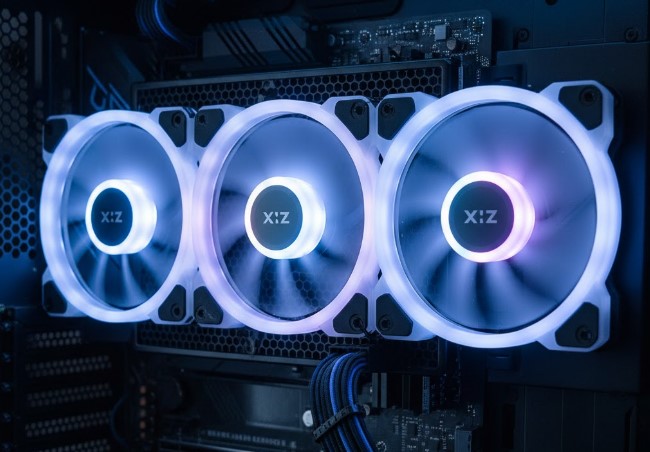
The number of case fans your PC needs depends on its components, usage, and airflow. For most gaming or workstation PCs, 2-4 fans are sufficient. Basic office PCs might only need 1-2.
Key Takeaways
- Understand PC airflow basics for optimal performance.
- Identify components that generate more heat.
- Determine fan needs based on PC usage.
- Aim for balanced intake and exhaust fans.
- Upgrade fans for better cooling and quieter operation.
How Many Case Fans Does Your PC Need? A Beginner’s Guide to Airflow
Ever wondered if your PC has enough cool air flowing through it? It’s a common question, especially for those building their first computer or looking to upgrade their existing setup. Too few fans, and your components can overheat, leading to performance issues or even damage. Too many, and you might be wasting money and creating unnecessary noise. This guide will break down exactly how many case fans your PC needs, making it simple to understand and implement. We’ll explore the importance of airflow, how different components affect cooling needs, and how to achieve that sweet spot for optimal performance and longevity. Let’s dive in and ensure your PC stays cool and happy!
Why PC Cooling Matters: The Importance of Airflow
Think of your PC’s case fans like the lungs of your computer. They work together to create a constant stream of air, pushing hot air out and pulling cooler air in. This process, known as airflow, is crucial for keeping your computer’s components within safe operating temperatures.
When components like your CPU (Central Processing Unit) and GPU (Graphics Processing Unit) work hard, they generate a significant amount of heat. If this heat isn’t dissipated effectively, it can lead to several problems:
- Performance Throttling: Components will intentionally slow themselves down to prevent overheating. This means your games might stutter, or your demanding applications might run slower than they should.
- Reduced Component Lifespan: Consistently high temperatures can degrade electronic components over time, shortening their lifespan.
- System Instability: Extreme heat can cause unexpected shutdowns, freezes, or even errors during operation.
A well-designed airflow system ensures that cool air enters the case, passes over heat-generating components, and then exits the case. This continuous cycle keeps everything running smoothly and efficiently.
Understanding Your PC Components and Their Heat Output
Not all PC components generate the same amount of heat. Understanding which parts are the main heat sources will help you determine how many fans you truly need.
The Major Heat Producers
- CPU (Central Processing Unit): This is the brain of your computer. When it’s crunching numbers or running complex processes, it gets very hot. Your CPU cooler (often a heatsink with a fan or a liquid cooler) primarily handles its heat, but case fans help remove the hot air it expels.
- GPU (Graphics Processing Unit): If you play video games, edit videos, or do any graphically intensive work, your GPU is likely your biggest heat producer. High-end GPUs can generate as much heat as a CPU, and their cooling solutions also rely on case airflow.
- Motherboard Components: The motherboard itself has various chips and power delivery components (like VRMs) that can get warm.
- Power Supply Unit (PSU): Your PSU converts wall power into usable power for your components. This process generates heat, and most PSUs have their own built-in fan to expel it.
Components That Don’t Generate Much Heat
- RAM (Random Access Memory): Generally produces minimal heat.
- Storage Drives (SSDs and HDDs): While they generate some heat, it’s usually not a significant factor for overall case cooling needs.
- Case Fans Themselves: While they consume a small amount of power and thus generate minimal heat, their primary function is to move air, not produce heat.
How to Determine Your PC Fan Needs: Factors to Consider
Now that you know why cooling is important and which components generate the most heat, let’s look at the key factors that influence how many case fans your PC needs.
1. Your PC’s Primary Use
This is one of the most crucial factors.
- Basic Office/Web Browsing PC: If your PC is mainly used for simple tasks like checking emails, browsing the web, or using productivity software (like Microsoft Word or Excel), the components won’t be stressed. A single intake fan at the front and a single exhaust fan at the rear might be perfectly adequate. Some smaller cases might even get by with just one fan.
- Gaming PC: Gaming, especially with modern titles, pushes your CPU and GPU to their limits for extended periods. This generates a substantial amount of heat. A good airflow setup with at least two intake fans and two exhaust fans is highly recommended. More powerful GPUs and CPUs might benefit from even more fans or higher-quality ones.
- Workstation/Professional Use (Video Editing, 3D Rendering, CAD): Similar to gaming, these tasks heavily utilize your CPU and GPU, leading to high heat output. A robust cooling solution with ample fans (potentially 3-5 or more) is essential to maintain performance during long rendering sessions.
- Overclocked PC: Overclocking involves pushing your CPU and/or GPU beyond their factory settings for increased performance. This significantly increases heat production. If you plan to overclock, you’ll need a more aggressive fan setup and potentially more powerful cooling hardware.
2. Your PC Case Design
The physical design of your PC case plays a massive role in airflow.
- Size: Larger cases generally have more space for fans and better natural airflow pathways. Smaller cases (like Mini-ITX builds) might be more restricted and require careful fan placement.
- Ventilation: Look for cases with mesh front panels, plenty of ventilation holes, and good spacing between components. Solid front panels can severely restrict airflow.
- Fan Mounts: Check how many fan mounts your case has and where they are located (front, rear, top, bottom, side). This determines the maximum number of fans you can install. Websites like Cooler Master provide detailed specifications for their cases, including fan support.
3. Your Existing Cooling Hardware
If you already have high-performance CPU and GPU coolers, they might already do a good job of exhausting heat directly.
- CPU Cooler: A large tower heatsink or an All-In-One (AIO) liquid cooler will have its own fans. The air these fans move needs to be replenished by case intake fans and the hot air they expel needs to be removed by case exhaust fans.
- GPU Cooler: Most GPUs come with their own robust cooling solutions. They typically draw air from inside the case and expel it. Good case airflow helps these GPU fans work more efficiently.
4. Ambient Room Temperature
The temperature of the room your PC is in also impacts its cooling. If your room is consistently warm, your PC will have to work harder to stay cool. In such cases, you might consider adding an extra fan or ensuring your existing fans are running at an optimal speed.
The Ideal Airflow Configuration: Intake vs. Exhaust
The goal is to create a balanced and efficient airflow path. This typically involves a combination of intake and exhaust fans.
- Intake Fans: These fans pull cool air from outside the case and direct it towards hot components. The most common locations for intake fans are the front and bottom of the case.
- Exhaust Fans: These fans push hot air out of the case. The most common locations for exhaust fans are the rear and top of the case.
The “Positive Pressure” vs. “Negative Pressure” Debate
This refers to the balance between intake and exhaust.
- Positive Pressure: More intake fans than exhaust fans. This means slightly more air is being pushed into the case than is being pulled out. The excess air will escape through any available openings. The benefit is that less dust is likely to enter the case through unfiltered gaps, as the outward air pressure helps push dust away.
- Negative Pressure: More exhaust fans than intake fans. This creates a slight vacuum, causing air to be sucked into the case through any unfiltered openings, potentially drawing in more dust.
- Neutral Pressure: An equal number of intake and exhaust fans. This is often considered the easiest to manage for beginners.
For dust control, a slight positive pressure is often recommended. However, for most users, achieving a balance is the primary goal.
How Many Case Fans Do You Really Need? Recommendations
Based on the factors above, here are some general recommendations for the number of case fans needed for different PC setups. These are starting points, and individual needs may vary.
Entry-Level / Basic Office PC: 1-2 Fans
- Configuration: Typically, one 120mm fan at the front for intake and one 120mm fan at the rear for exhaust.
- Justification: These PCs don’t generate a lot of heat, so a minimal airflow setup is usually sufficient. Ensure the front fan is pulling air in, and the rear fan is pushing air out.
Mid-Range Gaming / General Use PC: 2-4 Fans
- Configuration: Two 120mm or 140mm fans at the front for intake, and one 120mm fan at the rear for exhaust. A top-mounted fan for exhaust can also be beneficial.
- Justification: This setup provides a good balance of cool air intake and hot air exhaust, suitable for gaming and everyday demanding tasks. The front fans ensure fresh air reaches the GPU and motherboard, while the rear and top fans efficiently remove CPU and general case heat.
High-End Gaming / Workstation PC: 4-6+ Fans
- Configuration: Two or three 120mm or 140mm fans at the front for intake, one or two 120mm fans at the rear/top for exhaust. Additional fans can be mounted on the top or even bottom of the case for further airflow optimization.
- Justification: For systems with powerful, heat-generating components or those that are overclocked, a more robust airflow solution is necessary to keep temperatures in check and maintain peak performance. This setup ensures ample cool air reaches components and hot air is expelled quickly.
Small Form Factor (SFF) PCs: Varies, often 2-3 Fans
- Configuration: This depends heavily on the SFF case design. Some might use a “sandwich” layout with intake from the front and exhaust out the top/rear for the CPU and GPU separately. Others might be more traditional.
- Justification: SFF cases have limited space, making airflow management critical and often challenging. Careful fan selection and placement are paramount.
Table: Fan Recommendations Based on PC Use
Below is a quick reference table to help you decide.
| PC Usage Type | Recommended Intake Fans | Recommended Exhaust Fans | Total Recommended Fans | Notes |
|---|---|---|---|---|
| Basic Office / Web Browsing | 1 (Front) | 1 (Rear) | 2 | Ensure clear path for air. |
| General Use / Light Gaming | 1-2 (Front) | 1 (Rear) | 2-3 | Balance is key. |
| Mid-Range Gaming / Productivity | 2 (Front) | 1 (Rear), 1 (Top) | 4 | Good airflow path for CPU & GPU. |
| High-End Gaming / Workstation | 2-3 (Front) | 1-2 (Rear), 1-2 (Top) | 4-6+ | Maximizes cooling for demanding tasks. |
| Overclocked Systems | 2-3 (Front) | 2-3 (Rear/Top) | 4-6+ | Aggressive cooling required. |
Fan Sizes and Airflow
Case fans come in various sizes, most commonly 120mm and 140mm.
- 120mm Fans: Standard size, widely available, and work well for most applications.
- 140mm Fans: Larger fans can move more air at lower RPMs (revolutions per minute), meaning they can be quieter while providing similar or better airflow compared to smaller fans.
Most modern PC cases support both 120mm and 140mm fans, often allowing you to mix and match. If your case supports 140mm fans, using them for intake can be particularly beneficial for moving a lot of air quietly.
Pro Tip
When installing fans, pay close attention to the arrow indicators on the side of the fan housing. These arrows show the direction of airflow and which way the fan spins. Ensure your intake fans are blowing air into the case, and your exhaust fans are blowing air out of the case.
Where to Place Your Case Fans for Optimal Airflow
Proper placement is as important as the number of fans you have.
Front Panel: Intake
- Mounting fans at the front of your case is standard practice for intake. This draws cool ambient air directly into the chassis, flowing over your motherboard and GPU.
- If your case has a mesh front, this is the ideal spot. If it has a solid front, airflow might be restricted.
Rear Panel: Exhaust
- The rear fan is almost always an exhaust fan. It pulls hot air away from your CPU cooler and motherboard area and expels it from the case.
- A 120mm fan is typical here.
Top Panel: Exhaust
- Top-mounted fans are excellent for exhausting hot air that rises naturally within the case. This is particularly effective for removing CPU heat, especially if you’re using an AIO liquid cooler with top-mounted radiator fans.
- Both 120mm and 140mm fans are often supported here.
Bottom Panel: Intake
- Some cases have mounts on the bottom, often near the PSU shroud.
- Mounting fans here can provide additional cool air to the GPU, acting as supplementary intake. Ensure there’s enough clearance underneath the case for air to be drawn in effectively.
Side Panel: Can be Intake or Exhaust
- Side panel fan mounts are less common and their use depends heavily on the case layout.
- In some layouts, they might act as intake to directly feed air to the GPU. In others, they might be used for exhaust. Always consider how this placement affects the overall airflow path.
When to Add More Fans
You might need to add more fans if you experience any of the following:
- High Temperatures: If your CPU or GPU temperatures consistently run high (e.g., above 80°C under load), even with your current fan setup. You can monitor temperatures using software like HWMonitor or MSI Afterburner.
- Performance Throttling: If you notice your PC slowing down during demanding tasks and suspect it’s due to heat.
- Noisy Operation: Sometimes, if you don’t have enough fans, your existing fans might have to spin faster to compensate, leading to more noise. Adding more fans and running them at lower speeds can actually make your system quieter.
- Upgrading Components: If you install a more powerful CPU or GPU, your cooling needs will increase, and you might need to add more fans.
FAQ: Your Case Fan Questions Answered
Q1: Do I need a fan for every empty spot in my case?
Not necessarily. While more fans can improve cooling, the goal is an efficient airflow path rather than just filling every mount. Too many fans in the wrong configuration can sometimes hinder airflow or create noise. Focus on balanced intake and exhaust. According to Linus Tech Tips, optimizing airflow with the right number and placement of fans is more critical than simply maxing out fan mounts.
Q2: What’s the difference between PWM and non-PWM fans?
PWM (Pulse Width Modulation) fans have a 4-pin connector and can have their speed adjusted automatically by your motherboard based on temperature. Non-PWM (3-pin) fans typically run at a fixed speed or can only be controlled by voltage adjustments, which is less precise. PWM fans offer better control over fan speed and noise levels.
Q3: Can too many fans cause problems?
Yes, potentially. If not configured correctly, too many fans can create turbulence, increasing noise. If you have significantly more intake than exhaust (strong positive pressure), air might exhaust through unfiltered gaps, bringing dust in. If you have significantly more exhaust than intake (negative pressure), dust can be drawn in through any unsealed opening.
Q4: Should my intake fans be stronger than my exhaust fans? Or vice versa?
For most users, a balanced approach (similar airflow from intake and exhaust) or a slight positive pressure (more intake airflow) is recommended. This helps control dust. Having significantly stronger exhaust fans can lead to negative pressure, drawing dust into the case. The key is balance and ensuring adequate airflow to your main components.
Q5: How do I know if my current fan setup is good enough?
The best way is to monitor your component temperatures. Under idle conditions (when your PC is not doing much), your CPU temperature should typically be below 50°C. Under load (while gaming or running demanding software), most CPUs and GPUs should ideally stay below 80°C. If temperatures are consistently higher, you may need to improve your airflow.
Q6: Do I need different fans for intake and exhaust?
Not necessarily. Most fans can function as either intake or exhaust. However, some “airflow” optimized fans are designed to move a lot of air at lower static pressure, making them great for open intakes. “Static pressure” optimized fans are designed to push air through restrictions (like radiators or dense dust filters) and are often better suited for rear or top exhaust, or radiator mounting.
Conclusion
Figuring out exactly how many case fans your PC needs boils down to understanding your system’s heat output and the airflow dynamics within your case. For a basic PC, one or two fans will likely suffice. However, if you’re a gamer, content creator, or running demanding applications, investing in 3-6 fans (or even more for high-end rigs) with a balanced intake-exhaust configuration is a smart move. Remember to consider your case’s design, fan sizes, and placement to create an optimal cooling environment. Keeping your components cool not only ensures peak performance but also extends their lifespan, making your PC a reliable workhorse or gaming companion for years to come. Monitor your temperatures, and don’t be afraid to adjust your fan setup as your needs evolve.
