

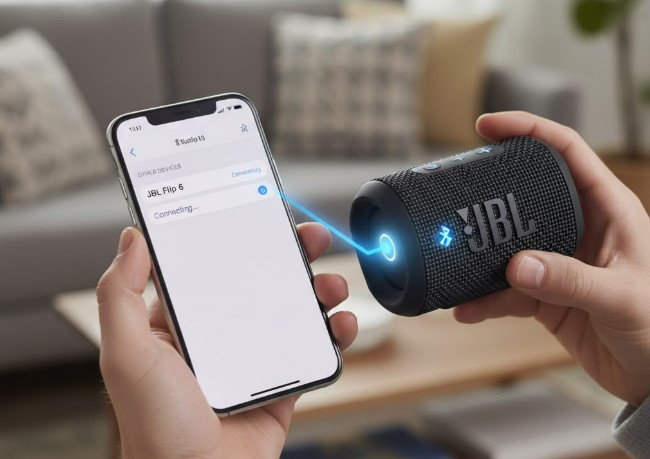
Instantly connect your JBL speaker to your iPhone by enabling Bluetooth on both devices, putting your JBL speaker in pairing mode, and selecting it from your iPhone’s Bluetooth list. This simple process ensures you’re enjoying your music in minutes.
Key Takeaways
- Ensure Bluetooth is on for both iPhone and JBL speaker.
- Activate pairing mode on your JBL speaker.
- Select the JBL speaker from iPhone’s Bluetooth settings.
- Troubleshoot common connection issues easily.
- Maintain optimal sound quality by following best practices.
Introduction: Enjoy Your Music Seamlessly with a JBL Speaker
There’s nothing quite like blasting your favorite tunes from a quality speaker. JBL speakers are renowned for their impressive sound and portability, making them a popular choice for music lovers. Connecting your JBL speaker to your iPhone should be a straightforward process, but sometimes technology can feel a bit baffling, right? You might wonder, “How do I get my iPhone and JBL speaker to talk to each other?” Don’t worry! This guide will walk you through how to connect your JBL speaker to your iPhone instantly, turning any space into your personal concert hall. We’ll cover everything from the basic steps to handy tips for a smooth and reliable connection.
Getting Started: What You’ll Need
Before we dive into the connection process, let’s make sure you have everything ready. This ensures a quick and hassle-free experience.
- Your JBL Speaker: Make sure it’s charged or plugged in. A low battery can sometimes interfere with the pairing process.
- Your iPhone: Ensure your iPhone is also charged and that you know how to access its Bluetooth settings.
- The Speaker’s Manual (Optional): While this guide covers most models, your speaker’s manual can be a helpful resource if you encounter specific issues or want to explore advanced features. You can usually find these manuals online on the JBL support website. For instance, accessing the JBL Charge 5 manual helps understand its specific pairing button.
Step-by-Step Guide: How To Connect JBL Speaker To iPhone
Connecting your JBL speaker to your iPhone is primarily done via Bluetooth. Follow these simple steps for an instant connection.
Step 1: Enable Bluetooth on Your iPhone
Bluetooth is the wireless technology that allows your iPhone and JBL speaker to communicate. You need to make sure it’s turned on.
- Open the Settings app on your iPhone. You’ll find this icon on your home screen.
- Tap on Bluetooth.
- If Bluetooth is off, toggle the switch to the ON position. The switch will turn green.
- Your iPhone will now start searching for nearby Bluetooth devices.
You can also quickly access Bluetooth settings from the Control Center. Swipe down from the top-right corner of your screen (on iPhones with Face ID) or swipe up from the bottom (on iPhones with a Home button) to open Control Center. Then, tap and hold the Wi-Fi icon to reveal Bluetooth controls, and tap the Bluetooth icon to turn it on.
Step 2: Put Your JBL Speaker in Pairing Mode
This is a crucial step that makes your JBL speaker discoverable by your iPhone. The method for entering pairing mode can vary slightly depending on your JBL model, but it generally involves a button press.
- For most JBL portable speakers (like Flip, Charge, Xtreme, Go series): Look for a dedicated Bluetooth button on the speaker. It often has the Bluetooth symbol ( ). Press and hold this button for a few seconds until you hear a sound or see a light flashing, indicating it’s in pairing mode.
- For JBL Party Speakers: Some larger party speakers might have a Bluetooth button that you press once to activate pairing mode, or it might automatically enter pairing mode when turned on if not already connected to a device.
- Check your speaker’s indicator light: Most JBL speakers have an LED indicator light near the Bluetooth button. This light will typically blink rapidly or slowly change color to signify it’s ready to pair.
If you’re unsure about your specific model, consult your JBL speaker’s manual or search online for “[Your JBL Speaker Model] pairing mode.”
Step 3: Connect Your JBL Speaker from Your iPhone
Now that both devices are ready, it’s time to make the connection.
- On your iPhone, under the Bluetooth settings, you should see a list of “Other Devices” or “Available Devices.”
- Look for the name of your JBL speaker in this list. It will usually be something like “JBL Flip 5,” “JBL Charge 4,” or simply “JBL [Model Number].”
- Tap on the name of your JBL speaker.
- Your iPhone will attempt to connect. You’ll likely hear a confirmation sound from your JBL speaker, and its Bluetooth indicator light will turn solid, indicating a successful connection.
- The JBL speaker should now appear under “My Devices” or “Paired Devices” in your iPhone’s Bluetooth settings.
Congratulations! Your JBL speaker and iPhone are now connected. You can start playing music, podcasts, or any audio from your iPhone through your JBL speaker.
Troubleshooting Common Connection Issues
While connecting is usually instant, sometimes you might run into hiccups. Here are solutions for common problems:
Speaker Not Appearing in iPhone Bluetooth List
- Ensure pairing mode is active: Double-check that your JBL speaker is actually in pairing mode. The indicator light should be blinking.
- Check speaker’s connection limit: Some JBL speakers can only pair with one device at a time or remember a limited number of previously paired devices. Try turning off Bluetooth on any other devices recently connected to the speaker.
- Restart both devices: Turn off Bluetooth on your iPhone, then turn it back on. Also, power cycle your JBL speaker (turn it off and then on again).
- Forget the device and re-pair: If your speaker has been connected before, go to your iPhone’s Bluetooth settings, tap the ‘i’ icon next to your JBL speaker’s name, and select “Forget This Device.” Then, try pairing again from scratch.
Connection is Intermittent or Audio is Choppy
- Reduce distance: Bluetooth has a limited range. Ensure your iPhone is relatively close to your JBL speaker, ideally within 30 feet (10 meters), with minimal obstructions. Walls and other electronic devices can interfere.
- Minimize interference: Other wireless devices (like microwaves, Wi-Fi routers, or other Bluetooth devices) can cause interference. Try moving away from potential sources of interference.
- Update iPhone software: Outdated iOS software can sometimes cause connectivity issues. Go to Settings > General > Software Update to check for and install any available updates.
- Check speaker firmware: While less common for basic connections, some JBL speakers have firmware updates available via the JBL Connect app. Ensure your speaker has the latest firmware installed.
Speaker Connects but No Sound
- Check volume levels: Ensure the volume is turned up on both your iPhone and your JBL speaker. Sometimes, one might be muted or set very low.
- Verify audio output: On your iPhone, check the audio output settings. While playing audio, tap the AirPlay icon (a triangle with a circle above it) in the app you’re using (like Apple Music or Spotify) or in Control Center, and make sure your JBL speaker is selected as the output device.
- Restart the app: Close the app you’re using and reopen it, or try a different audio app to see if the issue persists.
Pro Tip: Maintain Optimal Sound Quality and Battery Life
To get the best experience from your JBL speaker and iPhone connection, keep them within close proximity. Obstacles like walls or even the human body can weaken the Bluetooth signal, leading to dropped connections or choppy audio. For extended listening sessions, ensure your JBL speaker is charged. Many JBL speakers offer impressive battery life, but keeping them topped up guarantees uninterrupted music. Also, remember to turn off Bluetooth on both devices when not in use to conserve battery power.
JBL Speaker vs. Other Bluetooth Speakers for iPhone
JBL speakers are fantastic, but how do they stack up against other Bluetooth speakers when pairing with an iPhone? The good news is that Bluetooth pairing is a standardized technology. The process described above for connecting a JBL speaker to an iPhone is virtually identical for most other reputable Bluetooth speaker brands. However, JBL often excels in specific areas that make them a favored choice:
| Feature | JBL Speakers (General) | Other Bluetooth Speakers (General) | iPhone Compatibility |
|---|---|---|---|
| Ease of Pairing | Very easy, standard Bluetooth pairing. Often quick connection. | Very easy, standard Bluetooth pairing. Varies by brand. | Universal compatibility with Bluetooth 4.0 and later. |
| Sound Quality | Known for powerful bass and clear highs, often party-oriented sound. | Varies greatly. Some focus on clarity, others on portability. | Delivers high-quality audio streams to any compatible speaker. |
| Durability & Portability | Many models are rugged, waterproof (e.g., IPX7 rating), and highly portable. | Varies significantly by model and brand. | iPhone itself is water-resistant, but speaker choice impacts overall ruggedness. |
| Battery Life | Often boasts long battery life (e.g., 12-24 hours). | Typically 5-20 hours, depending on the model. | iPhone battery life concerns are separate from speaker connection. |
| App Integration | Some models work with the JBL Connect app for advanced features (stereo pairing, EQ). | May have proprietary apps for customization. | iOS generally doesn’t integrate directly with speaker-specific apps, but handles Bluetooth audio. |
As you can see from the table, the core process of connecting to an iPhone remains consistent. JBL often provides a compelling package of sound, durability, and battery life that appeals to a broad audience. For more detailed comparisons, resources like RTINGS.com offer in-depth analysis of various speaker models.
Frequently Asked Questions (FAQs)
Can I connect multiple JBL speakers to one iPhone at the same time?
Generally, an iPhone can only stream audio to one Bluetooth speaker at a time through standard Bluetooth. However, some JBL speakers, like those compatible with JBL Connect+ or PartyBoost, allow you to wirelessly link multiple JBL speakers together. You would connect one speaker to your iPhone, and then use that speaker’s pairing function (often via the JBL Connect app or a specific button sequence) to connect to other compatible JBL speakers. Your iPhone still only sees the primary connected speaker.
How far can my JBL speaker be from my iPhone?
The standard Bluetooth range is typically around 30 feet (10 meters) without any obstructions. However, this range can be significantly reduced by physical barriers like walls, doors, or even your own body. For the most stable connection and best audio quality, it’s recommended to keep your iPhone and JBL speaker within about 10-15 feet of each other.
Why is my JBL speaker not charging when plugged in?
Several factors could be at play: ensure you are using the correct charging cable and power adapter recommended by JBL. Check the charging port for any debris or damage. Try a different power outlet or USB port. If the speaker still doesn’t charge, the battery may have reached the end of its life, or there might be an internal issue. In this case, contacting JBL support or a qualified repair service might be necessary.
Does my JBL speaker need an app to connect to iPhone?
No, for basic audio playback, your JBL speaker does not need a dedicated app to connect to your iPhone. The standard Bluetooth pairing process, as outlined in this guide, is sufficient. However, some JBL models offer companion apps (like the JBL Portable app or older JBL Connect app) that unlock advanced features such as firmware updates, stereo pairing with another speaker, or customizing sound profiles. These are optional enhancements, not requirements for basic connection.
How do I update my JBL speaker firmware using my iPhone?
To update your JBL speaker’s firmware, you’ll typically need to download the official JBL app compatible with your speaker model. Search for “JBL Portable” (or similar, depending on your speaker) in the Apple App Store. Once downloaded and installed, open the app, and follow the on-screen instructions to connect your speaker (it will likely guide you through Bluetooth pairing within the app). The app will then check for and guide you through any available firmware updates for your speaker.
What Bluetooth version do JBL speakers use?
Most modern JBL portable speakers utilize Bluetooth 4.2 or Bluetooth 5.0. These versions offer improved power efficiency, a more stable connection, and faster data transfer compared to older versions. iPhones from iPhone 4s onwards support Bluetooth 4.0 or higher, so compatibility with recent JBL speakers is generally excellent. For instance, the Bluetooth SIG website details the benefits of these newer standards.
Conclusion: Your Music, On the Go
Connecting your JBL speaker to your iPhone is a simple and rewarding process that unlocks a world of portable, high-quality sound. By following the straightforward steps of enabling Bluetooth on both devices, putting your JBL speaker into pairing mode, and selecting it from your iPhone’s list, you can enjoy your favorite audio content almost instantly. Remember to troubleshoot common issues by checking your speaker’s pairing status, proximity, and potential interference. With a little care and these handy tips, you’ll be seamlessly streaming your playlists, podcasts, and more, anytime and anywhere, transforming your listening experience.
