

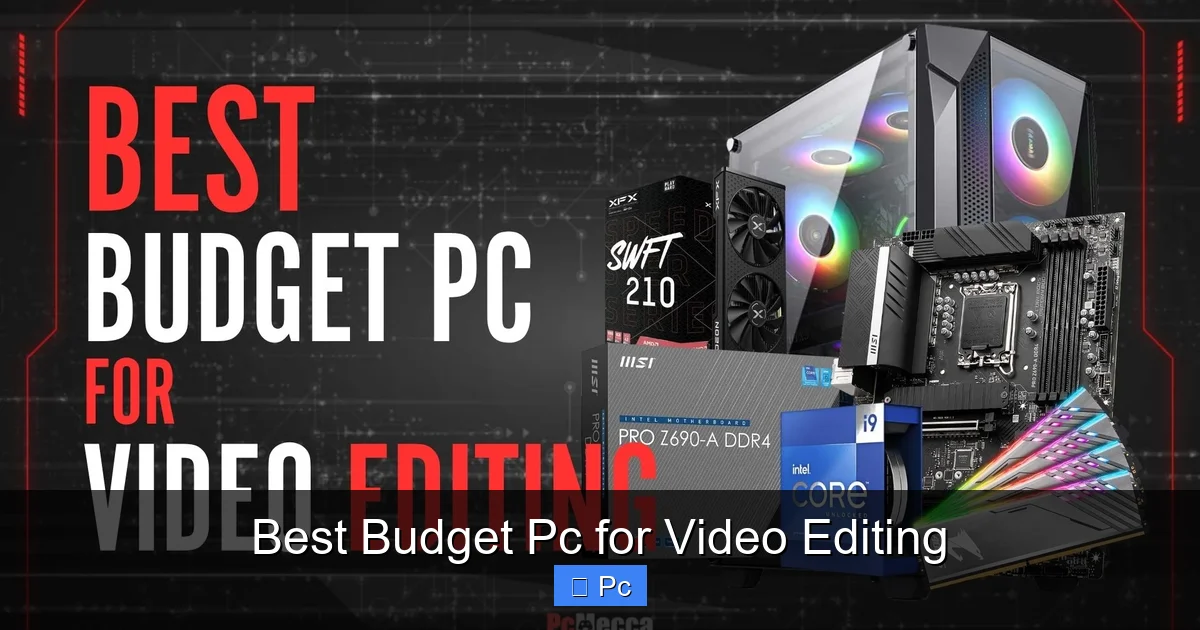
Finding the best budget PC for video editing doesn’t mean sacrificing performance. With the right components, you can edit 1080p and even 4K videos smoothly without spending thousands. This guide breaks down top picks, key specs, and smart upgrades to help you build or buy a capable editing machine on a budget.
Key Takeaways
- Prioritize a strong CPU: A multi-core processor like the AMD Ryzen 5 or Intel Core i5 is essential for smooth video rendering and multitasking.
- Invest in a dedicated GPU: Even entry-level graphics cards like the NVIDIA GTX 1660 or RTX 3050 dramatically improve playback and effects performance.
- 16GB RAM is the sweet spot: This amount handles most editing software and multitasking needs without overpaying.
- Fast SSD storage is a must: A 500GB–1TB NVMe SSD ensures quick file access and faster project loading times.
- Prebuilt vs. custom build: Prebuilt PCs offer convenience, but building your own often gives better value and upgrade flexibility.
- Cooling and power matter: Good airflow and a reliable PSU prevent overheating and ensure stable performance during long edits.
- Future-proof with upgradeability: Choose a motherboard and case that support future RAM, GPU, or storage upgrades.
📑 Table of Contents
- Why a Budget PC Can Still Be a Video Editing Powerhouse
- What Makes a Great Budget Video Editing PC?
- Top Budget Prebuilt PCs for Video Editing
- Best Budget Custom Builds for Video Editing
- Software Considerations for Budget Editors
- Tips to Maximize Performance on a Budget PC
- Future-Proofing Your Budget Build
- Conclusion: You Don’t Need to Break the Bank
Why a Budget PC Can Still Be a Video Editing Powerhouse
You don’t need a $3,000 workstation to edit videos like a pro. In fact, with today’s hardware, you can build or buy a capable video editing PC for under $1,000 that handles 1080p and even 4K footage with ease. The key is knowing where to spend your money—and where you can save.
Video editing is one of the most demanding tasks you can throw at a computer. It requires fast processing, quick storage, and strong graphics power. But unlike gaming, where every frame per second counts, video editing benefits more from balanced performance across components. That means you can get excellent results without maxing out your budget.
The good news? Technology has advanced rapidly. CPUs are more efficient, GPUs are more affordable, and SSDs are now standard even in budget builds. This means you can find a PC that edits videos smoothly, renders quickly, and still leaves room in your wallet for a good microphone or camera.
What Makes a Great Budget Video Editing PC?
Visual guide about Best Budget Pc for Video Editing
Image source: pcmecca.com
When shopping for the best budget PC for video editing, it’s easy to get overwhelmed by specs and marketing buzzwords. But focus on the essentials: CPU, GPU, RAM, storage, and cooling. These five components make the biggest difference in performance.
Let’s break them down.
CPU: The Brain of Your Editing Rig
The central processing unit (CPU) is the heart of your video editing workflow. It handles tasks like timeline scrubbing, effects rendering, and encoding. For budget builds, you want a processor with at least six cores and strong single-thread performance.
AMD’s Ryzen 5 5600 or 7600 series offer excellent value. They deliver six to eight cores at a great price, making them ideal for editing in Adobe Premiere Pro, DaVinci Resolve, or Final Cut Pro (if you’re on Mac). Intel’s Core i5-12400 or i5-13400 are also solid choices, especially if you prefer Intel’s platform.
Avoid older or low-power CPUs like Intel Celeron or AMD Athlon. They’ll struggle with even basic editing tasks.
GPU: Accelerating Your Workflow
A dedicated graphics card (GPU) isn’t just for gamers. Modern video editing software uses GPU acceleration to speed up effects, color grading, and playback. Without a good GPU, your timeline may lag, and rendering times will suffer.
For budget builds, the NVIDIA GeForce GTX 1660 Super or RTX 3050 are excellent starting points. They support hardware encoding (NVENC), which speeds up exports in Premiere Pro and DaVinci Resolve. AMD’s RX 6600 is another great option, offering strong performance for the price.
Even if you’re not doing heavy effects work, a GPU helps keep your timeline smooth and responsive. Don’t skip it.
RAM: Keeping Everything Running Smoothly
Video editing software loves RAM. When you’re working with high-resolution footage, multiple layers, and effects, your system needs memory to keep everything in play.
16GB of DDR4 or DDR5 RAM is the sweet spot for budget video editing. It’s enough for 1080p and 4K projects without breaking the bank. If you plan to work with 6K or 8K footage, or run multiple apps at once (like Photoshop and Chrome), consider 32GB—but that’s usually overkill for most users.
Make sure your RAM runs at a decent speed (at least 3200MHz for DDR4). Faster RAM helps with overall system responsiveness.
Storage: Speed and Capacity Matter
Nothing slows down editing like slow storage. Traditional hard drives (HDDs) are cheap but sluggish. For video editing, you need fast access to large files.
A 500GB to 1TB NVMe SSD is ideal. It loads projects quickly, allows smooth playback, and reduces render times. Use the SSD for your operating system, editing software, and active projects.
For long-term storage, add a 2TB HDD. It’s perfect for archiving old footage and backups. This combo gives you speed and space without overspending.
Cooling and Power: Stability Under Load
Video editing pushes your PC hard. Long renders can cause overheating, leading to throttling or crashes. A good cooling system keeps your CPU and GPU running at peak performance.
Most budget CPUs come with stock coolers, which are fine for light use. But if you’re doing long edits or live streaming, consider an aftermarket air cooler like the Cooler Master Hyper 212. It’s affordable and much quieter.
Your power supply unit (PSU) should be reliable and have enough wattage. A 550W–650W 80+ Bronze PSU is sufficient for most budget builds. Brands like EVGA, Corsair, and Seasonic offer good value.
Top Budget Prebuilt PCs for Video Editing

Visual guide about Best Budget Pc for Video Editing
Image source: i.ytimg.com
If you’d rather not build your own PC, prebuilt systems are a convenient option. Many manufacturers now offer capable machines under $1,000 that are perfect for video editing.
HP Pavilion Gaming Desktop
The HP Pavilion Gaming Desktop is a surprise winner in the budget editing space. It often comes with an AMD Ryzen 5 5600G or Intel Core i5-12400, 16GB RAM, and a GTX 1660 Super. While marketed for gaming, its specs translate well to video work.
Pros: Solid performance, compact design, good cooling.
Cons: Limited upgrade space, bloatware pre-installed.
Price: Around $700–$800 on sale.
This PC handles 1080p editing with ease and can manage 4K with optimized settings. It’s a great entry point for YouTubers and content creators.
Dell Inspiron Desktop
Dell’s Inspiron line offers customizable desktops that can be configured for video editing. Look for models with an Intel Core i5-13400, 16GB RAM, and an RTX 3050.
Pros: Reliable build, good customer support, easy to upgrade.
Cons: Can get pricey with upgrades, basic design.
Price: Starts around $750, but aim for $900–$1,000 for editing-ready specs.
The Inspiron is a solid choice if you want a clean, no-frills machine from a trusted brand.
Lenovo IdeaCentre 5
The Lenovo IdeaCentre 5 is another budget-friendly option. It often features an AMD Ryzen 5 7600, 16GB DDR5 RAM, and an RX 6600 GPU. The DDR5 RAM gives it a slight edge in future-proofing.
Pros: Modern components, quiet operation, sleek design.
Cons: Limited GPU upgrade path, smaller case.
Price: Around $850–$950.
This PC is ideal for editors who want a balance of performance and aesthetics.
Best Budget Custom Builds for Video Editing

Visual guide about Best Budget Pc for Video Editing
Image source: pcgamesn.com
Building your own PC gives you the best value and control over components. Here’s a sample build under $900 that delivers excellent video editing performance.
Budget Build: Under $900
- CPU: AMD Ryzen 5 5600 – $130
- Motherboard: MSI B550M PRO-VDH WiFi – $100
- RAM: 16GB (2x8GB) DDR4-3200 – $35
- GPU: NVIDIA GTX 1660 Super – $180
- Storage: 1TB NVMe SSD – $60
- PSU: EVGA 600 W1, 80+ White – $50
- Case: Cooler Master MasterBox Q300L – $50
- CPU Cooler: Stock (included) or Cooler Master Hyper 212 – $40
Total: ~$645 (without cooler), ~$685 (with cooler)
This build handles 1080p editing smoothly and can manage 4K with proxy workflows. It’s quiet, efficient, and easy to upgrade later.
Mid-Range Build: Under $1,100
For a bit more power, step up to this build:
- CPU: AMD Ryzen 5 7600 – $200
- Motherboard: ASRock B650M-HDV/M.2 – $120
- RAM: 32GB (2x16GB) DDR5-5600 – $80
- GPU: NVIDIA RTX 3050 – $220
- Storage: 1TB NVMe SSD + 2TB HDD – $100
- PSU: Corsair CX650M, 80+ Bronze – $70
- Case: Fractal Design Focus G – $60
- CPU Cooler: Thermalright Assassin X 120 – $35
Total: ~$885
This build is perfect for 4K editing, color grading, and light effects work. The extra RAM and DDR5 support make it more future-proof.
Software Considerations for Budget Editors
Your hardware is only part of the equation. The software you use also impacts performance—especially on a budget PC.
Free and Affordable Editing Software
You don’t need expensive software to edit like a pro. Several free or low-cost options run well on budget systems.
DaVinci Resolve is a standout. It’s used by Hollywood editors and offers professional color grading, audio post-production, and visual effects—all for free. The free version is incredibly powerful and runs well on mid-range hardware.
HitFilm Express is another great free option. It combines editing and VFX tools, making it ideal for YouTubers and indie filmmakers.
For a simpler experience, Shotcut and OpenShot are open-source editors that handle 1080p and 4K footage. They’re lightweight and perfect for beginners.
Paid Software That’s Worth It
If you’re serious about editing, Adobe Premiere Pro is the industry standard. It integrates well with other Adobe apps like After Effects and Photoshop. However, it can be demanding on older systems.
To get the most out of Premiere on a budget PC, use proxy workflows. This means editing with lower-resolution copies of your footage and switching to full resolution only for export. It keeps your timeline smooth even with 4K files.
Final Cut Pro is another excellent choice—but only if you’re on a Mac. It’s optimized for Apple hardware and runs incredibly efficiently.
Tips to Maximize Performance on a Budget PC
Even the best budget PC can struggle if it’s not optimized. Here are practical tips to get the most out of your system.
Use Proxy Workflows
Proxy editing is a game-changer for budget systems. Most editing software lets you create low-res copies of your footage for editing. This reduces the load on your CPU and GPU, allowing smooth playback and scrubbing.
In Premiere Pro, go to Project Settings > Ingest Settings and enable “Create Proxies.” Choose a format like ProRes Proxy or H.264 Low Resolution. Once editing is done, switch back to full resolution for export.
Keep Your System Clean
Over time, your PC can slow down due to dust, background apps, and fragmented files. Regular maintenance keeps it running fast.
Clean your case every 3–6 months to prevent dust buildup. Use compressed air to blow out fans and heatsinks.
Close unnecessary programs while editing. Chrome, Spotify, and Discord can eat up RAM and CPU. Use Task Manager (Windows) or Activity Monitor (Mac) to see what’s running.
Update Drivers and Software
Outdated GPU drivers can cause crashes and poor performance. Check for updates monthly.
NVIDIA and AMD release regular driver updates that improve stability and performance—especially for creative apps. Use GeForce Experience (NVIDIA) or AMD Adrenalin to keep drivers current.
Also, keep your editing software updated. New versions often include performance improvements and bug fixes.
Optimize Export Settings
Exporting can take hours on a budget PC—unless you optimize your settings.
Use hardware encoding when possible. In Premiere Pro, choose “Hardware Encoding” in the export settings. This uses your GPU to speed up the process.
For YouTube or social media, export in H.264 at 1080p or 4K. Avoid high bitrates unless necessary. A bitrate of 12–20 Mbps is fine for 1080p.
Future-Proofing Your Budget Build
A great budget PC isn’t just about today’s performance—it’s about lasting value. Here’s how to build a system that stays relevant for years.
Choose an Upgrade-Friendly Motherboard
Your motherboard determines what you can upgrade later. Look for one with extra RAM slots, M.2 SSD slots, and PCIe 4.0 support.
For AMD, B550 and B650 boards offer good upgrade paths. For Intel, B660 and B760 are solid choices.
Avoid ultra-cheap motherboards with limited features. They may save you $20 now but cost you $100 later when you need to replace the whole system.
Leave Room for More Storage
Video files are huge. A single 4K project can take up 100GB or more. Make sure your case has space for additional drives.
Most mid-tower cases support 2–4 drives. Install your SSD for speed and add HDDs for storage as needed.
Plan for a Better GPU Later
If you start with a GTX 1660, you can upgrade to an RTX 4060 or 4070 later. Just make sure your PSU can handle it. A 650W unit gives you room to grow.
Also, check your case size. High-end GPUs can be long and may not fit in compact cases.
Conclusion: You Don’t Need to Break the Bank
Editing videos doesn’t require a luxury PC. With smart choices, you can build or buy a capable machine for under $1,000 that handles 1080p and 4K projects with confidence.
Focus on a strong CPU, dedicated GPU, 16GB of RAM, and fast SSD storage. Whether you go prebuilt or custom, prioritize components that support your workflow.
Use free software like DaVinci Resolve, optimize your settings, and maintain your system. These habits will keep your budget PC running smoothly for years.
The best budget PC for video editing is one that fits your needs, your skill level, and your wallet. And with today’s technology, that’s easier than ever.
Frequently Asked Questions
Can I edit 4K video on a budget PC?
Yes, you can edit 4K video on a budget PC, especially if you use proxy workflows. A system with a Ryzen 5 or Core i5, 16GB RAM, and a GTX 1660 or better can handle 4K footage smoothly when optimized.
Is 8GB RAM enough for video editing?
8GB RAM is not recommended for video editing. It may work for very basic 1080p projects, but you’ll face lag, crashes, and slow performance. 16GB is the minimum for a smooth experience.
Should I build or buy a prebuilt PC for editing?
Building your own PC usually offers better value and upgrade flexibility. But prebuilt systems are convenient and come with warranties. Choose based on your comfort level and budget.
Do I need a dedicated GPU for video editing?
Yes, a dedicated GPU significantly improves performance. It accelerates effects, playback, and exports. Even entry-level cards like the GTX 1660 make a big difference.
What’s the best free video editing software for a budget PC?
DaVinci Resolve is the best free option. It’s professional-grade, supports 4K editing, and runs well on mid-range hardware. HitFilm Express is another solid free choice.
How much should I spend on a budget video editing PC?
You can get a capable editing PC for $700–$1,000. This range offers the best balance of performance and value for 1080p and 4K editing.
