

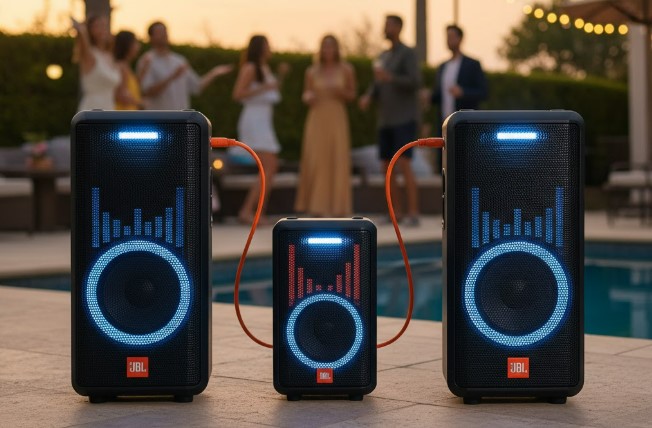
Connect your JBL PartyBox speakers in stereo for an immersive sound experience. This guide breaks down the easy steps for Bluetooth pairing and TWS (True Wireless Stereo) connection so you can amplify your parties.
Key Takeaways
- Pair JBL PartyBoxes wirelessly for stereo sound.
- Use TWS for true stereo pairing between two identical PartyBoxes.
- Bluetooth connection is simple for a single speaker or non-TWS setups.
- Bass Boost enhances low frequencies for more powerful sound.
- Check your PartyBox model for specific connection features.
Introduction
Planning a party and want to make your sound bigger? Connecting two JBL PartyBox speakers together can transform your music experience from good to incredible. You might be wondering if it’s complicated or if you need special cables. Good news! JBL makes it surprisingly simple to link your speakers, especially for that powerful stereo effect. Whether you’re a tech novice or just looking for a quick refresher, this guide will walk you through exactly how to connect your JBL PartyBox speakers together, ensuring your next gathering has the ultimate soundtrack. Let’s get your sound system booming!
Understanding Your JBL PartyBox Connection Options
JBL PartyBoxes are designed for fun and powerful sound. To get the most out of them, especially when you have more than one, understanding how they connect is key. There are two primary ways to link your JBL PartyBox speakers together to create a more immersive audio experience: True Wireless Stereo (TWS) and Bluetooth daisy-chaining (though TWS is the preferred method for stereo sound between two identical speakers).
True Wireless Stereo (TWS) Explained
TWS is the magic behind making two identical JBL PartyBox speakers act as a single sound system. Think of it like having a left and a right speaker, just like in a professional studio setup. When you connect in TWS mode, one speaker becomes the “master” and the other becomes the “slave.” The master speaker receives the audio signal and then wirelessly sends one channel (left or right) to the slave speaker. This creates a true stereo image, meaning the music sounds richer, fuller, and more dynamic because the sound is specifically directed to each speaker.
This is ideal for parties, outdoor gatherings, or any event where you want to fill a space with powerful, balanced audio. According to audio technology experts, a proper stereo setup significantly enhances the listening experience by creating a wider soundstage and more precise instrument separation.
Bluetooth Connectivity: The Basics
While TWS is for stereo pairing of two identical speakers, basic Bluetooth is how you connect your first speaker to your phone, tablet, or other audio source. Most JBL PartyBoxes also support a feature called “PartyChain” (or similar names depending on the model), which allows you to connect multiple speakers (sometimes even different JBL models) via Bluetooth. However, this often links them in a mono-like fashion, meaning they all play the same sound. For true stereo separation, TWS is the way to go.
How To Connect JBL PartyBox Speakers Together Using TWS
This is the most common and effective method for creating a stereo sound experience with two identical JBL PartyBox speakers. The process is designed to be straightforward, and once you do it once, it becomes second nature.
Step 1: Ensure Your Speakers Are Ready
Before you begin, make sure both of your JBL PartyBox speakers are charged or plugged into a power source. Turn both speakers on. You should hear an audible chime or see indicator lights when they power up. Ensure they are not currently connected to any other Bluetooth devices, as this might interfere with the pairing process.
Step 2: Pair the First Speaker to Your Audio Source
Turn on Bluetooth on your phone, tablet, or computer. On one of your JBL PartyBox speakers, press and hold the Bluetooth button until you hear a pairing tone or see a flashing blue light, indicating it’s in pairing mode. Select your JBL PartyBox from the list of available devices on your audio source. Once connected, the light on the Bluetooth button will turn solid blue, and you’ll hear a confirmation sound. This speaker is now your “master” speaker.
Step 3: Initiate TWS Pairing Between Speakers
This is the crucial step for stereo sound. On the “master” speaker (the one already connected to your phone), you usually need to press and hold the TWS or “Link” button. Refer to your specific JBL PartyBox model’s manual, as the button might be labeled differently or integrated into another control. For many models, it’s a button with two speaker icons or simply labeled “TWS.”
Hold this button down for about 3-5 seconds. You should hear a tone or see an indicator light change on the master speaker.
Step 4: Connect the Second Speaker
Now, on the second JBL PartyBox speaker (the “slave” speaker), you need to press and hold the same TWS/Link button for about 3-5 seconds. The master speaker will search for the slave speaker and establish the TWS connection.
Step 5: Confirm the TWS Connection
Once successfully paired, both speakers should indicate that TWS is active. You might hear a confirmation tone from both speakers, and a specific TWS indicator light will illuminate on both units. The master speaker will continue to play the left channel, and the slave speaker will play the right channel. Test it by playing some music from your connected audio source. You should notice the difference in sound separation.
Step 6: Disconnecting TWS
To disconnect TWS and use your speakers individually again, simply press and hold the TWS/Link button on the master speaker for a few seconds until you hear a disconnection tone or the TWS light turns off. You can also disconnect by turning off one of the speakers. To disconnect the Bluetooth connection from your audio source, press the Bluetooth button on the master speaker briefly.
Troubleshooting Common Connection Issues
Sometimes, technology doesn’t cooperate perfectly. If you’re having trouble connecting your JBL PartyBox speakers, don’t worry. Here are some common issues and how to fix them.
| Issue | Potential Cause | Solution |
| :———————————- | :—————————————————– | :————————————————————————————————————————————————————————————————— |
| TWS pairing fails | Speakers are too far apart. | Move the speakers closer together (within 30 feet / 10 meters). |
| | Interference from other devices. | Turn off Bluetooth on other nearby devices. Ensure no other strong wireless signals are overwhelming the connection. |
| | Speakers are not identical models. | TWS generally requires two identical JBL PartyBox models. Check your manual if you are unsure. |
| | Incorrect button press duration. | Ensure you are holding the TWS button for the correct amount of time (usually 3-5 seconds) on both speakers as instructed in the steps. |
| One speaker not producing sound | TWS connection didn’t fully establish. | Re-initiate the TWS pairing process from Step 3. Ensure you see the TWS indicator lights on both speakers. |
| | Bluetooth connection lost. | Check the Bluetooth connection on the master speaker to your audio source. If lost, re-pair the master speaker to your device. |
| | Audio source is only sending a mono signal. | Most music apps and devices automatically split stereo signals for TWS. However, check your audio source’s settings if you suspect a mono output. |
| Audio is distorted or cutting out | Low battery on one or both speakers. | Ensure both speakers are fully charged or plugged in. |
| | Bluetooth signal is weak or obstructed. | Move the master speaker closer to your audio source. Minimize physical obstructions (walls, furniture) between the master speaker and your audio device. |
| | Too many devices connected to the audio source. | Disconnect other Bluetooth devices from your phone or tablet if possible. |
| Cannot find speaker via Bluetooth | Speaker is not in pairing mode. | Press and hold the Bluetooth button on the speaker until the light flashes blue. |
| | Speaker is already connected to another device. | Turn off Bluetooth on the other device or disconnect the speaker from it. You may need to reset the speaker’s Bluetooth memory (refer to manual for model-specific instructions). |
Pro Tip: The Importance of Identical Models
For the most reliable and highest-quality stereo experience using TWS, it’s always best to connect two identical JBL PartyBox models. While some JBL TWS features might allow pairing with similar models, mixing different generations or series (e.g., a PartyBox 310 with a PartyBox 1000) can lead to compatibility issues, reduced functionality, or even prevent TWS pairing altogether. Always check your speaker’s manual for specific compatibility information.
Connecting Different Models or Multiple Speakers (PartyChain)
What if you have different JBL PartyBox models, or you want to connect more than two speakers? For these scenarios, you’ll likely be using JBL’s PartyChain feature, which differs from TWS.
How PartyChain Works
PartyChain allows you to link multiple JBL speakers together, but it typically broadcasts the same audio signal to all speakers (mono). This means you won’t get the true stereo separation of TWS, but you will get louder, more distributed sound. The process usually involves pressing and holding a dedicated “PartyChain” button or the Bluetooth button on the master speaker and then pressing the same button on the subsequent speakers you wish to add.
The advantage here is flexibility: you can often connect different JBL PartyBox models, and sometimes even other JBL speakers that support PartyChain. This is great for larger venues or when you have a mix of JBL gear.
Steps for PartyChain (General Guide)
1. Ensure all speakers are powered on and within Bluetooth range.
2. Connect your primary audio device (phone, tablet) to one JBL PartyBox speaker via Bluetooth. This speaker acts as the master.
3. On the master speaker, press and hold the PartyChain button (or Bluetooth button, depending on model) for about 5 seconds until you hear a confirmation tone.
4. On the second speaker, press and hold the PartyChain button (or Bluetooth button) for about 5 seconds until it connects to the master speaker.
5. Repeat step 4 for any additional speakers you want to add.
6. Play music from your audio device. All connected speakers should now play the same audio.
To disconnect PartyChain, press and hold the PartyChain button on the master speaker until you hear a disconnection tone.
Leveraging the JBL PartyBox App
Many JBL PartyBox models come with support for the JBL Portable app (formerly JBL Connect app). This app is a powerful tool for managing your speakers, and it’s particularly useful when you’re connecting multiple units.
App Features for Multi-Speaker Setups
TWS Pairing: The app often provides a very user-friendly interface for initiating TWS pairing between two identical speakers. You can simply tap icons within the app to link them.
Stereo Mode Toggle: Once TWS is active, the app may allow you to easily switch between stereo mode and mono mode, or to reassign which speaker is left and which is right.
PartyChain Functionality: For models that support PartyChain, the app might offer visual cues or simplified controls for adding and managing multiple connected speakers.
Firmware Updates: Keeping your speakers updated with the latest firmware is crucial for performance and connectivity. The app is usually the easiest way to check for and install these updates.
EQ Settings & Bass Boost: You can often customize the sound profile of your speakers directly from the app. This is where you can find and enable features like “Bass Boost” to make your music hit harder.
To use the app:
1. Download the JBL Portable app from your device’s app store (Google Play Store or Apple App Store).
2. Ensure your JBL PartyBox speaker(s) are powered on and Bluetooth is enabled.
3. Open the app and follow the on-screen instructions to detect and connect to your speaker(s).
4. Explore the app’s features to manage your audio experience, including multi-speaker connections.
Optimizing Your Sound with Bass Boost
One of the exciting features of many JBL PartyBox speakers is the “Bass Boost” function. When you’re connecting two speakers, especially for a party, you often want that extra punch in the low frequencies.
What is Bass Boost? This feature digitally enhances the bass frequencies in your audio, making the low notes sound deeper and more impactful. It’s perfect for genres like EDM, hip-hop, or any music where a strong bassline is crucial.
How to Activate Bass Boost:
On the Speaker: Many JBL PartyBox models have a dedicated “Bass Boost” button (often with an icon representing strong bass waves). Press it to activate. There might be two levels: Level 1 for a subtle boost and Level 2 for maximum impact. Pressing the button again cycles through the levels or turns it off.
Via the JBL Portable App: If your speaker is compatible with the app, you can usually find the Bass Boost control within the app’s interface, allowing you to toggle it on or off and select the desired level.
When to Use It: Bass Boost is most effective when you have your speakers in TWS stereo mode. This ensures the enhanced bass is delivered powerfully and balanced across both speakers. However, be mindful that excessive bass boost can sometimes lead to distortion if the audio source itself is already heavily bass-laden or if the speakers are pushed to their absolute limit.
Pro Tip: Experiment with Bass Levels
Don’t be afraid to play with the Bass Boost settings. What sounds best depends on your music, your environment, and your personal preference. Start with Level 1 and see how it feels, then try Level 2 if you want more intensity.
Frequently Asked Questions (FAQ)
Can I connect two different JBL PartyBox models together for stereo sound?
Typically, True Wireless Stereo (TWS) pairing is designed for two identical JBL PartyBox models. While you might be able to link different models using PartyChain (for chained mono sound), achieving true stereo separation (one left, one right speaker) usually requires two of the exact same speaker. Always check your specific model’s manual for compatibility details.
Do I need a special cable to connect two JBL PartyBox speakers?
No, for TWS and PartyChain connections, you do not need any cables. The speakers connect wirelessly using Bluetooth technology.
How do I disconnect my JBL PartyBox speakers from TWS mode?
To disconnect, press and hold the TWS button on the master speaker for a few seconds until you hear a disconnection sound or the TWS indicator light turns off. Alternatively, turning off one of the speakers will also break the TWS link.
What is the maximum range for TWS connection between JBL PartyBox speakers?
The optimal range for TWS pairing is generally within 30 feet (10 meters). For the best performance and to avoid audio dropouts, keep the speakers reasonably close to each other.
Can I connect my JBL PartyBox speaker to a TV?
Yes, most JBL PartyBox speakers can be connected to a TV via Bluetooth if your TV supports Bluetooth audio output. Some models might also have an AUX input option. For TWS with a TV, it’s more complex and often not directly supported for stereo output.
Why is my TWS connection not working?
Common reasons include speakers being too far apart, interference from other devices, one or both speakers not being fully charged, or an attempt to pair two non-identical models with TWS. Try moving them closer, turning off other Bluetooth devices, ensuring they are charged, and re-initiating the pairing process.
Does TWS affect sound quality?
When properly connected, TWS enhances sound quality by providing true stereo separation, creating a richer and more immersive listening experience. However, a weak Bluetooth signal or interference can cause audio dropouts or distortion, negatively impacting sound.
Conclusion
Connecting two JBL PartyBox speakers together is a straightforward process that significantly elevates your audio experience, whether you’re hosting a party or simply enjoying music at home. By utilizing the TWS (True Wireless Stereo) feature, you can achieve a true left-and-right stereo output, filling your space with dynamic, powerful sound.
Remember, TWS is best suited for pairing two identical JBL PartyBox models, while PartyChain offers flexibility for linking multiple speakers, including different models, for louder, distributed audio. Always refer to your specific JBL PartyBox model’s manual for precise instructions and button locations. With a little practice, you’ll be effortlessly connecting your speakers and enjoying amplified sound in no time. So go ahead, pair them up, crank the volume, and let the good times sound even better!
