

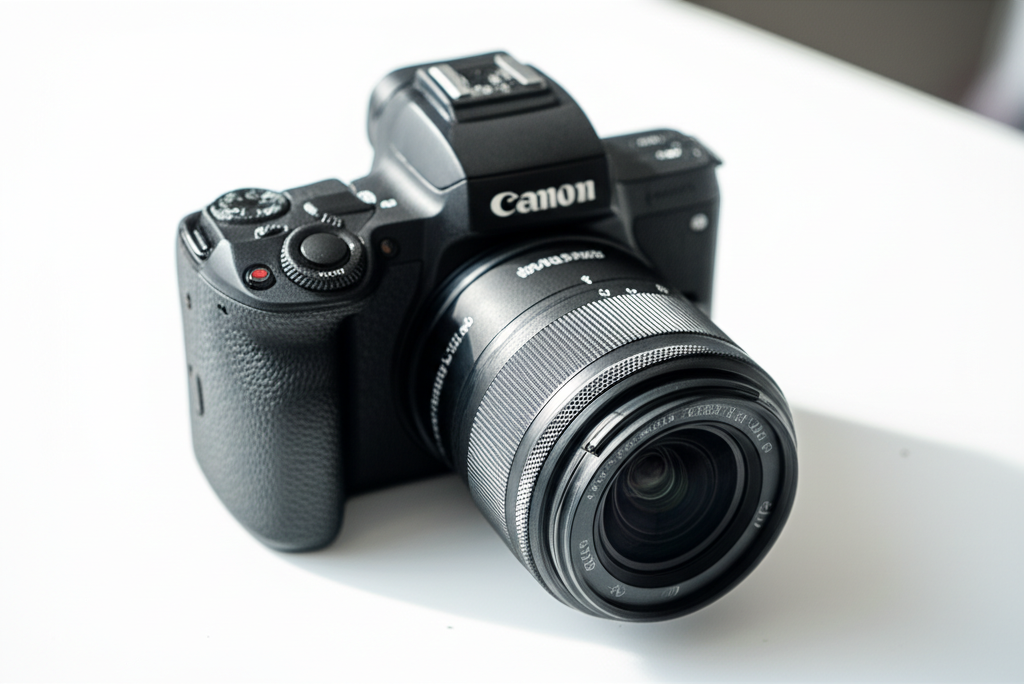
Unlock stunning photos and videos with the best settings for your Canon M50 Mark II. This guide simplifies complex camera controls, offering practical, easy-to-follow advice to elevate your content.
Key Takeaways
- Master exposure for clear images.
- Optimize autofocus for sharp subjects.
- Enhance video quality with ideal frame rates.
- Customize settings for creative control.
- Improve low-light performance.
- Ensure smooth file management.
Welcome to the exciting world of content creation with your Canon M50 Mark II! This camera is a favorite for many, from beginners dipping their toes into photography to seasoned YouTubers. But with so many buttons and menus, figuring out the best settings can feel like a puzzle. What exactly are the best settings for your Canon M50 Mark II? You’re in the right place! This guide will break down the essential settings, making it simple for you to capture breathtaking photos and professional-looking videos. Get ready to take your M50 Mark II from good to great.
Understanding Your Canon M50 Mark II
The Canon EOS M50 Mark II is a fantastic mirrorless camera known for its user-friendly interface and impressive capabilities. It’s a hybrid powerhouse, excelling in both still photography and video recording. For beginners, it offers automatic modes that make shooting easy. For those ready to explore, it provides extensive manual control. Understanding the core components of your camera is the first step to unlocking its full potential. Think of your camera like a painter’s palette; the more you understand the colors and brushes, the better your masterpiece will be.
The M50 Mark II features a 24.1-megapixel APS-C CMOS sensor, Dual Pixel CMOS Autofocus for fast and accurate focusing, and the DIGIC 8 image processor. It can shoot 4K video, albeit with a crop, and Full HD at higher frame rates, making it versatile for various creative projects. Knowing these basic specs helps appreciate why certain settings work best.
Best Settings For Your Canon M50 Mark II: A Beginner’s Guide
Let’s dive into the settings that will make the most impact. We’ll cover everything from basic exposure to video essentials.
1. Shooting Modes: Finding Your Comfort Zone
Your Canon M50 Mark II offers several shooting modes, each designed for different skill levels and scenarios.
Automatic (Auto) Mode
This is where most beginners start. The camera analyzes the scene and automatically adjusts settings like aperture, shutter speed, and ISO for optimal exposure. It’s great for snapshots and when you want to focus purely on the subject.
Scene Intelligent Auto
Similar to Auto, but it identifies common scenes (like portraits, landscapes, or sports) and applies specific presets. It’s a step up from basic Auto, offering slightly more tailored results.
Creative Assist
This mode is a fantastic learning tool. It allows you to adjust settings like background blur and brightness using simple sliders, and the camera shows you the visual effect in real-time. It’s like having a virtual photography tutor built into your camera.
Program AE (P)
The camera sets the aperture and shutter speed, but you have more control. You can adjust ISO, white balance, and other creative settings. It’s a good stepping stone between Auto and full manual control.
Shutter Priority (Tv)
You choose the shutter speed (how long the shutter stays open), and the camera selects the aperture. This is crucial for controlling motion blur. Use a fast shutter speed (e.g., 1/500s) to freeze action, and a slow one (e.g., 1/30s or slower) to create blur effects or shoot in low light.
Aperture Priority (Av)
You set the aperture (the opening of the lens), and the camera chooses the shutter speed. Aperture controls depth of field – how much of your image is in focus. A wide aperture (small f-number like f/1.8) creates a shallow depth of field, blurring the background, perfect for portraits. A narrow aperture (large f-number like f/16) keeps more of the scene in focus, ideal for landscapes.
Manual (M)
This is full control. You set both aperture and shutter speed, along with ISO. It gives you complete creative freedom but requires a solid understanding of the exposure triangle (aperture, shutter speed, and ISO).
2. Image Quality Settings: Pixels and Perfection
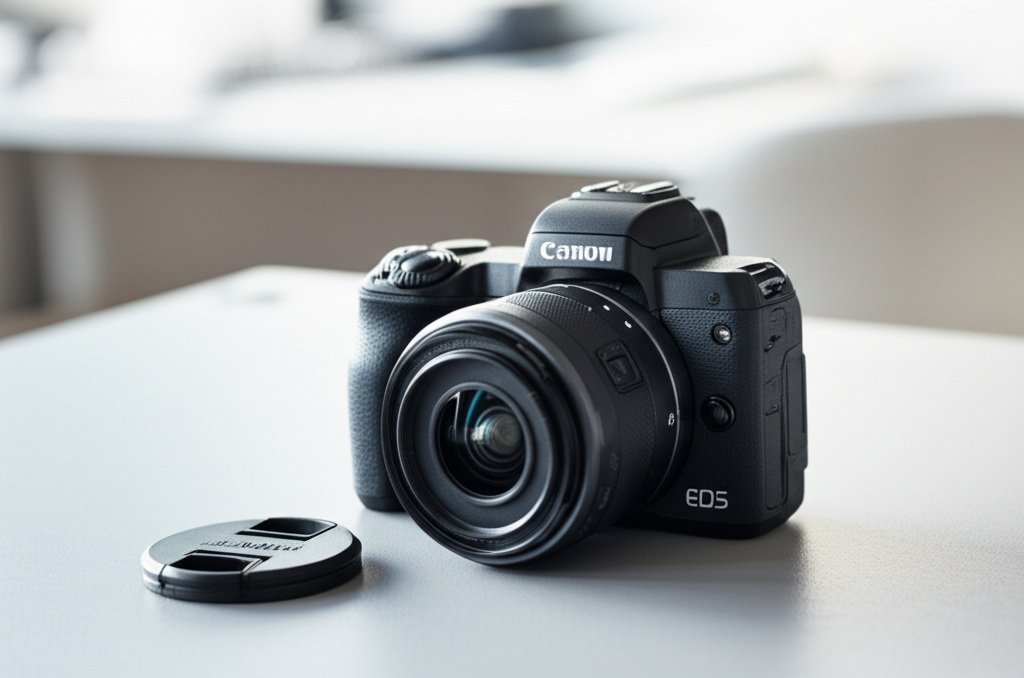
These settings determine how your photos are processed and saved.
File Format: RAW vs. JPEG
- JPEG: These files are compressed and ready to share. They take up less space but offer less flexibility in editing. The camera applies its own processing.
- RAW: These files contain all the unprocessed data from the sensor. They offer maximum editing flexibility but are larger and require post-processing software. For best results and creative control, shooting in RAW is often recommended for serious photographers.
Recommendation: Start with JPEG if you want easy sharing. If you plan to edit your photos extensively, switch to RAW or RAW + JPEG. You can find this in the `Shooting Menu` under `Image quality`.
Picture Styles
These pre-set styles affect the color, contrast, and sharpness of your images. Common options include:
- Standard: A good all-around setting.
- Portrait: Softer tones, especially for skin.
- Landscape: More vibrant blues and greens.
- Neutral/Faithful: Less processing, good for RAW editing.
- Monochrome: For black and white shots.
Recommendation: Experiment with `Standard` or `Portrait` for general use. If shooting RAW, the Picture Style has less impact as you can adjust it later.
3. Autofocus Settings: Sharpness is Key
Accurate focus is critical for clear images. The M50 Mark II has excellent autofocus capabilities.
AF Method
This determines how the camera selects focus points.
- Face+Tracking: Excellent for people and moving subjects. The camera will find and track faces.
- Spot AF / 1-point AF: Allows you to precisely select a single focus point, ideal for stationary subjects or when you need pinpoint accuracy.
- Zone AF: Divides the screen into zones, and the camera will focus on the closest subject within the selected zone.
Recommendation: For portraits and general shooting, `Face+Tracking` is often the easiest and most effective. For precise control, `1-point AF` is your best bet.
AF Operation
- One-Shot AF: Locks focus once when you half-press the shutter button. Best for stationary subjects.
- Servo AF: Continuously adjusts focus as your subject moves and as you keep the shutter button half-pressed. Essential for tracking moving subjects (sports, kids, pets).
Recommendation: Use `One-Shot AF` for static scenes and `Servo AF` for anything that moves.
4. Video Settings: Bringing Your Stories to Life
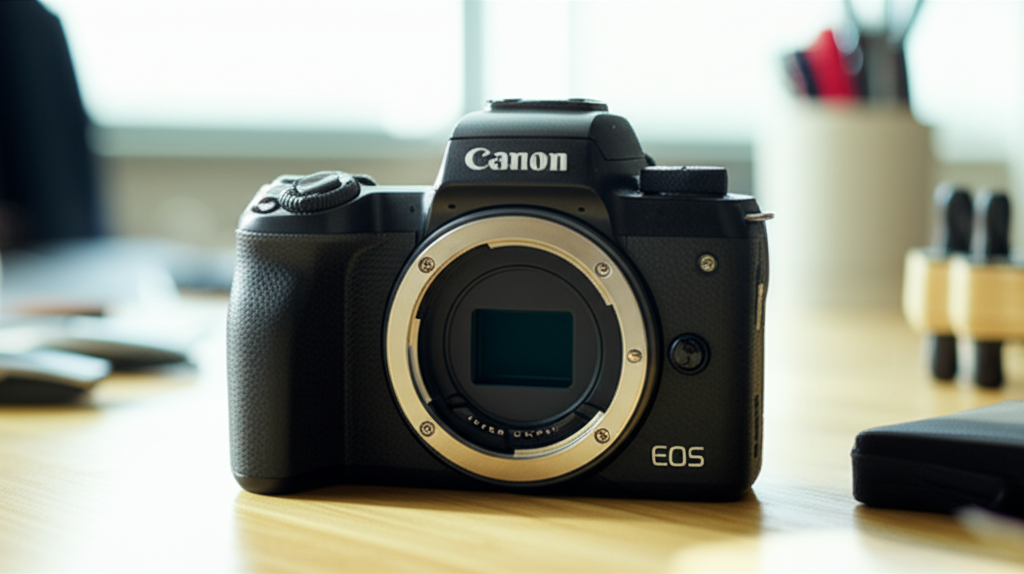
The M50 Mark II is a popular choice for video creators. Getting these settings right is crucial.
Movie Recording Size & Frame Rate
This determines the resolution and smoothness of your video.
- 4K UHD (24fps): Offers the highest resolution (3840×2160). 24fps is the standard cinematic frame rate. Note: 4K on the M50 Mark II has an approximate 1.6x crop, meaning your lens will be effectively narrower.
- Full HD (1080p) (60fps): Great balance of quality and file size. 60fps provides smoother motion, ideal for action or slow-motion playback when slowed down to 24/30fps.
- Full HD (1080p) (30fps): Standard HD resolution, good for vlogging and general use.
- Full HD (1080p) (24fps): Cinematic look in standard HD.
Recommendation: For YouTube and general online content, `1080p at 60fps` offers a great balance. If you need higher resolution or plan to do significant cropping in post-production, `4K UHD at 24fps` is an option, but be mindful of the crop factor and larger file sizes. For smooth, cinematic footage, `1080p at 30fps` or `24fps` is excellent.
Movie Servo AF
When enabled, the camera will continuously adjust focus during video recording. This is generally recommended for video to keep your subject sharp, especially if they are moving. You can adjust the tracking sensitivity and speed in the menu.
Movie Digital IS (Image Stabilization)
This is a digital form of stabilization that can help smooth out shaky footage. However, it often leads to a slight crop and can reduce image quality, especially in low light. It’s best used sparingly or when maximum stabilization is needed without a gimbal.
Recommendation: Use `Movie Servo AF` for most video. Experiment with `Digital IS` only if you don’t have a stabilizer and find your footage too shaky. Relying on lens stabilization (if your lens has it) or a physical gimbal is usually preferred for the best quality.
5. ISO Settings: Light Sensitivity Explained
ISO determines how sensitive your camera’s sensor is to light. The higher the ISO, the brighter the image, but also the more noise (graininess) appears.
- Auto ISO: The camera automatically adjusts ISO based on lighting conditions. This is convenient, but can sometimes push the ISO too high in dim light, resulting in noisy images.
- Manual ISO: You set the ISO yourself.
Best ISO Ranges:
| ISO Range | Image Quality | Use Case |
|---|---|---|
| 100-400 | Excellent, very clean | Bright daylight, studio lighting |
| 400-1600 | Good, minimal noise | Overcast days, indoor shade, moderate low light |
| 1600-6400 | Acceptable, noticeable noise | Dim indoor lighting, evening shots (use when necessary) |
| 6400+ | Noisy, often grainy | Extreme low light (use as a last resort or embrace the grain) |
Recommendation: In good light, keep your ISO low (100-400). In challenging light, let Auto ISO help you, but monitor the value it chooses. If it goes too high (e.g., above 3200), consider if you can open your aperture wider or use a slower shutter speed (with a tripod) to keep the ISO down. For video, try to keep ISO as low as possible, typically below 1600 for clean results.
6. White Balance: Accurate Colors
White balance (WB) tells your camera what “white” looks like under different lighting conditions, ensuring that colors appear natural. Incorrect white balance can make your photos look too blue (cool) or too yellow/orange (warm).
- Auto White Balance (AWB): The camera tries to figure out the best setting. It works well in many situations but can be fooled by dominant background colors.
- Preset WB: Options like Daylight, Shade, Cloudy, Tungsten, Fluorescent, Flash allow you to select the lighting type.
- Custom WB: You can take a photo of a neutral gray or white object under the lighting conditions and set that as your reference for perfect accuracy.
Recommendation: AWB is usually good for everyday shooting. If you notice color casts, try selecting the appropriate preset (e.g., `Daylight` if you’re outside on a sunny day, `Tungsten` if you’re shooting under traditional light bulbs). For critical color work, `Custom WB` offers the most reliable results.
7. Metering Modes: How the Camera Measures Light
Metering modes tell the camera how to interpret the light in the scene to determine the correct exposure.
- Evaluative Metering: The default and most common mode. It divides the scene into zones and analyzes them to determine exposure. Great for most situations.
- Partial Metering: Measures a small area in the center of the frame. Useful for back-lit subjects.
- Spot Metering: Measures a very small area in the center. Provides precise control but requires careful aiming.
- Center-weighted Average Metering: Gives priority to the center of the frame, with some influence from the edges.
Recommendation: Stick with `Evaluative Metering` for most of your shooting. As you gain experience, you might use `Spot Metering` for tricky lighting situations.
8. Customizing Your M50 Mark II: Tailoring to Your Needs
Your camera has extensive customization options to make it work best for you. Don’t be afraid to explore the `Custom Function (C.Fn)` menus.
Assign Buttons and Dials
You can reassign what certain buttons and dials do. For example, you might want to assign ISO adjustment to a button you frequently use, rather than digging through menus.
My Menu Tab
You can create a personal menu with your most frequently used settings, making them instantly accessible. This is a huge time-saver.
Custom Shooting Modes (C1, C2)
Save sets of settings (exposure mode, ISO, white balance, etc.) to these custom slots for quick recall. For example, you could save a “Portrait” setup and a “Landscape” setup.
Pro Tip: Spend some time in the `Custom Functions` and `My Menu` sections. Assigning your most-used settings to accessible buttons or creating a personalized menu can significantly speed up your workflow and make shooting more intuitive.
Camera Settings Cheat Sheet For Common Scenarios
Here’s a quick reference for some popular uses:
| Scenario | Shooting Mode | Aperture (Av) | Shutter Speed (Tv) | ISO | White Balance | AF Method | File Format |
|---|---|---|---|---|---|---|---|
| Portraits (Outdoor, good light) | Av | Wide (f/1.8-f/4) for background blur | 1/125s or faster | Auto (aim for 100-400) | AWB or Daylight | Face+Tracking | JPEG or RAW |
| Portraits (Indoor, lower light) | Av | Wide (f/1.8-f/2.8) | 1/60s or faster | Auto (monitor for noise, may go up to 1600-3200) | AWB or Tungsten/Fluorescent | Face+Tracking | JPEG or RAW |
| Landscapes (Outdoor, good light) | Av | Narrow (f/8-f/16) for depth of field | 1/100s or faster | Auto (aim for 100-400) | AWB or Daylight | 1-point AF | JPEG or RAW |
| Action/Sports (Daylight) | Tv | As needed (e.g., f/4-f/5.6) | 1/500s or faster to freeze motion | Auto (monitor for noise) | AWB | Servo AF / Face+Tracking | JPEG |
| Vlogging (Indoor/Outdoor) | M or Av | f/2.8-f/5.6 (depends on lens and desired background blur) | 1/60s (for 30fps video) or 1/120s (for 60fps video) | Auto (keep as low as possible, monitor for noise) | AWB or Daylight/Fluorescent | Movie Servo AF (On) | N/A (Video) |
| Low Light (Indoor/Night) | M or Av | Wide (f/1.8-f/2.8) | As slow as possible without blur (use tripod if needed) | Auto (expect high ISO, be prepared for noise) | AWB or Custom | 1-point AF or Face+Tracking | RAW (for maximum editing) |
Remember, these are starting points. The “best” settings depend on your specific lens, lighting conditions, and creative vision. Don’t be afraid to adjust and experiment!
Frequently Asked Questions (FAQ)
Q1: What’s the single best lens for the Canon M50 Mark II for beginners?
A1: The Canon EF-M 22mm f/2 STM pancake lens is a fantastic, compact, and affordable option. It offers great image quality and a wide aperture for low light and shallow depth of field, perfect for everyday shooting and vlogging.
Q2: How do I get blurry backgrounds (bokeh) in my photos?
A2: To achieve a blurry background, use a wide aperture (a small f-number like f/1.8 or f/2.8), get closer to your subject, and ensure there’s distance between your subject and the background. Shooting in Aperture Priority (Av) mode and setting a wide aperture is key.
Q3: My videos look shaky. What can I do?
A3: Ensure your camera is stable. Use a tripod or a gimbal for the smoothest results. If you must handhold, try using a wider lens, practice holding the camera steady with two hands, and activate the camera’s or lens’s image stabilization. As a last resort, experiment with the Movie Digital IS, but be aware it may crop the image.
Q4: When should I use Manual (M) mode?
A4: Manual mode is best when you need complete control over exposure, such as in tricky lighting, consistent studio setups, or when you want to achieve specific creative effects like long exposures. It’s also excellent for learning photography principles.
Q5: How can I improve my low-light photography on the M50 Mark II?
A5: Use a wide aperture lens (f/1.8 or f/2.8), increase your ISO as much as your tolerance for noise allows, use a slower shutter speed (ideally with a tripod), and ensure your White Balance is set correctly. Shooting in RAW format gives you more latitude to recover detail in post-processing.
Q6: What is the crop factor on the M50 Mark II, especially in 4K video?
A6: The M50 Mark II has an APS-C sensor, which has a crop factor of approximately 1.6x compared to full-frame cameras. In 4K video mode, this crop is further amplified to about 1.6x, meaning a 50mm lens will behave more like an 80mm lens (50mm x 1.6 x 1.6 = 128mm equivalent field of view). Full HD video has a much smaller crop.
Q7: Can I use my Canon EF lenses with the M50 Mark II?
A7: Yes, you can! You’ll need a Canon Mount Adapter EF-EOS M. This adapter allows you to connect your DSLR lenses to your M50 Mark II, maintaining autofocus and image stabilization. It’s a great way to expand your lens options.
Conclusion: Your Creative Journey Starts Now
Mastering the best settings for your Canon M50 Mark II doesn’t have to be overwhelming. By understanding the core functions like shooting modes, image quality, autofocus, video options, ISO, and white balance, you’re well on your way to capturing incredible content. Remember the cheat sheet and FAQ for quick references, but the most important step is practice. Get out there, shoot, experiment, and see what you can create. Your Canon M50 Mark II is a powerful tool, and with these settings as your guide, you’re ready to unlock its full potential and tell your unique visual stories.
