

Most modern laptops come with a built-in microphone, but not all are created equal. Whether you’re joining a Zoom call, recording a podcast, or gaming with friends, knowing if your laptop has a mic—and how to use it—is essential.
Key Takeaways
- Most laptops have built-in microphones: Nearly all laptops manufactured in the last decade include an integrated mic, usually near the webcam or keyboard.
- Check your laptop model and specs: Review your device’s technical specifications online or in the user manual to confirm microphone presence.
- Test the microphone in your operating system: Use built-in tools in Windows, macOS, or Linux to verify if the mic is working properly.
- Microphone quality varies widely: Built-in mics are convenient but often lack the clarity and noise cancellation of external microphones.
- You can enable or disable the mic in settings: Privacy controls allow you to manage mic access for apps and websites.
- External mics improve audio quality: For professional recordings or clear voice calls, consider using a USB or headset microphone.
- Troubleshooting is simple: If your mic isn’t working, check drivers, permissions, and hardware connections before assuming it’s broken.
📑 Table of Contents
Does My Laptop Have a Microphone?
If you’ve ever joined a video call, recorded a voice note, or tried to use voice commands on your laptop, you’ve probably wondered: *Does my laptop have a microphone?* The short answer is: **most likely, yes.** But the longer, more useful answer involves understanding where it is, how to check if it’s working, and whether it’s good enough for your needs.
In today’s digital world, communication is key. Whether you’re attending virtual meetings, streaming on Twitch, recording a YouTube video, or simply chatting with friends on Discord, audio input matters. And while many of us assume our laptops are equipped to handle voice input, not everyone knows how to verify or optimize their microphone setup.
This guide will walk you through everything you need to know about laptop microphones—from identifying whether your device has one, to testing and improving its performance. We’ll cover how to check your hardware, use built-in tools, troubleshoot common issues, and decide when it’s time to upgrade to an external mic. By the end, you’ll be confident in your ability to use your laptop’s microphone effectively—or know exactly what to do next if it’s not meeting your expectations.
How to Check If Your Laptop Has a Microphone
Visual guide about Does My Laptop Have a Microphone
Image source: i.ytimg.com
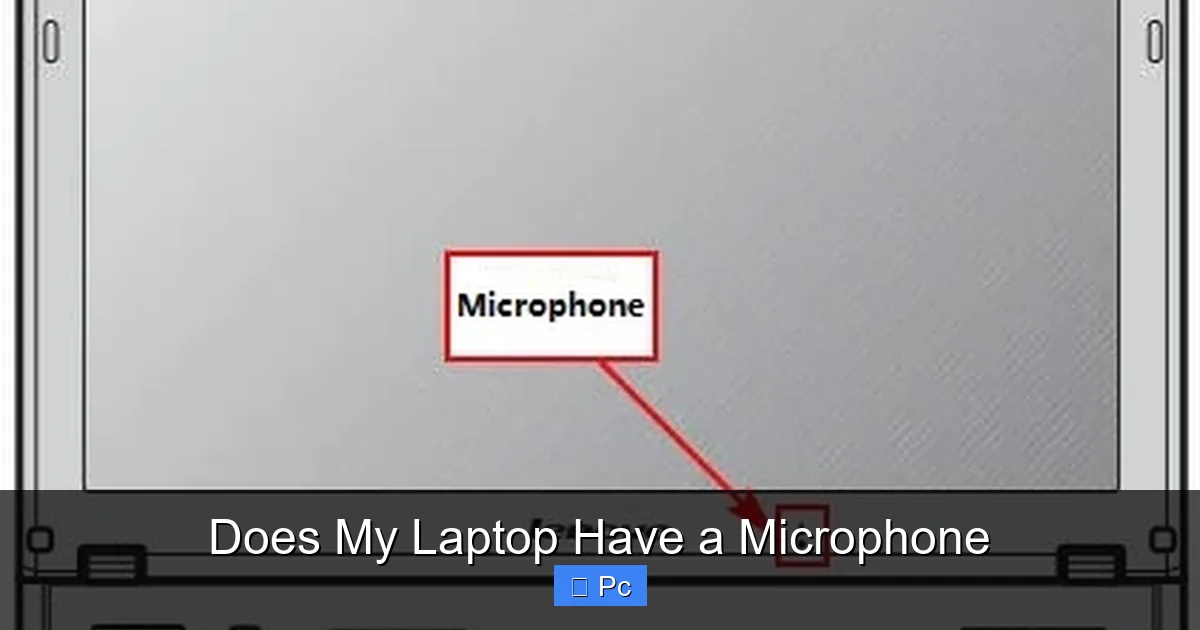
The first step in answering “Does my laptop have a microphone?” is knowing how to look for one. Most laptops today come with a built-in microphone, but they’re not always obvious. Unlike external mics, which plug in or connect via Bluetooth, internal microphones are hidden inside the laptop’s casing.
Look for Physical Indicators
Start by examining the exterior of your laptop. Built-in microphones are typically located in one of a few common spots:
– **Near the webcam:** On most laptops, especially ultrabooks and modern designs, the microphone is positioned right next to or just below the front-facing camera. You might see a tiny pinhole or grille—this is often the mic.
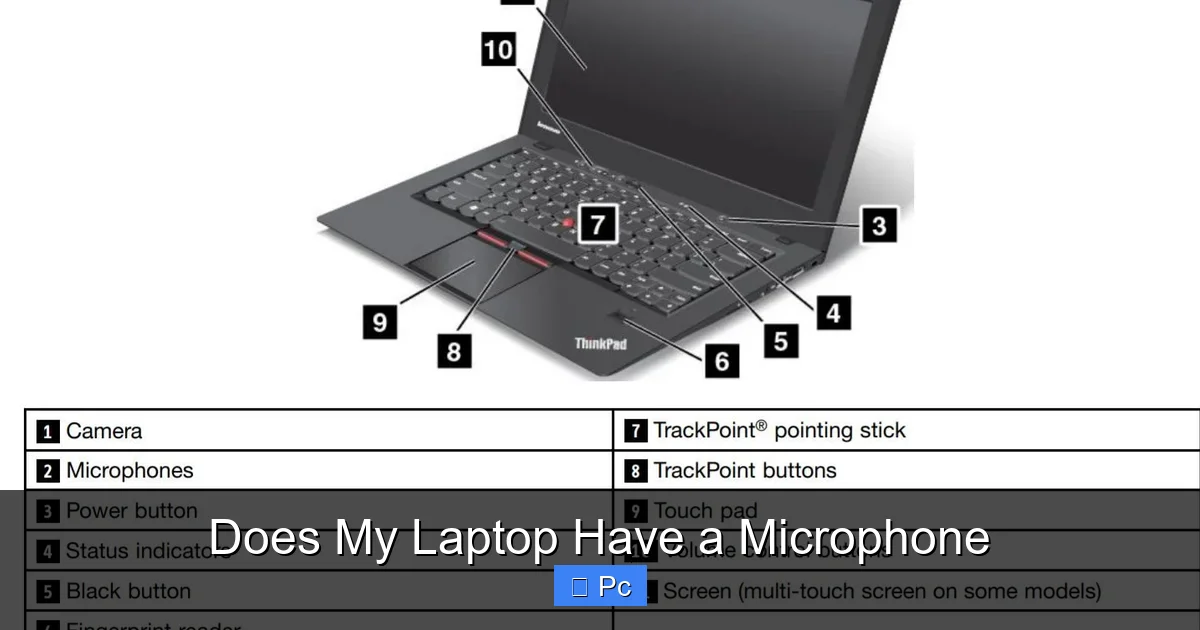
– **Along the keyboard bezel:** Some laptops, particularly older models or business-oriented devices like Lenovo ThinkPads, place the microphone along the top edge of the keyboard area.
– **On the screen bezel:** In certain designs, especially 2-in-1 convertibles or gaming laptops, the mic may be embedded in the thin frame surrounding the display.
If you spot a small hole or mesh covering near these areas, there’s a good chance it’s a microphone. However, don’t assume every tiny hole is a mic—some are for ventilation or ambient light sensors.
Check Your Laptop’s Specifications
If you can’t find a physical mic or want to be certain, the best way to confirm is by checking your laptop’s technical specifications. Here’s how:
1. **Find your laptop model:** Look for a label on the bottom of your laptop, inside the battery compartment (if removable), or in the system information. On Windows, press `Win + R`, type `msinfo32`, and hit Enter. On macOS, click the Apple logo > “About This Mac.”
2. **Search online:** Go to the manufacturer’s website (e.g., Dell, HP, Apple, ASUS) and search for your model. Look under “Specifications” or “Features.” Most product pages will list audio capabilities, including whether a built-in microphone is included.
3. **Check the user manual:** If you have the original documentation, it should mention audio input features.
For example, a Dell XPS 13 spec sheet might say: “Dual-array microphones with noise reduction.” That tells you not only that there’s a mic, but that it’s designed for clear voice capture.
Use Built-In System Tools
Your operating system can also help you determine if a microphone is present and active.
**On Windows:**
– Open **Settings** > **System** > **Sound**.
– Under “Input,” you’ll see a list of audio devices. If your laptop has a built-in mic, it will appear here (e.g., “Microphone (Realtek Audio)”).
– You can also test it by speaking into the mic—the input level bar should move.
**On macOS:**
– Go to **System Settings** > **Sound** > **Input**.
– You’ll see “Internal Microphone” listed if your Mac has one.
– Speak into the mic and watch the input level meter respond.
**On Linux (Ubuntu example):**
– Open **Settings** > **Sound** > **Input**.
– Look for “Built-in Audio” or similar. Use the “Test” button to check responsiveness.
If you see a microphone listed and it responds to your voice, congratulations—your laptop has a working mic!
How to Test Your Laptop’s Microphone
Visual guide about Does My Laptop Have a Microphone
Image source: download.lenovo.com
Knowing your laptop has a microphone is one thing. Making sure it actually works is another. Testing ensures you’re not caught off guard during an important call or recording session.
Use Built-In Audio Troubleshooters
Both Windows and macOS offer tools to test and fix microphone issues.
**Windows:**
1. Open **Settings** > **System** > **Sound**.
2. Under “Input,” select your microphone and click **Device properties**.
3. Click **Test your microphone** and speak. A green bar should appear if sound is detected.
4. If not, click **Troubleshoot** to run the audio troubleshooter, which can detect and fix common problems like muted mics or outdated drivers.
**macOS:**
1. Open **System Settings** > **Sound** > **Input**.
2. Speak into the mic. The input level meter should show activity.
3. If nothing happens, go to **Privacy & Security** > **Microphone** and ensure the app you’re using (e.g., Zoom, Safari) has permission to access the mic.
Test with Voice Recording Apps
Another reliable way to test your mic is by recording your voice.
**On Windows:**
– Use the built-in **Voice Recorder** app (search for it in the Start menu).
– Tap the red record button, speak for a few seconds, then stop and play back the recording.
– If you hear your voice clearly, your mic is working.
**On macOS:**
– Open **QuickTime Player** > **File** > **New Audio Recording**.
– Click the red record button, speak, then stop and play back.
– Adjust the input volume slider if the recording is too quiet.
**On Linux:**
– Use apps like **Audacity** or **GNOME Sound Recorder**.
– Install via your package manager if needed (e.g., `sudo apt install audacity` on Ubuntu).
Test in Real-World Apps
The best test is using your mic in the app you actually need it for.
– **Zoom or Microsoft Teams:** Start a test meeting. Most platforms have a “Test Speaker and Microphone” option in settings.
– **Discord:** Go to **User Settings** > **Voice & Video** > **Let’s Check** under “Input Device.”
– **YouTube or Twitch:** Use the platform’s built-in test tools for live streaming.
If your voice comes through clearly in these apps, your mic is ready for action.
Understanding Microphone Quality on Laptops
Visual guide about Does My Laptop Have a Microphone
Image source: forumscdn.lenovo.com
Just because your laptop has a microphone doesn’t mean it’s great. Built-in mics vary widely in quality, and understanding their limitations can help you decide whether to upgrade.
Common Features of Built-In Mics
Most laptop microphones are designed for convenience, not professional audio. Here’s what you can typically expect:
– **Omnidirectional pickup:** They capture sound from all directions, which is good for casual use but can pick up background noise.
– **Noise reduction:** Many modern laptops include software-based noise suppression to filter out fan hum, keyboard clicks, and ambient sounds.
– **Dual or array microphones:** Higher-end models use multiple mics to improve voice clarity and directionality (e.g., Apple’s “studio-quality” mics on MacBooks).
For example, a MacBook Pro might use three microphones arranged in a beamforming array to focus on your voice while minimizing room noise. In contrast, a budget Chromebook might have a single, low-sensitivity mic that struggles in noisy environments.
Limitations of Built-In Microphones
While convenient, built-in mics have drawbacks:
– **Poor sound quality:** They often lack the depth, clarity, and frequency response of dedicated microphones.
– **Background noise:** Without proper isolation, they pick up keyboard typing, fan noise, and room echoes.
– **Limited gain control:** You can’t easily adjust sensitivity or add effects like you can with external mics.
– **Privacy concerns:** Since they’re always physically present, some users worry about accidental activation or hacking (though modern OSes include mic indicators and kill switches).
When to Consider an External Microphone
If you’re using your laptop for any of the following, a built-in mic may not be enough:
– **Podcasting or voiceovers:** Requires clear, professional-grade audio.
– **Music recording:** Needs high-fidelity input and low latency.
– **Live streaming:** Viewers expect crisp, noise-free voice audio.
– **Frequent video conferencing:** Reduces fatigue and improves communication.
In these cases, investing in an external USB microphone (like the Blue Yeti or Audio-Technica AT2020USB+) or a headset with a boom mic (like the HyperX Cloud II) can make a huge difference.
Privacy and Security: Managing Microphone Access
With growing concerns about digital privacy, it’s important to know how to control when and how your laptop’s microphone is used.
How to Disable or Mute the Microphone
You can disable your mic at the hardware or software level.
**Hardware mute:**
– Some laptops have a physical mic mute button or key (often marked with a microphone icon). Pressing it disables the mic instantly.
– Others have a sliding cover over the webcam/mic area (common on business laptops like Lenovo ThinkPads).
**Software mute:**
– **Windows:** Click the volume icon in the taskbar, then click the microphone icon to mute. You can also go to **Settings** > **Privacy & Security** > **Microphone** to turn off access entirely.
– **macOS:** Go to **System Settings** > **Privacy & Security** > **Microphone** and toggle off access for specific apps or all apps.
– **Linux:** Use `pavucontrol` (PulseAudio Volume Control) to manage input devices and permissions.
App Permissions and Microphone Access
Modern operating systems let you control which apps can use your mic.
– **Windows:** Apps must request mic access the first time they try to use it. You can review and change permissions in **Settings** > **Privacy & Security** > **Microphone**.
– **macOS:** Similar to Windows, apps prompt for permission. You can manage them in **System Settings** > **Privacy & Security** > **Microphone**.
– **Browser-based apps (e.g., Google Meet, Zoom):** These run in your web browser and require separate permission. Look for a mic icon in the address bar and click “Allow.”
Always be cautious about granting mic access to unknown or untrusted apps.
Microphone Indicators and Alerts
To prevent unauthorized use, both Windows and macOS now include visual cues:
– **Windows 11:** A microphone icon appears in the taskbar when an app is using the mic.
– **macOS:** A green dot appears in the menu bar when the mic is active.
– **Hardware indicators:** Some laptops have LED lights that glow when the mic is on.
These features help you stay aware of when your mic is in use—even if you didn’t initiate it.
Troubleshooting Common Microphone Issues
Even if your laptop has a microphone, it might not work as expected. Here’s how to fix the most common problems.
Microphone Not Detected
If your OS doesn’t recognize the mic:
– **Restart your laptop:** Sometimes a simple reboot resolves driver glitches.
– **Check device manager (Windows):** Press `Win + X` > **Device Manager** > expand **Audio inputs and outputs**. Look for your mic. If it has a yellow exclamation mark, right-click and select **Update driver**.
– **Reset audio settings (macOS):** Go to **System Settings** > **Sound** > **Input** and reselect your internal mic.
– **Check BIOS/UEFI (advanced):** On some laptops, the mic can be disabled in the BIOS. Restart and press F2, Del, or Esc during boot to enter BIOS and look for audio settings.
Microphone Is Too Quiet or Muffled
If your voice is faint or unclear:
– **Increase input volume:** In your OS sound settings, raise the input level slider.
– **Enable microphone boost (Windows):** In **Device properties** > **Levels**, check “Microphone Boost” if available.
– **Move closer to the mic:** Built-in mics are often small and sensitive to distance.
– **Reduce background noise:** Close windows, turn off fans, and use noise-canceling software like Krisp or NVIDIA RTX Voice.
Echo or Feedback During Calls
This usually happens when your speakers are too loud and the mic picks up the output.
– **Use headphones:** This breaks the audio loop.
– **Lower speaker volume:** Keep it below 70%.
– **Enable echo cancellation:** In Zoom or Teams, go to audio settings and turn on “Echo cancellation” or “Noise suppression.”
Microphone Works in Some Apps But Not Others
This is often a permissions issue.
– **Check app-specific settings:** Ensure the app has mic access in your OS privacy settings.
– **Restart the app:** Sometimes apps fail to initialize audio correctly.
– **Update the app:** Outdated versions may have bugs.
Upgrading to an External Microphone
If your built-in mic isn’t cutting it, an external microphone can dramatically improve your audio experience.
Types of External Microphones
– **USB microphones:** Plug-and-play devices like the Blue Yeti or Rode NT-USB. Great for podcasting, streaming, and recording.
– **3.5mm headset mics:** Built into gaming headsets or earbuds. Convenient for calls and casual use.
– **Lavalier (clip-on) mics:** Small, wireless mics that clip to your clothing. Ideal for video creators.
– **XLR microphones:** Professional-grade mics that require an audio interface. Best for studios.
How to Connect an External Mic
– **USB:** Plug into any USB port. Your OS should detect it automatically.
– **3.5mm jack:** Plug into the headphone/mic combo port (often marked with a headset icon).
– **Bluetooth:** Pair like any other Bluetooth device in your OS settings.
Once connected, go to your sound settings and select the external mic as the default input device.
Tips for Better Audio Quality
– **Use a pop filter:** Reduces plosive sounds (like “p” and “b”).
– **Position the mic correctly:** 6–12 inches from your mouth, slightly off-axis.
– **Record in a quiet room:** Use soft furnishings to reduce echo.
– **Use audio software:** Tools like Audacity, GarageBand, or Adobe Audition let you edit and enhance recordings.
Conclusion
So, does your laptop have a microphone? In nearly all cases, the answer is yes—especially if it’s a model from the last ten years. But having a mic and having a *good* mic are two different things. While built-in microphones are convenient for everyday tasks like video calls and voice notes, they often fall short when audio quality matters.
The good news is that checking, testing, and optimizing your laptop’s microphone is easier than ever. Whether you’re using Windows, macOS, or Linux, built-in tools help you verify functionality, adjust settings, and troubleshoot issues. And if you need better sound, upgrading to an external microphone is a simple and effective solution.
Remember: your microphone is your voice in the digital world. Whether you’re teaching a class, recording a song, or just catching up with family, clear audio makes all the difference. So take a few minutes to test your mic, tweak your settings, and consider your options. Your future self—and your audience—will thank you.
Frequently Asked Questions
How do I know if my laptop has a built-in microphone?
Look for a small hole or grille near the webcam or keyboard. You can also check your laptop’s specifications online or in the user manual. Most modern laptops include a built-in mic.
Can I use my laptop microphone for Zoom or Teams?
Yes, most laptops support video conferencing apps. Just make sure the app has microphone permission and test the audio before joining a meeting.
Why is my laptop microphone not working?
Common causes include muted settings, outdated drivers, or app permission issues. Use your OS troubleshooter or check device manager to fix it.
Is a built-in laptop microphone good enough for recording?
It depends on your needs. For casual voice notes or calls, yes. For professional recordings, consider an external USB microphone for better quality.
How do I disable my laptop microphone for privacy?
You can mute it via the taskbar (Windows), menu bar (macOS), or disable access in system privacy settings. Some laptops also have a physical mute button.
Can I use a headset microphone with my laptop?
Absolutely. Most laptops support 3.5mm headset jacks or Bluetooth headsets. Just select the headset mic as your input device in sound settings.
