

Overclocking your monitor can boost refresh rates for smoother gameplay, but it’s not always safe or effective. While some users see noticeable improvements, others face instability, artifacts, or even hardware damage. Weigh the risks, test carefully, and only proceed if your panel supports it.
So, you’ve just built your dream gaming rig—top-tier GPU, lightning-fast SSD, and a monitor that promises 144Hz. But then you hear whispers in the forums: “You can push it to 165Hz!” or “Mine runs stable at 180Hz!” Suddenly, you’re wondering: *Is overclocking your monitor worth it?*
It’s a tempting idea. After all, who wouldn’t want smoother gameplay, reduced motion blur, and a competitive edge? Overclocking your monitor means running it at a higher refresh rate than the manufacturer officially supports. Think of it like tuning a car engine—you’re squeezing out extra performance from hardware that might be capable of more than advertised.
But here’s the catch: unlike overclocking your CPU or GPU, monitor overclocking isn’t as straightforward—or as universally beneficial. It’s not just about flipping a switch in your graphics settings. There are technical limitations, risks of instability, and real chances of damaging your display if you go too far. So before you dive in, it’s crucial to understand what monitor overclocking really means, how it works, and whether the potential rewards outweigh the risks.
In this guide, we’ll break down everything you need to know about overclocking your monitor. From the science behind refresh rates to step-by-step methods, real-world testing, and safety tips, we’ll help you decide if it’s worth the effort. Whether you’re a competitive gamer chasing every frame or a casual user curious about squeezing more from your setup, this article will give you the facts—no hype, no fluff.
Key Takeaways
- Overclocking can increase refresh rates: Some monitors can run at higher Hz than advertised, improving motion clarity and responsiveness.
- Not all panels support overclocking: Only certain LCD types (like TN and some IPS) may benefit; VA panels often struggle with higher timings.
- Stability varies by model: Even identical monitor models can behave differently due to manufacturing variances.
- Risk of visual artifacts and damage: Pushing too far can cause screen tearing, flickering, color shifts, or permanent hardware failure.
- Warranty may be voided: Manufacturers typically don’t cover damage from overclocking, so proceed at your own risk.
- Use proper tools and methods: Software like CRU (Custom Resolution Utility) or NVIDIA Control Panel helps safely test new refresh rates.
- Real-world gains depend on content: Fast-paced games benefit most; office work or video playback see little to no improvement.
📑 Table of Contents
What Is Monitor Overclocking?
At its core, monitor overclocking is the process of increasing the display’s refresh rate beyond its factory-specified maximum. The refresh rate, measured in Hertz (Hz), tells you how many times per second your monitor updates the image on screen. A 60Hz monitor refreshes 60 times per second, while a 144Hz monitor does so 144 times—resulting in noticeably smoother motion.
Manufacturers rate monitors based on what they can reliably deliver under normal conditions. But sometimes, the panel inside is capable of more. Overclocking exploits this headroom by adjusting timing parameters to allow higher refresh rates. It’s similar to how some CPUs can run faster than their base clock if cooled properly.
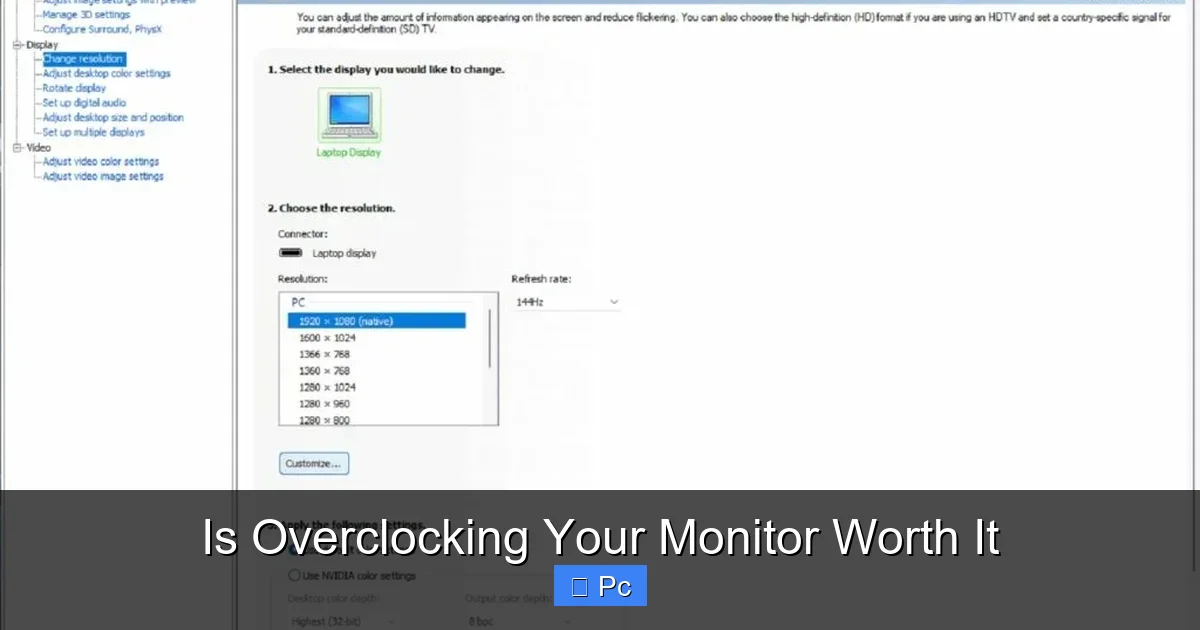
However, unlike GPU or CPU overclocking, monitor overclocking doesn’t involve increasing voltage or heat output. Instead, it tweaks the signal timing between your graphics card and the display. This is done through custom resolution settings, often using tools like NVIDIA Control Panel, AMD Radeon Software, or third-party utilities like CRU (Custom Resolution Utility).
It’s important to note that not all monitors can be overclocked. The ability depends heavily on the panel type, controller board, and firmware limitations. For example, older TN panels are often more responsive and easier to overclock, while modern VA panels may struggle with higher refresh rates due to slower pixel response times.
How Refresh Rate Affects Performance
To understand why overclocking matters, let’s talk about what higher refresh rates actually do. A higher Hz means more frames are displayed per second, which reduces motion blur and makes fast action feel smoother. In fast-paced games like *CS:GO*, *Valorant*, or *Apex Legends*, this can mean the difference between spotting an enemy first or reacting a split second too late.
But it’s not just about gaming. Higher refresh rates also improve general desktop usability. Scrolling through web pages, dragging windows, and even moving your mouse cursor feel more fluid. This is why many users prefer 120Hz or 144Hz monitors even for everyday tasks.
However, the benefits plateau after a certain point. The jump from 60Hz to 120Hz is dramatic—most people notice it immediately. But going from 144Hz to 165Hz? That’s subtler. And from 165Hz to 180Hz? Even harder to perceive. Your eyes and brain can only process so much motion clarity, and diminishing returns set in quickly.
That said, for competitive gamers, even a 5–10Hz boost can feel meaningful—especially if it reduces input lag or improves synchronization with high-FPS gameplay.
The Difference Between Overclocking and Native Refresh Rates
A common misconception is that overclocking gives you a “free” upgrade to a higher-tier monitor. But that’s not quite accurate. When a monitor is rated for 144Hz, it’s been tested and certified to run stably at that speed. Overclocking pushes it beyond that—into uncharted territory.
Think of it like this: a car might be rated for 120 mph, but with the right tuning, it could hit 140 mph. But doing so regularly might wear out the engine faster. Similarly, overclocking your monitor might give you 165Hz, but it could shorten the panel’s lifespan or cause instability over time.
Also, overclocked refresh rates aren’t always “true” in the same way native ones are. The monitor’s internal scaler and timing controller may not be optimized for the higher rate, leading to issues like screen tearing, stuttering, or color inaccuracies.
Can Your Monitor Be Overclocked?
Visual guide about Is Overclocking Your Monitor Worth It
Image source: pcmecca.com
Before you start tweaking settings, you need to know: *Can your monitor even be overclocked?* The short answer is: maybe. It depends on several factors, including the panel technology, age of the monitor, and manufacturer restrictions.
Panel Type Matters
Not all LCD panels respond the same way to overclocking. Here’s a quick breakdown:
– **TN (Twisted Nematic):** These are the easiest to overclock. TN panels have fast response times and simple electronics, making them ideal candidates. Many older 144Hz TN monitors can hit 165Hz or even 180Hz with minimal issues.
– **IPS (In-Plane Switching):** Some IPS panels can be overclocked, especially newer ones with high native refresh rates. However, they’re more prone to color shifts and backlight flickering when pushed too far. Look for models with strong overclocking communities (like certain ASUS or LG variants).
– **VA (Vertical Alignment):** Generally the hardest to overclock. VA panels have excellent contrast but slower pixel response times. Pushing them beyond spec often results in ghosting, smearing, or severe artifacts. Overclocking a VA panel is risky and rarely worth it.
Age and Model-Specific Factors
Newer monitors are less likely to benefit from overclocking because manufacturers are already pushing panels to their limits. A 2023 165Hz monitor is probably running near its ceiling. In contrast, older models—especially those from the 2010s—often had headroom left on the table.
For example, the Dell S2417DG (a 1440p 165Hz G-Sync monitor from 2017) was famously overclockable to 180Hz by many users. But newer versions of similar models may not respond the same way due to component changes.
Also, check your monitor’s firmware. Some manufacturers lock down overclocking via firmware updates. If your monitor received a recent update, it might have closed previous loopholes.
Check Community Feedback
One of the best ways to know if your monitor can be overclocked is to search forums like Reddit (r/overclocking, r/buildapc), Linus Tech Tips, or TechPowerUp. Users often share their experiences, including stable overclocked rates, required settings, and warnings.
For instance, many Acer XB271HU owners report stable 180Hz overclocks, while others with the same model hit instability at 170Hz. This variability is normal—even identical models can behave differently due to manufacturing tolerances.
How to Overclock Your Monitor (Step-by-Step)
Visual guide about Is Overclocking Your Monitor Worth It
Image source: gamingscan.com
If you’ve confirmed your monitor is a good candidate, it’s time to try overclocking. The process is relatively simple, but it requires caution. Here’s how to do it safely.
Step 1: Backup Your Current Settings
Before making any changes, note your current resolution and refresh rate. Also, take a screenshot of your desktop or open a reference image. This helps you compare visual quality before and after overclocking.
Step 2: Use the Right Tools
You’ll need software to create custom resolutions. The most popular options are:
– **NVIDIA Control Panel:** Built into NVIDIA drivers. Go to “Change resolution” > “Customize” > “Create Custom Resolution.”
– **AMD Radeon Software:** Under “Display” > “Custom Resolutions.”
– **CRU (Custom Resolution Utility):** A free, powerful third-party tool that gives more control over timing parameters.
CRU is often recommended because it allows fine-tuning of front porch, sync width, and other advanced settings that can improve stability.
Step 3: Start Small
Don’t jump straight to 180Hz. Increase the refresh rate in small increments—5Hz at a time. For example, if your monitor is 144Hz, try 149Hz first.
In CRU, create a new resolution with the same dimensions but a slightly higher refresh rate. Apply the change and test for 15–30 minutes. Watch for:
– Screen flickering
– Color distortion
– Black screens or signal loss
– Artifacts (weird lines, dots, or patterns)
If everything looks stable, try the next increment. If you see issues, revert immediately.
Step 4: Test with Real Content
Don’t just stare at a static desktop. Test with:
– Fast-moving games (e.g., *CS:GO*, *Rocket League*)
– Scrolling web pages
– Video playback (especially high-frame-rate content)
– Mouse movement tests (try moving your cursor rapidly)
Use tools like UFO Test (testufo.com) to check for motion clarity and ghosting.
Step 5: Monitor for Long-Term Stability
Even if your monitor looks fine after an hour, run it for several days. Some issues only appear under prolonged use or temperature changes. If you experience crashes, signal drops, or visual glitches, dial back the overclock.
Step 6: Save or Revert
If you’re happy with the results, save the custom resolution. In Windows, you can set it as the default. But keep the original settings handy in case you need to revert.
Pros and Cons of Overclocking Your Monitor
Visual guide about Is Overclocking Your Monitor Worth It
Image source: displayninja.com
Like any performance tweak, monitor overclocking has trade-offs. Let’s break down the benefits and risks.
Pros
– **Smoother Motion:** Higher refresh rates reduce motion blur and make fast action feel more responsive.
– **Reduced Input Lag:** In some cases, overclocking can slightly decrease the time between input and on-screen response.
– **Competitive Edge:** For esports players, even a small Hz boost can improve reaction times.
– **Cost-Effective Upgrade:** You’re getting better performance without buying a new monitor.
– **Personalization:** It’s a fun way to tweak your setup and learn about display technology.
Cons
– **Risk of Damage:** Pushing the panel too hard can cause permanent damage, especially to the backlight or controller board.
– **Visual Artifacts:** Flickering, color shifts, screen tearing, and ghosting are common at unstable overclocks.
– **Voided Warranty:** Most manufacturers won’t cover damage from overclocking. Check your warranty terms.
– **Inconsistent Results:** Even identical models can behave differently. What works for one user may crash yours.
– **Diminishing Returns:** The jump from 144Hz to 165Hz is subtle. Is it worth the risk for a 15% increase?
– **No Guarantee of Stability:** Some monitors simply can’t handle higher rates, no matter how carefully you tweak.
Real-World Examples and User Experiences
To give you a clearer picture, let’s look at some real-world overclocking results.
Case Study: ASUS ROG Swift PG279Q
This 1440p 165Hz IPS monitor is a favorite among overclockers. Many users report stable operation at 180Hz using CRU. One Reddit user tested it for 30 days with no issues, noting “smoother gameplay in *Overwatch* and less eye strain during long sessions.”
However, another user experienced intermittent black screens after a week, forcing a revert to 165Hz. The difference? Slight variations in panel quality and firmware.
Case Study: Acer Predator XB271HU
Similar to the ASUS model, this 1440p 165Hz G-Sync monitor has a strong overclocking community. Users commonly hit 180Hz, with some pushing to 190Hz. But reports of color banding and backlight flickering increase at higher rates.
One user noted: “At 180Hz, colors look slightly washed out, but the motion clarity is worth it for competitive play.”
Case Study: Dell U2715H (60Hz IPS)
An older 4K 60Hz monitor. Some users tried overclocking to 75Hz. A few succeeded, but most encountered severe flickering or no signal. This highlights that not all panels—even IPS—are good candidates.
When Is Overclocking Not Worth It?
Despite the potential benefits, overclocking isn’t always the right move. Here are situations where you should think twice.
Your Monitor Is Already High-Refresh
If you’re running a 240Hz or 360Hz monitor, the gains from overclocking are minimal. The human eye struggles to perceive differences beyond 200Hz, and the risk may not justify the tiny improvement.
You Use Your Monitor for Color-Critical Work
Photographers, video editors, and designers rely on accurate colors. Overclocking can introduce color shifts or reduce brightness uniformity. If color accuracy is vital, avoid overclocking.
You’re on a Tight Budget
If your monitor is older or lower-end, the risk of damage might outweigh the benefits. A failed overclock could mean replacing the display—costing more than a modest upgrade.
You Don’t Game or Need High FPS
For office work, browsing, or streaming, 60Hz is perfectly fine. Overclocking won’t improve your experience meaningfully.
Tips for Safe Overclocking
If you decide to proceed, follow these best practices to minimize risk:
– **Start low and go slow:** Increase refresh rate in 5Hz steps.
– **Test thoroughly:** Use games, videos, and motion tests.
– **Monitor temperature:** While monitors don’t overheat like GPUs, prolonged high usage can stress components.
– **Keep original settings:** Always have a way to revert.
– **Avoid extreme overclocks:** Pushing beyond 20% of the native rate is risky.
– **Use quality cables:** Ensure your DisplayPort or HDMI cable supports the bandwidth.
Conclusion
So, is overclocking your monitor worth it?
The answer depends on your goals, your hardware, and your tolerance for risk. For some—especially competitive gamers with older TN or IPS panels—the smoother motion and slight performance boost make it a worthwhile experiment. For others, the potential for artifacts, instability, or damage isn’t worth the marginal gain.
If you do try it, proceed with caution. Use reliable tools, test incrementally, and listen to your monitor. And remember: just because someone else overclocked their identical model doesn’t mean yours will behave the same way.
In the end, monitor overclocking is a niche tweak—not a must-do upgrade. But for those willing to explore the edges of their display’s capabilities, it can unlock a smoother, more responsive experience. Just don’t expect miracles, and always have a backup plan.
Frequently Asked Questions
Can overclocking damage my monitor?
Yes, it can. Pushing a monitor beyond its designed limits may cause permanent damage to the panel, backlight, or controller board. While many users overclock safely, there’s always a risk—especially with aggressive settings.
Will overclocking void my warranty?
Most likely, yes. Manufacturers typically don’t cover damage caused by overclocking. Check your warranty terms before proceeding, as modifying settings beyond factory specs may void coverage.
How much can I realistically overclock my monitor?
It varies by model, but most monitors can gain 10–20Hz over their base rate. Some high-end models may reach 180Hz from 165Hz, but gains beyond that are rare and risky.
Do I need special software to overclock my monitor?
Yes. Tools like NVIDIA Control Panel, AMD Radeon Software, or CRU (Custom Resolution Utility) are needed to create custom resolutions and adjust refresh rates safely.
Will overclocking improve my gaming performance?
It can improve motion clarity and reduce perceived input lag, but it won’t increase your GPU’s frame rate. The benefit is in how smoothly those frames are displayed, not how many are rendered.
Can I overclock a 60Hz monitor to 144Hz?
Almost never. Such a massive jump is far beyond what most 60Hz panels can handle. You might get 75Hz in rare cases, but 144Hz is unrealistic and likely to cause severe issues.
