


Gaming laptops are powerful but often loud due to high-performance fans. This guide reveals proven methods to reduce fan noise—from cleaning dust buildup to optimizing settings—so you can game in peace without sacrificing performance.
Key Takeaways
- Clean your laptop regularly: Dust buildup blocks airflow and forces fans to work harder, increasing noise.
- Use a cooling pad: External cooling pads improve airflow and reduce internal fan speed.
- Adjust power and fan settings: Tweaking performance modes in BIOS or software can lower fan RPM and noise.
- Repaste thermal compound: Old or dried thermal paste reduces heat transfer, causing fans to spin faster.
- Elevate your laptop: Raising the back improves ventilation and reduces heat buildup.
- Close background apps: Unnecessary programs consume CPU/GPU resources, increasing heat and fan activity.
- Consider undervolting: Lowering voltage to the CPU/GPU reduces heat output and fan noise safely.
📑 Table of Contents
Why Are Gaming Laptop Fans So Loud?
Gaming laptops pack high-end processors, powerful graphics cards, and fast RAM into compact designs. This hardware generates a lot of heat during intense gameplay or multitasking. To keep components from overheating, manufacturers install high-speed cooling fans that spin rapidly—sometimes reaching over 5,000 RPM. While effective, these fans can be incredibly noisy, especially under load.
The noise isn’t just annoying—it can break immersion during gameplay, disrupt streaming sessions, or make it hard to focus. Many users assume loud fans are just part of the gaming laptop experience, but that’s not entirely true. With the right adjustments and maintenance, you can significantly reduce fan noise without compromising performance.
Understanding why fans get loud is the first step. Heat is the main culprit. When your CPU or GPU temperature rises, the system triggers the fans to spin faster to cool things down. Dust, poor ventilation, outdated drivers, or inefficient power settings can all contribute to excessive heat—and therefore, louder fans. The good news? Most of these issues are fixable.
How Heat Affects Fan Speed
Modern gaming laptops use thermal sensors to monitor component temperatures. When a sensor detects that the CPU or GPU is getting too hot—usually above 70–80°C under load—it signals the cooling system to ramp up fan speed. This is known as “thermal throttling prevention.” While necessary, aggressive fan curves (the relationship between temperature and fan speed) can lead to sudden, loud bursts of noise.
Some laptops come with factory-set fan profiles that prioritize cooling over acoustics. This means fans may spin at high speeds even when the system isn’t under heavy load. Over time, dust accumulation in the vents and heat sinks reduces airflow, forcing fans to work even harder. The result? Louder, less efficient cooling.
Common Causes of Excessive Fan Noise
Several factors can make your gaming laptop fans louder than they should be:
– Dust and debris: Over months of use, dust builds up in the vents, fans, and heat sinks, blocking airflow.
– Poor ventilation: Using your laptop on soft surfaces like beds or couches can block intake vents.
– High ambient temperature: Gaming in a hot room increases internal temperatures.
– Outdated BIOS or drivers: Firmware updates often include improved thermal management.
– Background processes: Apps like browsers, updaters, or antivirus software can spike CPU usage.
– Dried thermal paste: After 1–2 years, thermal compound between the CPU/GPU and heat sink can degrade.
Identifying the root cause helps you choose the right solution. For example, if your laptop is dusty, cleaning it may reduce fan noise by 30–50%. If it’s a software issue, adjusting settings might be enough.
Clean Your Laptop to Reduce Fan Noise
Visual guide about How to Make Gaming Laptop Fans Quieter
Image source: m.media-amazon.com
One of the most effective and often overlooked ways to make gaming laptop fans quieter is regular cleaning. Dust is the enemy of cooling. Over time, it clogs vents, coats fan blades, and insulates heat sinks, reducing their ability to dissipate heat. When airflow is restricted, fans must spin faster to compensate—leading to louder operation.
Cleaning your laptop isn’t just about aesthetics; it’s a maintenance necessity. Most manufacturers recommend cleaning every 3–6 months, depending on your environment. If you game in a dusty room, have pets, or use your laptop on soft surfaces, you may need to clean it more often.
How to Safely Clean Your Laptop
Before you start, power off your laptop and unplug it. Remove the battery if possible (on older models). For most modern gaming laptops, you’ll need to open the back panel to access the fans and heat sinks. Check your user manual or look up a teardown guide for your specific model—some require special tools.
Once inside, use a can of compressed air to blow out dust from the fans, vents, and heat sinks. Hold the can upright and use short bursts to avoid moisture buildup. Never spin the fans manually with compressed air—this can damage the bearings. Instead, hold the fan blades in place with a toothpick or plastic tool while blowing.
For stubborn dust, use a soft-bristled brush (like a clean makeup brush) to gently loosen debris before blowing it away. Avoid using vacuums, as they can generate static electricity and damage sensitive components.
What to Avoid When Cleaning
– Using water or liquid cleaners: These can short-circuit components.
– Spinning fans with compressed air: This can cause overspeed and damage.
– Forcing panels open: Use the correct screwdrivers and follow disassembly guides.
– Cleaning while the laptop is on: Always power down and unplug.
After cleaning, reassemble your laptop and test it. You should notice quieter fans and better performance almost immediately. In one real-world example, a user cleaned their ASUS ROG Strix and saw fan noise drop from 52 dB to 38 dB under load—a dramatic improvement.
Use a Cooling Pad for Better Airflow

Visual guide about How to Make Gaming Laptop Fans Quieter
Image source: i.ytimg.com
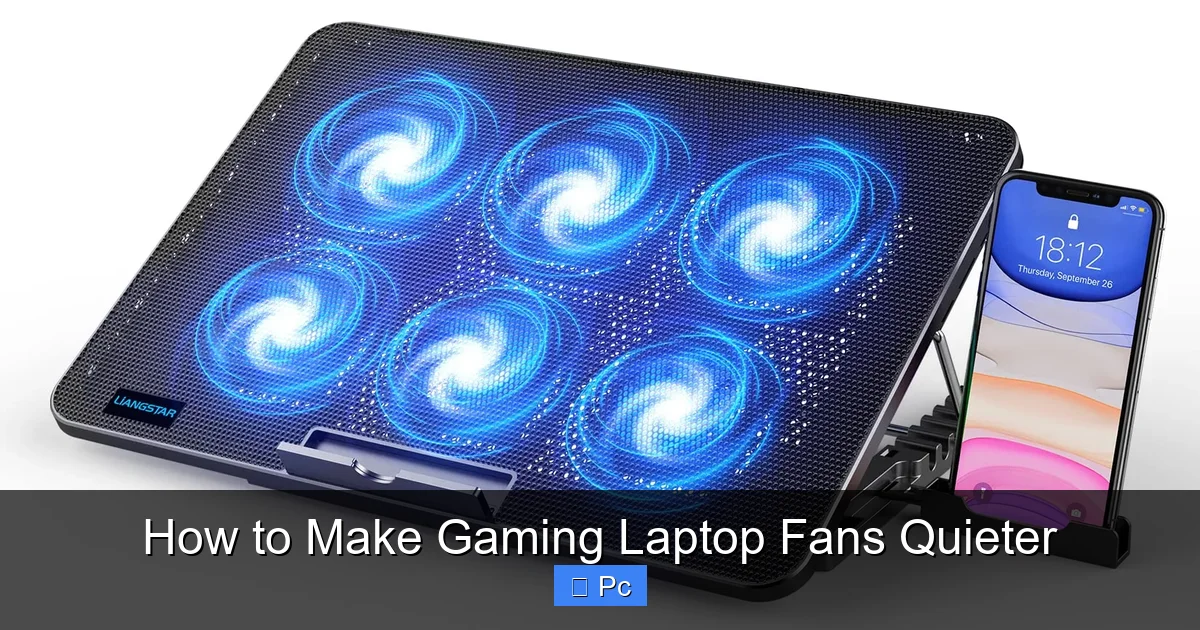
A cooling pad is a simple, affordable accessory that can make a big difference in reducing fan noise. These devices sit under your laptop and feature built-in fans that help pull heat away from the chassis. By improving overall airflow, they reduce the workload on your laptop’s internal fans, allowing them to spin slower and quieter.
Cooling pads come in various sizes and designs. Some are basic, with a single fan and USB power, while others have multiple fans, adjustable heights, and RGB lighting. For gaming laptops, look for pads with strong airflow (measured in CFM) and a design that matches your laptop’s vent layout.
How Cooling Pads Help
Most gaming laptops draw cool air from the bottom and sides, then exhaust hot air from the rear or sides. A cooling pad enhances this process by actively pushing air into the intake vents. This helps lower internal temperatures, especially around the CPU and GPU.
For example, a laptop running at 85°C under load might drop to 78°C with a quality cooling pad. That 7-degree difference may not seem like much, but it can reduce fan speed by 20–30%, significantly cutting noise.
Choosing the Right Cooling Pad
When shopping for a cooling pad, consider:
– Size and compatibility: Ensure it fits your laptop and supports its weight.
– Fan speed and noise: Some pads are louder than the laptop itself—look for quiet models with adjustable speeds.
– Adjustable height: Tilting your laptop improves ergonomics and airflow.
– USB-powered vs. external power: USB-powered pads are convenient but may not offer maximum performance.
Popular options include the Cooler Master NotePal X3, Havit HV-F2056, and Kootek Cooling Pad. Many users report a noticeable drop in fan noise after using one—especially during long gaming sessions.
Adjust Power and Fan Settings
Visual guide about How to Make Gaming Laptop Fans Quieter
Image source: pcmecca.com
Your laptop’s operating system and BIOS offer tools to control fan behavior and power usage. By tweaking these settings, you can reduce fan noise while maintaining solid performance. The key is finding a balance between cooling and acoustics.
Most gaming laptops come with pre-installed software like MSI Dragon Center, ASUS Armory Crate, or Lenovo Vantage. These programs let you switch between performance modes—such as “Silent,” “Balanced,” and “Performance”—which directly affect fan speed and power limits.
Using Built-in Performance Modes
Switching to “Silent” mode reduces CPU and GPU power limits, which lowers heat output and allows fans to run slower. This mode is ideal for light gaming, browsing, or office work. While you may see a slight drop in frame rates, the noise reduction is often worth it.
For example, a user playing a less demanding game like Minecraft or Stardew Valley might not notice any performance loss in Silent mode, but the fans will be nearly silent. On the other hand, “Performance” mode maximizes power and cooling, which is great for AAA titles but results in louder fans.
Customizing Fan Curves
Advanced users can create custom fan curves using software like HWiNFO, SpeedFan, or the manufacturer’s utility. A fan curve defines how fast the fans spin at different temperatures. By flattening the curve—making fans respond more gradually to heat—you can reduce sudden noise spikes.
For instance, instead of ramping up to 100% speed at 80°C, you might set the fan to reach 70% at 85°C. This keeps noise down while still providing adequate cooling. Be cautious: setting fans too low can lead to overheating and thermal throttling.
Undervolting for Quieter Operation
Undervolting reduces the voltage supplied to the CPU or GPU without lowering performance. Since heat is directly related to voltage, this can significantly reduce temperatures—and therefore fan noise.
Intel and AMD processors support undervolting through tools like ThrottleStop (for Intel) or Ryzen Controller (for AMD). NVIDIA GPUs can be undervolted using MSI Afterburner. The process involves lowering voltage in small increments and stress-testing for stability.
A common undervolt might reduce CPU voltage by 50–100mV. This can lower temperatures by 5–10°C, allowing fans to run 15–25% slower. Many gamers report quieter systems and better battery life after undervolting—without any performance loss.
Improve Ventilation and Laptop Positioning
How you position your laptop has a big impact on cooling and fan noise. Blocking intake or exhaust vents forces the system to work harder, increasing heat and noise. Simple changes in placement can make a noticeable difference.
Elevate the Laptop
Lifting the back of your laptop improves airflow underneath, where many intake vents are located. You can use a stand, book, or even a laptop cooler with adjustable height. Even a small tilt—just 1–2 inches—can enhance ventilation.
Some gamers use wooden or metal stands designed for ergonomics and cooling. These often include built-in fans or passive cooling features. Avoid placing your laptop on soft surfaces like beds, couches, or pillows, which can block vents and trap heat.
Use in a Cool Environment
Ambient temperature plays a role in internal heat buildup. Gaming in a room at 30°C will make your laptop hotter than in a room at 22°C. Use air conditioning, fans, or open windows to keep your environment cool.
If you game in a hot climate, consider using your laptop during cooler parts of the day or investing in a room fan to improve air circulation.
Avoid Enclosed Spaces
Don’t use your laptop inside a backpack, under a blanket, or in a closed drawer. These spaces restrict airflow and can cause rapid overheating. Always ensure there’s at least 2–3 inches of clearance around all sides of the laptop.
Repaste Thermal Compound for Better Heat Transfer
Thermal paste is a conductive material applied between the CPU/GPU and the heat sink. It fills microscopic gaps and improves heat transfer. Over time, this paste can dry out, crack, or degrade, reducing its effectiveness. When heat isn’t transferred efficiently, temperatures rise, and fans spin faster.
Reapplying thermal paste—also called “repasting”—can lower temperatures by 5–15°C, depending on the quality of the old paste and the new application. This often results in quieter fans and better performance.
When to Repaste
Most manufacturers recommend repasting every 1–2 years. Signs that it’s time include:
– Consistently high idle or load temperatures
– Frequent thermal throttling
– Fans running louder than usual
– Performance drops during long sessions
If your laptop is older than two years and you’ve never repasted it, there’s a good chance the thermal compound has degraded.
How to Repaste Your Laptop
Repasting requires disassembling your laptop to access the CPU and GPU. This is more advanced than cleaning and should only be done if you’re comfortable with hardware. Follow these steps:
1. Power off and unplug the laptop. Remove the battery if possible.
2. Open the back panel and locate the heat sink assembly.
3. Carefully remove the heat sink, noting screw order and orientation.
4. Clean off the old thermal paste from the CPU, GPU, and heat sink using isopropyl alcohol and a lint-free cloth.
5. Apply a small dot of high-quality thermal paste (like Arctic MX-4, Noctua NT-H1, or Thermal Grizzly Kryonaut) to the center of each chip.
6. Reattach the heat sink, ensuring even pressure.
7. Reassemble and test.
A proper repaste can reduce CPU temps by 10°C or more. In one case, a user repasted their MSI GE75 and saw fan noise drop from 50 dB to 42 dB under load.
Close Background Apps and Optimize Software
Even when you’re not gaming, background apps can consume CPU and GPU resources, generating heat and triggering fan activity. Closing unnecessary programs frees up system resources and reduces thermal load.
Identify Resource-Hogging Apps
Use Task Manager (Windows) or Activity Monitor (Mac) to see which apps are using the most CPU, GPU, or memory. Common culprits include:
– Web browsers with many tabs
– Antivirus scans
– Cloud sync services (Dropbox, OneDrive)
– Streaming software (OBS, Discord)
– Automatic updaters
Close these apps when gaming or during quiet work sessions.
Disable Startup Programs
Many apps launch at startup and run in the background. Disable non-essential ones to reduce load. In Windows, go to Task Manager > Startup tab and disable apps you don’t need immediately.
Update Drivers and BIOS
Outdated graphics drivers or BIOS firmware can lead to inefficient power management and higher temperatures. Check your manufacturer’s website regularly for updates. Newer drivers often include optimizations that improve thermal performance and reduce fan noise.
Conclusion
Making your gaming laptop fans quieter doesn’t require expensive upgrades or technical expertise. With regular cleaning, smart settings, and simple accessories, you can enjoy a much more peaceful gaming experience. Start with the basics: clean your laptop, use a cooling pad, and adjust performance modes. For advanced users, undervolting and repasting offer even greater noise reduction.
Remember, quieter fans don’t mean weaker performance—they mean smarter cooling. By managing heat effectively, you protect your hardware, extend its lifespan, and create a more enjoyable environment for gaming, work, or entertainment.
Don’t let loud fans ruin your immersion. Try these tips today and hear the difference for yourself.
Frequently Asked Questions
Can I make my gaming laptop completely silent?
It’s nearly impossible to make a gaming laptop completely silent, especially under load, due to the high-performance components. However, you can significantly reduce fan noise using the methods in this guide, such as cleaning, undervolting, and using a cooling pad.
Will undervolting damage my laptop?
Undervolting is generally safe when done correctly. It reduces voltage to the CPU or GPU, which lowers heat and power consumption without affecting performance. Always test for stability after making changes.
How often should I clean my gaming laptop?
Clean your laptop every 3–6 months, depending on your environment. If you have pets, game in dusty areas, or use your laptop on soft surfaces, clean it more frequently to maintain airflow.
Do cooling pads really work?
Yes, cooling pads can improve airflow and reduce internal temperatures, especially when used with proper laptop positioning. Look for models with strong airflow and quiet operation for the best results.
Can I replace the fans in my gaming laptop?
Most gaming laptops have non-user-replaceable fans, as they’re integrated into the cooling system. Replacing them requires advanced technical skills and may void your warranty. Focus on cleaning and optimizing instead.
Why do my fans get louder over time?
Fans often get louder due to dust buildup, dried thermal paste, or aging components. Regular maintenance like cleaning and repasting can restore quieter operation and improve performance.
