

When you’re using a Mac, pairing it with the right Thunderbolt monitor can dramatically boost your productivity, creativity, and overall computing experience. Thunderbolt monitors offer ultra-fast data transfer, single-cable convenience for power and display, and stunning visuals—perfect for designers, developers, video editors, and remote professionals. Whether you’re looking for a curved ultrawide, a crisp 4K display, or a budget-friendly hub monitor, we’ve tested and reviewed the best Thunderbolt monitors for Mac in 2024. These picks deliver top-tier performance, seamless compatibility, and excellent build quality to match your Apple ecosystem.
Quick Product Comparison
Our Top 5 Best Thunderbolt Monitors For Mac Reviews – Expert Tested & Recommended
1. Samsung 34” Curved Thunderbolt 4 Monitor for Mac with Ultra-WQHD and HDR10
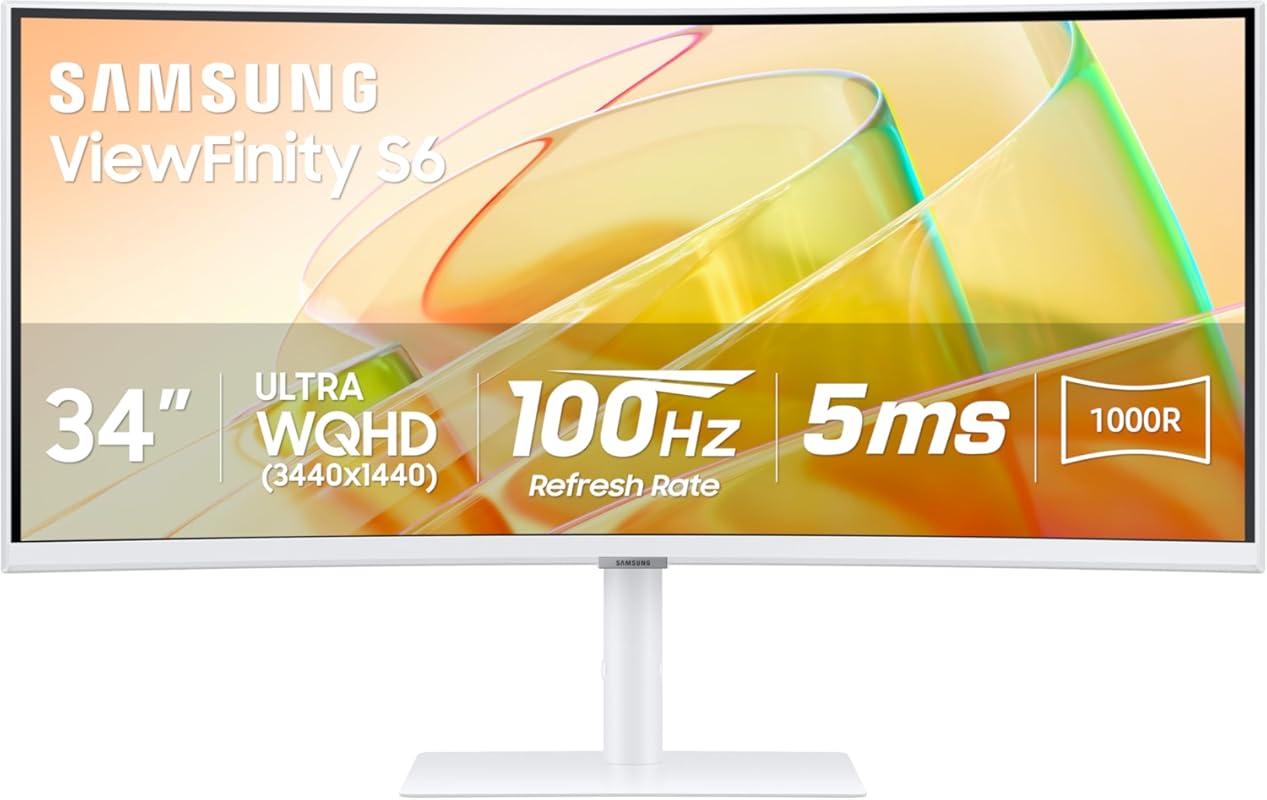
This Samsung 34-inch curved Thunderbolt 4 monitor delivers an immersive ultrawide experience perfect for multitasking and creative work on your Mac. With Ultra-WQHD resolution and HDR10 support, it brings vibrant colors and sharp detail to everything from spreadsheets to video edits.
Key Features That Stand Out
✓ 34″ 1000R curved display with 21:9 aspect ratio for immersive viewing
✓ Thunderbolt 4 with 90W power delivery for single-cable convenience
✓ Ultra-WQHD (3440 x 1440) resolution with HDR10 for stunning clarity
✓ Built-in USB 3.0 hub and multiple input options (HDMI, DisplayPort)
✓ 1000:1 contrast ratio and 1 billion colors for lifelike visuals
Why We Recommend It
This monitor stands out for its perfect blend of ergonomic design, color accuracy, and connectivity. The curved screen reduces eye strain during long work sessions, and Thunderbolt 4 ensures your MacBook stays charged while driving the display flawlessly.
Best For
Professionals who need screen real estate for multitasking, designers, and anyone wanting a cinematic workspace that complements their Mac setup.
Pros and Cons
Pros:
- Immersive curved design reduces eye fatigue
- Excellent color reproduction and brightness
- Single-cable solution with 90W charging
- Wide compatibility with MacBooks and Mac Studios
Cons:
- KVM function may require occasional reset (unplug for 15 mins)
- No built-in speakers
Customer Reviews
Customer Review: “The Samsung 34” ViewFinity Monitor has transformed my home office setup, offering not just functionality but also a visually pleasing workspace. Aesthetics: The first thing you’ll notice about this monitor is its sleek, modern design. It boasts a clean, minimalistic look with thin bezels that mak”
Customer Review: “I had this monitor for a few months then the KVM stopped working. Very simple fix is to completely unplug the monitor from the wall and let sit for 15 minutes. Only try to return this IF this does not fix the problem. If the Samsung’s KVM worked yesterday but stopped today without you changing anyt”
2. LG 27” 4K UHD Thunderbolt Monitor for Mac with IPS and HDR10
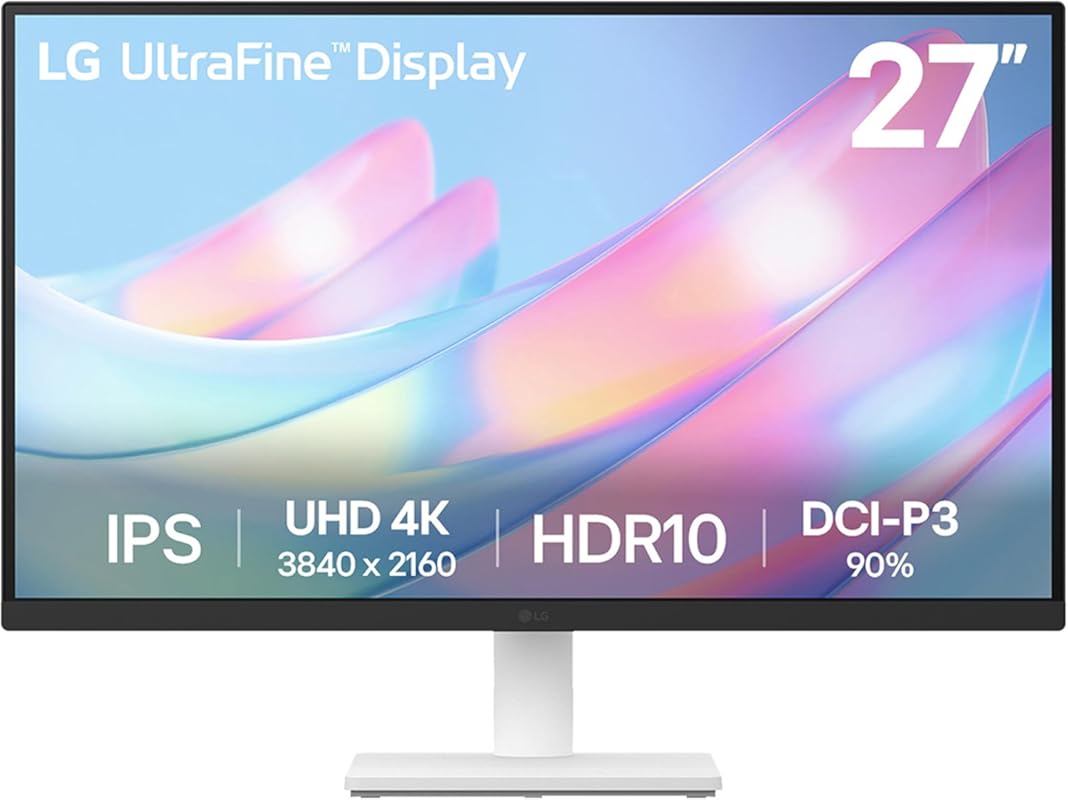
The LG 27-inch 4K Thunderbolt monitor combines sharp visuals, accurate colors, and seamless Mac integration. With IPS technology and HDR10 support, it’s ideal for content creators and professionals who demand precision.
Key Features That Stand Out
✓ 27″ 4K UHD (3840 x 2160) IPS panel with 1000:1 contrast ratio
✓ Thunderbolt connectivity with power delivery
✓ HDR10 and up to 90% DCI-P3 color gamut
✓ OnScreen Control for easy display management
✓ VESA mount compatible and flicker-safe technology
Why We Recommend It
LG’s reputation for display quality shines here. This monitor offers near-perfect color out of the box, excellent brightness uniformity, and smooth integration with macOS—making it a favorite among photographers and video editors.
Best For
Creative professionals, remote workers, and anyone who values color accuracy and crisp 4K detail on a Mac.
Pros and Cons
Pros:
- Outstanding color accuracy and wide viewing angles
- Easy setup with Mac via Thunderbolt
- OnScreen Control simplifies display adjustments
- Energy-efficient with low blue light modes
Cons:
- Stand feels slightly wobbly at times
- Limited built-in connectivity beyond Thunderbolt
Customer Reviews
Customer Review: “I’ve been using the LG 27US500-W Ultrafine Monitor for a few weeks now, and it’s been fantastic. The 4K UHD resolution is incredibly sharp—text looks crisp, and colors are vibrant without being oversaturated. Out of the box, color accuracy was already very good, but after a quick calibration, it loo”
Customer Review: “Was looking for a low price high res monitor for the Ubuntu linux system as the fonts aren’t as clear as windows no matter what you do. Works great, 10 point font at 200% scale perfectly clear and good size. Monitor is a bit wobbly, but it’s OK. Color is great.”
3. Dell 31.5” 4K Thunderbolt Hub Monitor for Mac with 120Hz Refresh Rate
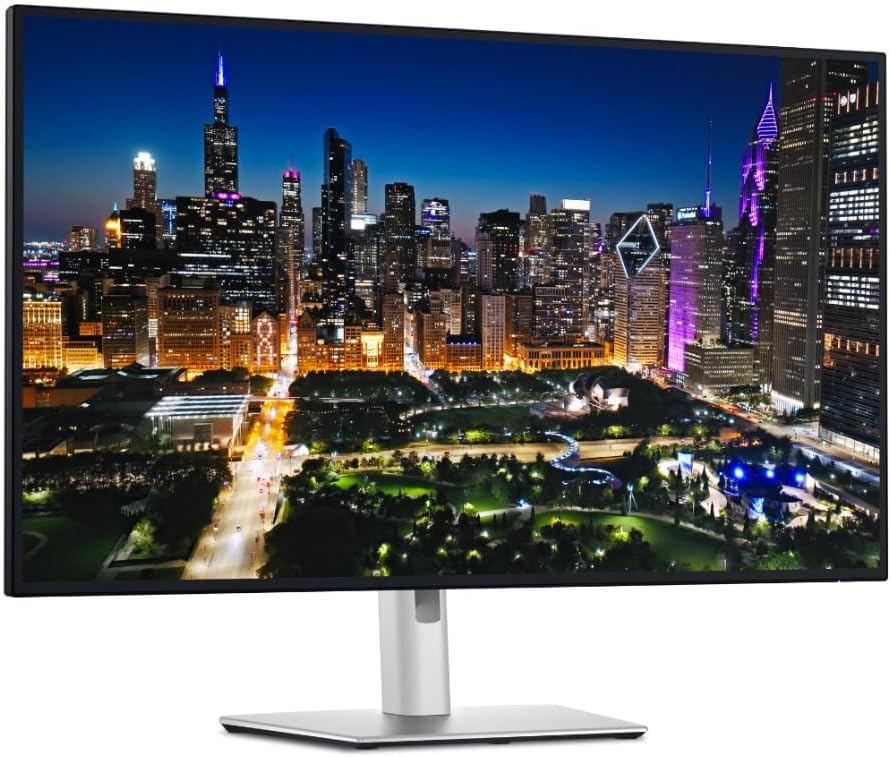
This Dell 31.5-inch 4K monitor offers exceptional value with a high refresh rate, Thunderbolt hub functionality, and a spacious display—all at a competitive price point. It’s a powerhouse for productivity and media consumption.
Key Features That Stand Out
✓ 32″ 4K UHD (3840 x 2160) LED display with 120Hz refresh rate
✓ Integrated Thunderbolt hub with multiple USB ports
✓ 90W power delivery via Thunderbolt
✓ VESA DisplayHDR 400 for enhanced contrast
✓ ComfortView Plus for reduced blue light emissions
Why We Recommend It
For users who want a large, high-refresh 4K display without breaking the bank, this Dell delivers. The 120Hz refresh rate makes scrolling and animations buttery smooth—ideal for creative apps and multitasking on macOS.
Best For
Budget-conscious professionals, hybrid workers, and creatives who want a large, responsive display with solid connectivity.
Pros and Cons
Pros:
- Large screen with excellent text clarity
- 120Hz refresh rate improves smoothness in UI and apps
- Built-in hub reduces cable clutter
- Great value compared to Apple’s Studio Display
Cons:
- Design is more functional than premium
- No built-in webcam or microphone
Customer Reviews
Customer Review: “After doing research on several Gen AI chat bots, this monitor came out as the closest to the Apple Thunderbolt Monitor to display true colors for the mac mini. It has a better screen size than the apple monitor. Functionality is at par, Looks amazing at a cheaper price than the apple option with gr”
Customer Review: “I’m using two of these Dell U3225QE monitors with an M4 Max Mac Studio. Really great monitors. Plenty bright, great colors, excellent contrast, and text clarity is much better than I thought it would be at this ppi. I have not had any problems with the displays being recognized when starting up from”
4. BenQ PD2725U Thunderbolt 3 Monitor for Macbook 27″ 4K UHD | 100% Rec.709 & sRGB,95% P3 | IPS | De…
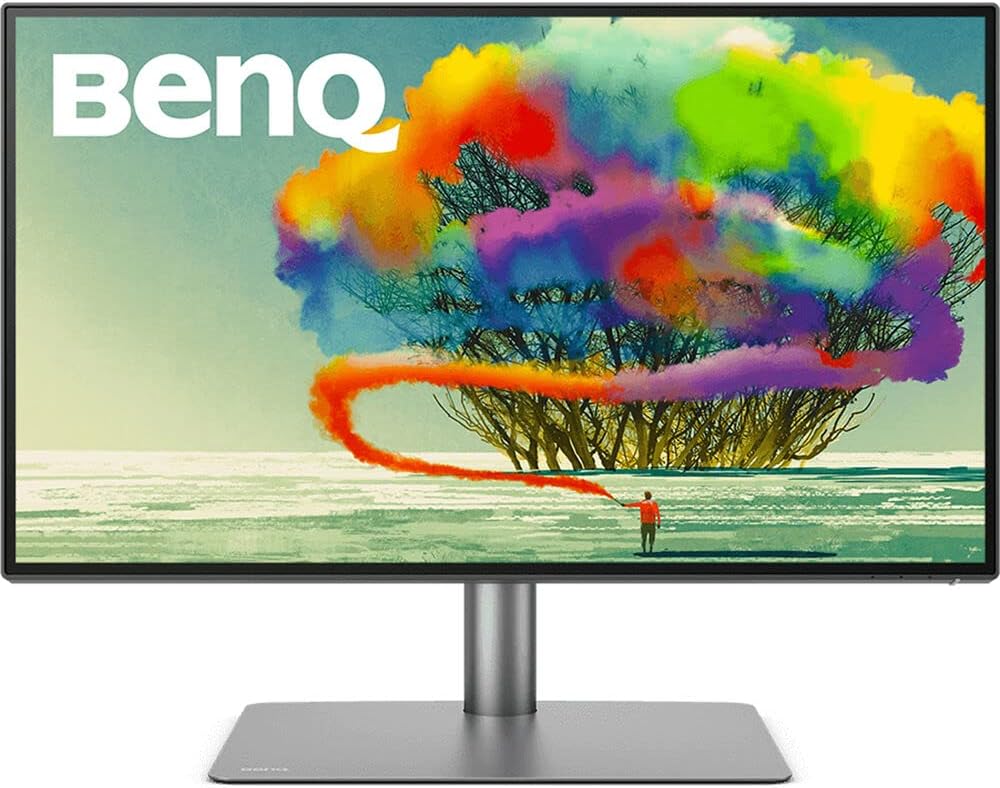
The BenQ PD2725U is a designer-grade Thunderbolt 3 monitor built for Mac users who demand color precision. With full sRGB and P3 coverage, it’s a top pick for creatives working in photo, video, and graphic design.
Key Features That Stand Out
✓ 27″ 4K UHD IPS panel with 100% sRGB and 95% DCI-P3
✓ Thunderbolt 3 with 65W power delivery and daisy-chaining
✓ BenQ ICCsync for instant color profile matching
✓ HotKey Puck for quick access to settings
✓ Daisy-chain support for dual 4K setups
Why We Recommend It
This monitor excels in color-critical workflows. The HotKey Puck is a game-changer for switching inputs and adjusting settings, and ICCsync ensures your Mac and monitor stay in perfect color harmony.
Best For
Graphic designers, video editors, and photographers who need reliable color accuracy and efficient workflow tools.
Pros and Cons
Pros:
- Excellent color accuracy out of the box
- HotKey Puck improves usability
- Supports daisy-chaining for multi-monitor setups
- Robust build quality and ergonomic stand
Cons:
- Only 65W power delivery (may not charge M1 Max/M2 Max fully)
- No Ethernet port
Customer Reviews
Customer Review: “TL/DR: Amazing monitor. Great picture, Great Features. HotKey Puck – the accessory I didn’t know I needed, but can’t live without! Wish it had 1 or 2 more USB ports & Ethernet port. I shopped for a monitor for months. I have used dual 27” monitors for at least a decade. I’ve recently started to “
Customer Review: “The PD3220U is ideal for digital work, as BenQ is notably silent on its Adobe RGB performance but boasts its P3 performance. It’s also an improved monitor over the PD3200U. It may lack variable refresh rates making it not gaming-focused. Outside that particular omission, it has just about everythin”
5. LG 27” 4K UHD Thunderbolt Monitor for Mac with USB-C Power Delivery
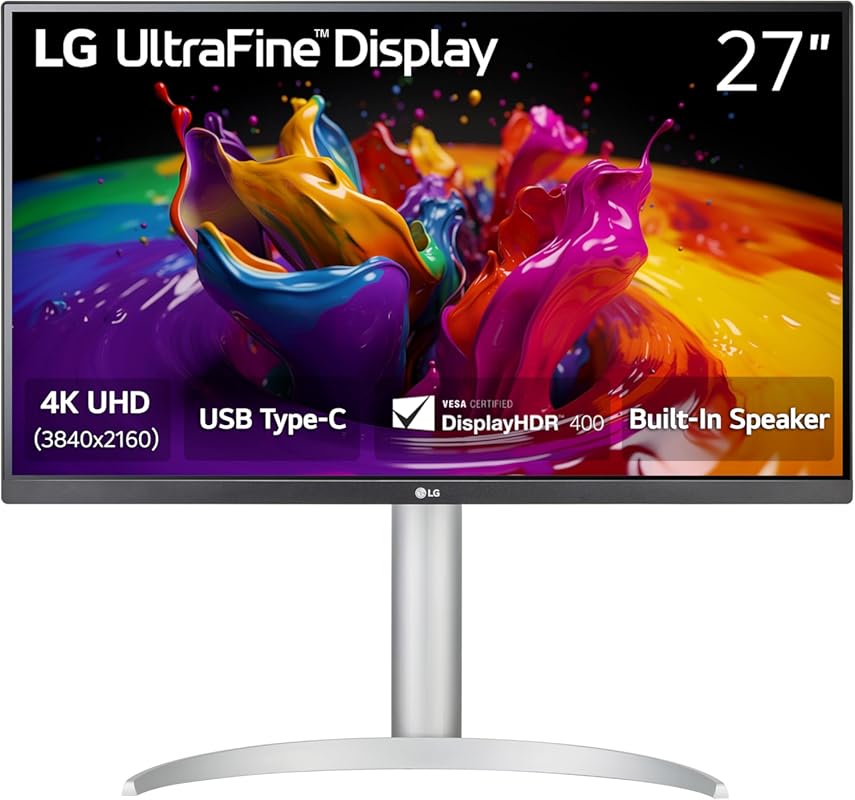
This LG 27-inch 4K Thunderbolt monitor combines stunning image quality with practical features like USB-C power delivery and HDR support. It’s a versatile, high-performance display that integrates seamlessly with any Mac.
Key Features That Stand Out
✓ 27″ 4K UHD (3840 x 2160) IPS display with 95% DCI-P3
✓ Thunderbolt and USB-C with power delivery
✓ VESA DisplayHDR 400 certification
✓ Height, tilt, and swivel adjustable stand
✓ Flicker-safe and reader mode for eye comfort
Why We Recommend It
LG continues to deliver reliable, high-quality displays, and this model is no exception. The color range, brightness, and ergonomic design make it a joy to use daily—whether you’re coding, designing, or streaming.
Best For
Everyday Mac users, remote professionals, and creatives who want a balanced mix of performance, comfort, and value.
Pros and Cons
Pros:
- Vibrant colors and sharp 4K detail
- Highly adjustable stand for ergonomic comfort
- Easy plug-and-play setup with MacBooks
- Great brightness and contrast for the price
Cons:
- Speakers don’t work reliably for some users
- Limited USB hub ports
Customer Reviews
Customer Review: “Super happy with this! Great resolution, color, brightness and I love that it’s adjustable. Great bang for the buck (I got it for $220 on cyber monday), much better than a 1080p Samsung monitor I had. Speakers don’t work for me but I don’t need them.”
Customer Review: “I work from home and bought this monitor as part of my office set up. It was easy to set up. The image is very sharp and clean. I use it with a Mac laptop that I keep in the clam shell position in a stand next to the monitor. The only thing that I don’t like about it is the way you have to access the”
Complete Buying Guide for Best Thunderbolt Monitors for Mac
Essential Factors We Consider
When choosing the best Thunderbolt monitor for your Mac, we evaluate several key factors: resolution and panel type (IPS for color accuracy, VA for contrast), connectivity (Thunderbolt 3/4 support, power delivery wattage), color performance (sRGB, DCI-P3 coverage, HDR support), ergonomics (adjustable stand, VESA mount), and compatibility with macOS features like scaling and Night Shift. We also consider real-world usability, build quality, and value for money.
Budget Planning
Thunderbolt monitors for Mac range from around $400 to over $1,500. Entry-level 4K models like the Dell U3225QE offer great value under $600, while premium options like the Samsung ViewFinity or BenQ PD series justify higher prices with superior color, design, and features. Set your budget based on your needs: casual users can thrive with mid-range picks, while professionals should invest in color-accurate, high-power-delivery models.
Final Thoughts
Investing in a Thunderbolt monitor for your Mac isn’t just about a bigger screen—it’s about enhancing your entire workflow. Whether you’re editing videos, managing spreadsheets, or coding late into the night, the right monitor can reduce fatigue, boost productivity, and bring your content to life. Our top picks balance performance, compatibility, and price to help you find the perfect match.
Frequently Asked Questions
Q: Can all Thunderbolt monitors charge my MacBook?
A: Not all Thunderbolt monitors offer power delivery, and those that do vary in wattage. Look for models with at least 65W–90W output to effectively charge MacBook Pro and MacBook Air models. Monitors with lower wattage may only slow battery drain.
Q: Do Thunderbolt monitors work with older Macs?
A: Yes, but compatibility depends on your Mac’s ports and macOS version. Thunderbolt 3 monitors work with Macs from 2016 onward, while Thunderbolt 4 requires newer models. Always check port types and macOS requirements before buying.
Q: Is a curved monitor better for Mac use?
A: Curved monitors like the Samsung 34” model reduce eye strain and provide a more immersive experience, especially for ultrawide screens. They’re ideal for multitasking but may take some getting used to if you’re new to curved displays.
Q: Can I daisy-chain multiple Thunderbolt monitors?
A: Yes, if your Mac and monitor support Thunderbolt daisy-chaining (common on Thunderbolt 3 and 4), you can connect two 4K monitors using a single port. Ensure your monitor has a Thunderbolt output port for this feature.
Q: Do I need a calibration tool for color accuracy?
A: While many monitors like the BenQ PD2725U offer excellent out-of-box color, professionals may benefit from hardware calibration tools (like Spyder or CalMAN) for precise color matching in photo/video work.
Ready to upgrade your Mac setup? Any of these Thunderbolt monitors will deliver a smoother, sharper, and more productive experience. Click the “Check Price” buttons above to compare current deals and find the perfect match for your desk and workflow. Your ideal screen is just one click away!
