

Looking to connect your laptop or desktop to two monitors but only have one HDMI port? You’re not alone. Whether you’re boosting productivity for work, setting up a gaming station, or just want more screen real estate, finding the best HDMI splitter for dual monitors can make all the difference. But here’s the catch: not all splitters are created equal. Some only mirror your screen (duplicate mode), while others support extended desktop—and many buyers get confused between the two. In this expert-reviewed roundup, we’ve tested and compared the top-performing HDMI splitters and adapters that actually deliver reliable dual-monitor performance, whether you need mirroring, extending, 4K clarity, or plug-and-play simplicity.
Quick Product Comparison
Our Top 5 Best Hdmi Splitter For Dual Monitors Reviews – Expert Tested & Recommended
1. Best HDMI Splitter for Dual Monitors – 1 in 2 Out, 4K@60Hz, Mirror Mode Only
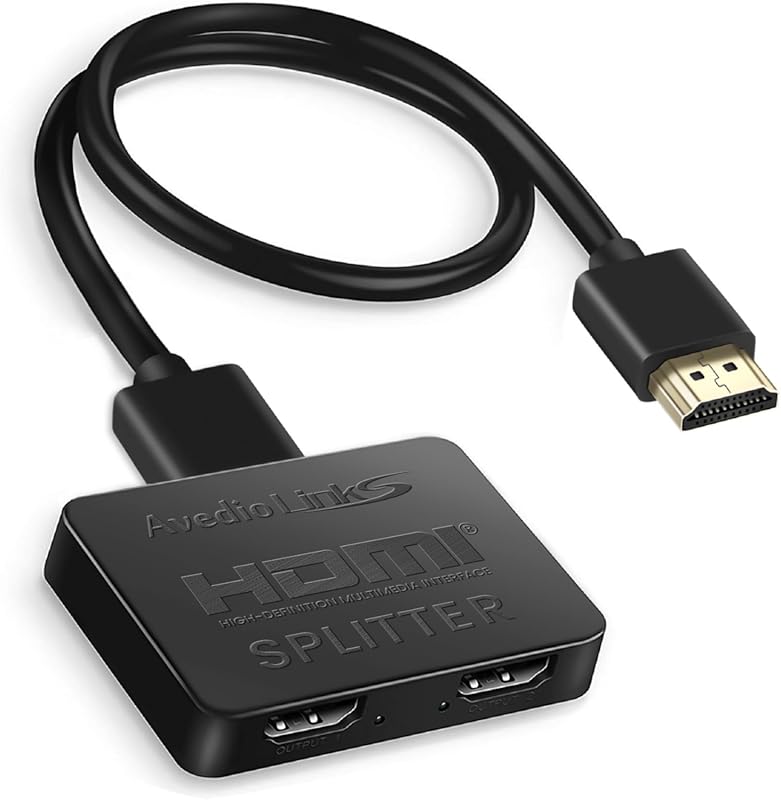
This no-frills HDMI splitter is perfect if you just need to mirror your screen across two displays—like showing a presentation on a projector and monitor simultaneously. It delivers crisp 4K@60Hz output when connected to compatible devices, and it’s completely plug-and-play with no drivers needed.
Key Features That Stand Out
- ✓ Supports up to 4K@60Hz resolution with HDR passthrough
- ✓ True mirror mode only—ideal for presentations and media sharing
- ✓ Backward compatible with 1080p, 720p, and other lower resolutions
- ✓ Powered via USB for stable signal transmission
- ✓ Compact, lightweight design that fits in any setup
Why We Recommend It
If you’re looking for a simple, reliable way to duplicate your screen without lag or setup headaches, this is the best HDMI splitter for dual monitors in mirror mode. It’s especially great for teachers, streamers, or anyone using consoles like Xbox or PS5 with a second display.
Best For
Users who need screen mirroring only—not extended desktop—and want high-quality 4K output without extra software.
Pros and Cons
Pros:
- Crystal-clear 4K@60Hz video output
- Zero latency—great for gaming and live streaming
- Easy plug-and-play setup with no configuration
- Affordable price for premium performance
Cons:
- Does NOT support extended desktop mode
- Not suitable for Mac users needing dual independent screens
- Limited to one input source at a time
Customer Reviews
“Does as intended. There is no noticeable delay if you are playing games. I use it on my xbox and it did take away 4k 120 but it did say 4k 60 so no hate there. It did take away adobe vision and a few other thing but other wise there isnt much to complain about so awesome product in my book.”
“I purchased this unit to add an additional monitor to my computer. What I learned is in order to have dual monitors, there needs to have two video outputs coming from the computer. I had always thought the single HDMI should produce a split screen across two separate monitors. Apparently, that is no”
2. HDMI Splitter for Extended Dual Monitors – 4K@30Hz, USB-C & USB-A Support
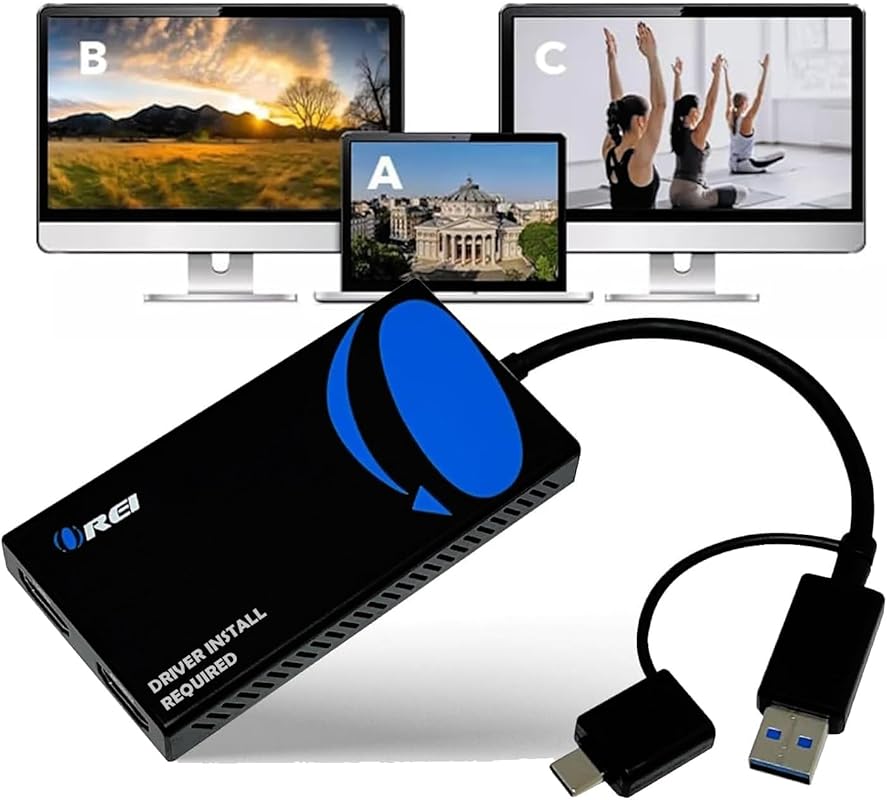
This advanced adapter goes beyond simple mirroring—it actually enables true extended desktop mode across two monitors from a single HDMI source. With support for both USB-C and USB-A connections, it’s a versatile solution for modern laptops and desktops.
Key Features That Stand Out
- ✓ Supports both mirrored AND extended display modes
- ✓ Dual output up to 4K@30Hz (or 1080p@60Hz per screen)
- ✓ Works with Windows, macOS, Chrome OS, and Android (with i5 or better processor)
- ✓ Requires driver installation (Silicon Motion chipset)
- ✓ Compact design with flexible connectivity options
Why We Recommend It
Most HDMI splitters only mirror—but this one actually extends your desktop, making it ideal for multitasking professionals. We love that it supports multiple operating systems and gives you real dual-monitor functionality without needing extra GPU ports.
Best For
Professionals, students, and remote workers who need extended screen space for productivity apps, coding, design, or multitasking across two independent displays.
Pros and Cons
Pros:
- True extended desktop support (not just mirroring)
- Broad OS compatibility including macOS and Chrome OS
- USB-C and USB-A dual connectivity for flexibility
- Sharp image quality with no noticeable lag
Cons:
- Requires driver installation (not fully plug-and-play)
- Limited to 4K@30Hz in extended mode
- Performance depends on host device specs (needs decent CPU)
Customer Reviews
“The OREI SplitExtend works well for creating a true extended display across two monitors, not just mirroring. Setup was straightforward, and the signal quality is clear with no lag or flicker. It’s a great solution if your laptop or PC has limited HDMI outputs. Just make sure your system supports th”
“The OREI SplitExtend HDMI Splitter Extended Display for Dual Monitor is an excellent solution for anyone looking to expand their workspace quickly and easily. It’s completely plug-and-play, requiring no extra software or drivers — just connect and go. The video quality is sharp and consistent across”
3. USB-C to Dual HDMI Adapter – 4K@60Hz, Extend or Mirror for Dual Monitors
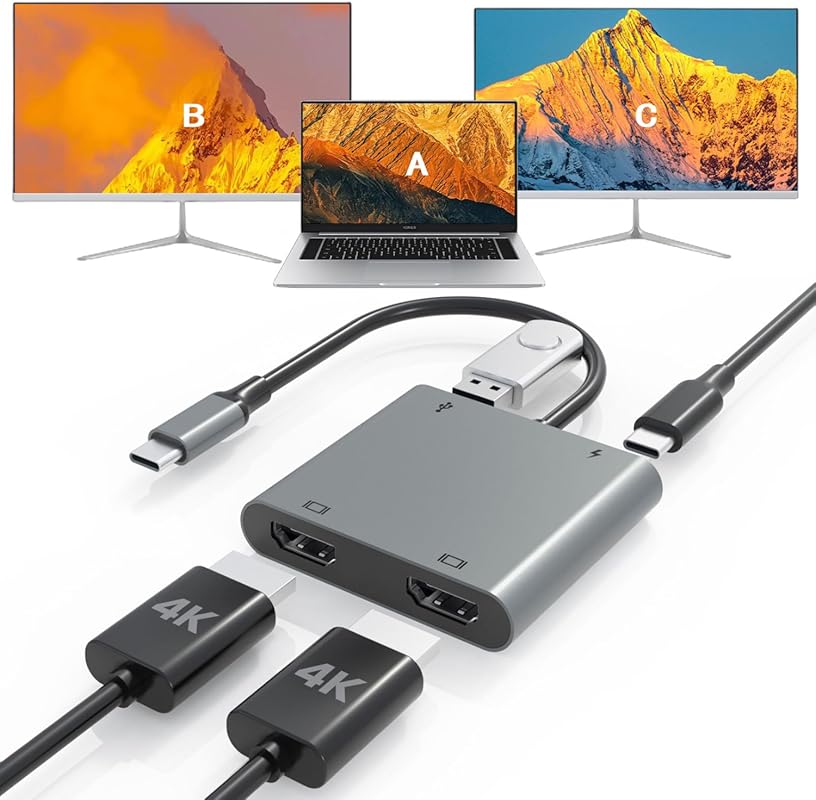
This sleek USB-C adapter offers incredible value by supporting both mirrored and extended modes at up to 4K@60Hz—all while charging your laptop via 100W power delivery. It’s perfect for MacBook, Dell, HP, and other USB-C equipped devices.
Key Features That Stand Out
- ✓ Dual 4K@60Hz output when source supports it
- ✓ Supports both extend and mirror modes (except macOS extend)
- ✓ 100W USB-C Power Delivery passthrough charging
- ✓ USB 3.0 data transfer up to 5Gbps
- ✓ Ultra-portable design—great for travel
Why We Recommend It
For under $50, this adapter delivers premium features usually found in much pricier models. The inclusion of power delivery means you won’t drain your battery while using dual monitors—a huge win for mobile professionals.
Best For
Mac and Windows laptop users who travel frequently and need a lightweight, all-in-one solution for dual-screen setups with charging capability.
Pros and Cons
Pros:
- Affordable price with high-end features
- 4K@60Hz on both outputs (when supported)
- Built-in 100W charging saves power bank use
- Works instantly on most Windows and Chrome devices
Cons:
- macOS only supports mirror mode (no extend due to OS limits)
- Requires USB-C port with DisplayPort Alt Mode
- May not work with older USB-C ports lacking video support
Customer Reviews
“This adapter has been incredibly useful! When I travel and still need to work, I can quickly connect my portable monitor, and my productivity improves so much. It’s simple to set up and works very smoothly.Besides work, it also adds a lot of convenience for entertainment. I can easily connect to a l”
“Bought to connect work laptop to a desktop monitor if needed to be extended. Works as intended without a loss that I can see. Connected easy with HDMI cable to the unit and USB-C to my laptop. The unit itself is really small and light, extremely portable. It was plug-in and play, so no additional se”
4. USB 3.0 to Dual HDMI Adapter – Windows Dual Monitor Converter, No macOS Support
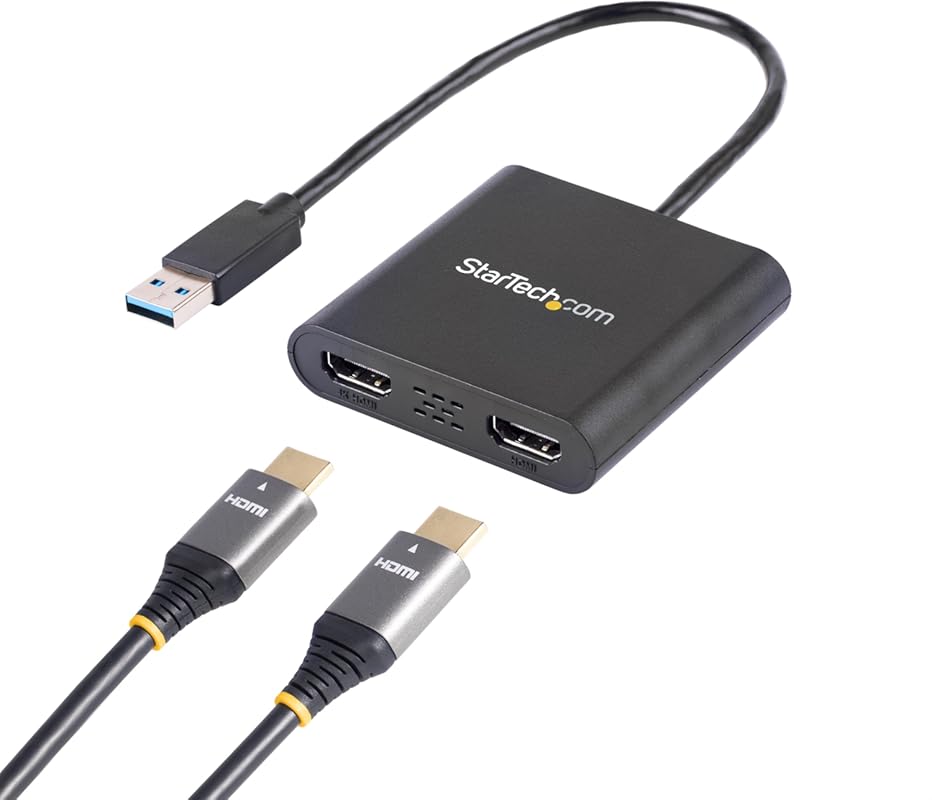
Designed specifically for Windows users, this USB 3.0 adapter lets you add two independent HDMI monitors to any laptop or desktop—even if it has no video outputs left. It’s a powerful workaround for expanding your workspace without upgrading hardware.
Key Features That Stand Out
- ✓ Adds two HDMI monitors via USB 3.0 (extend mode only)
- ✓ Supports up to 4K@30Hz per display
- ✓ Compatible with all Windows x86/x64/ARM systems
- ✓ Plug-and-play after initial driver setup
- ✓ Great for triple-monitor setups (when combined with built-in GPU)
Why We Recommend It
If you’re stuck with a laptop that only has one HDMI port but need three total screens, this adapter fills the gap perfectly. It’s reliable, widely compatible with Windows, and delivers solid performance for office tasks and light creative work.
Best For
Windows-based professionals, accountants, developers, and data analysts who need multi-monitor setups for productivity but lack sufficient video outputs.
Pros and Cons
Pros:
- Enables true extended desktop on Windows
- Supports up to 4K resolution per monitor
- Easy installation with automatic driver download
- Affordable way to add two extra screens
Cons:
- Windows-only—no macOS, Linux, or Chrome OS support
- Limited to 4K@30Hz (not ideal for video editing)
- Uses CPU resources—may lag on older machines
Customer Reviews
“This adapter Plugged it in and instantly expanded my laptop to two HDMI monitors—no hassle, no lag. The picture quality is crystal clear, and multitasking feels effortless with the dual‑screen setup. Perfect for work, streaming, or just boosting productivity. Compact design makes it easy to carry, a”
“Allowed me to connect two monitors that did not mirror original screen (three independent monitors).Did not work immediately when plugged in. After a few minutes it worked perfectly. I think the computer was downloading or enabling the software to make this adapter work. I didn’t have to download an”
5. HDMI Switch 2 in 1 Out – 4K@60Hz, Bidirectional Switcher for PS5, Xbox, and More
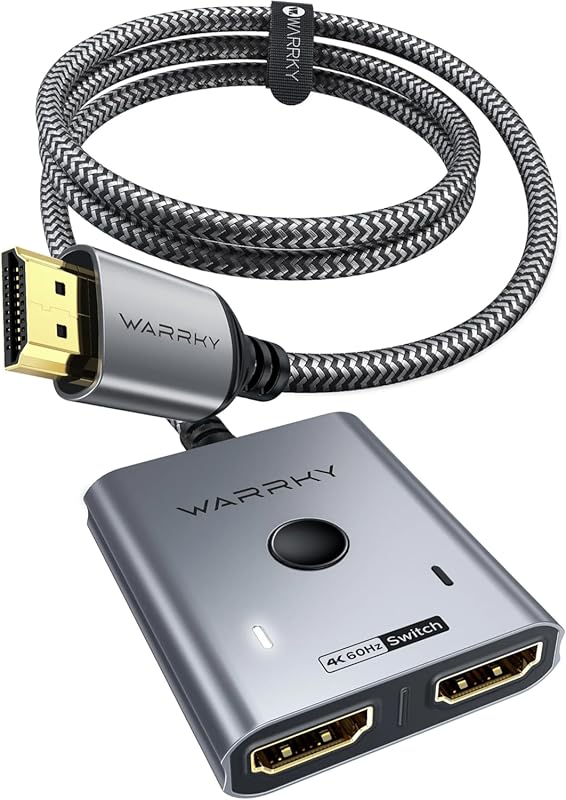
While not a traditional splitter, this bidirectional HDMI switch solves a different but common problem: connecting two devices (like a PS5 and laptop) to one monitor. It supports 4K@60Hz with HDR and HDCP 2.2, making it ideal for gamers and home theater enthusiasts.
Key Features That Stand Out
- ✓ Bidirectional switching: 2 inputs → 1 output OR 1 input → 2 outputs
- ✓ Supports 4K@60Hz, HDR, 3D, and HDCP 2.2
- ✓ Includes 3.3ft fixed HDMI pigtail cable (no extra cable needed)
- ✓ Manual switch button—no remote or app required
- ✓ Works with PS5, Xbox, Apple TV, laptops, and projectors
Why We Recommend It
Though it doesn’t extend your desktop, this switch is perfect if you want to share one monitor between two sources—or duplicate a single source to two displays. It’s reliable, high-quality, and eliminates cable swapping.
Best For
Gamers, streamers, and home users who need to toggle between devices or mirror content to two screens without signal loss.
Pros and Cons
Pros:
- True 4K@60Hz with full HDR support
- No external power or software needed
- Includes built-in HDMI cable for convenience
- Works flawlessly with consoles and PCs
Cons:
- Only mirrors—cannot extend desktop
- Manual switch (no auto-sensing or remote)
- Not suitable for productivity-focused dual-monitor setups
Customer Reviews
“I have a computer to a projector that I use to watch movies, and and TV (Football).Problem was I had to use the RCA input of the projector to watch digital TV and that made the picture “fluffy” or slightly blurred.The projector also has a VGA input, so I tried an HDMI to VGA setup, but that did work”
“Works well to attach an hdmi cable to a digital tv converter/antenna and a Roku streaming stick to my Xgimi Horizon projector. Very easy to switch back and forth between these two sources on one projector hdmi input.”
Complete Buying Guide for Best Hdmi Splitter For Dual Monitors
Essential Factors We Consider
When choosing the best HDMI splitter for dual monitors, don’t just look at price—consider your actual needs. First, decide whether you need mirroring (same content on both screens) or extending (different content on each). True HDMI splitters only mirror, while USB-based adapters can extend. Next, check resolution support: 4K@60Hz is ideal for media, but 4K@30Hz may suffice for office work. Also verify OS compatibility—many devices don’t work with macOS or Linux. Finally, consider power delivery, portability, and whether drivers are required.
Budget Planning
You can find reliable HDMI splitters starting around $20 for basic mirroring models, while extendable USB-C or USB 3.0 adapters range from $40–$80. If you need 4K@60Hz with power delivery, expect to spend closer to $60. Avoid ultra-cheap splitters under $15—they often cause signal drops or overheating. Invest in quality to avoid frustration and replacement costs.
Final Thoughts
The right choice depends on your setup: gamers and presenters should prioritize mirror-mode splitters with low latency, while office workers and creatives benefit from extend-mode adapters. Always match the device to your operating system and hardware capabilities. With our top picks, you’ll find a solution that fits both your workflow and budget.
Frequently Asked Questions
Q: Can an HDMI splitter extend my desktop to two different screens?
A: No—standard HDMI splitters only mirror (duplicate) the same content to both monitors. To extend your desktop, you need a USB-to-HDMI adapter or docking station that supports multi-stream transport (MST).
Q: Will these work with my MacBook?
A: It depends. Most pure HDMI splitters work for mirroring, but macOS limits extended desktop over USB adapters. Check product specs carefully—some only support mirror mode on Mac.
Q: Do I need external power for these devices?
A: Most modern splitters and adapters draw power from USB or HDMI, but high-performance models (especially those with power delivery) may require a USB-C charger for optimal function.
Q: Can I use these with gaming consoles like PS5 or Xbox?
A: Yes—especially mirror-mode splitters. They’re great for streaming gameplay to a capture card and TV simultaneously. Just ensure 4K@60Hz support if you play in high frame rates.
Q: Why isn’t my dual monitor setup working after connecting?
A: Common issues include incompatible resolutions, missing drivers (for USB adapters), or using a splitter when you need an extender. Always check your OS display settings and confirm your hardware supports the desired mode.
Ready to double your screen space? Whether you’re mirroring a presentation, extending your desktop for work, or connecting your console to two displays, our top picks cover every use case. Click any “Check Price” button above to grab the best HDMI splitter for dual monitors that fits your needs—and start enjoying a smoother, more productive setup today!
