


Looking for the best budget monitors for PS5? You don’t need to spend a fortune to enjoy smooth, responsive gaming. This guide covers top affordable options that support 4K, HDR, and fast refresh rates—perfect for maximizing your PlayStation 5 experience on a budget.
Key Takeaways
- Resolution Matters: Aim for at least 1440p or 4K for sharp, detailed visuals on your PS5.
- Refresh Rate is Key: A 120Hz or higher refresh rate ensures smoother gameplay, especially in fast-paced titles.
- HDMI 2.1 Support: Essential for 4K at 120Hz—look for monitors with HDMI 2.1 ports.
- Low Input Lag: Choose monitors with input lag under 10ms for responsive controls.
- Adaptive Sync Helps: FreeSync or G-Sync compatibility reduces screen tearing and stuttering.
- Size & Ergonomics: A 27-inch screen offers a great balance between immersion and desk space.
- Budget Doesn’t Mean Compromise: Many affordable monitors now offer premium features once reserved for high-end models.
📑 Table of Contents
Why a Good Monitor Makes All the Difference for PS5 Gaming
You’ve got your shiny new PlayStation 5, loaded up with the latest games, and ready to dive into breathtaking worlds. But if you’re still using an old TV or a basic monitor, you might not be getting the full experience. The PS5 is a powerhouse—capable of 4K resolution, 120 frames per second, and stunning HDR visuals. To truly unlock its potential, you need a display that can keep up.
That’s where a quality monitor comes in. Unlike TVs, which are often optimized for movies and streaming, gaming monitors are built for speed, clarity, and responsiveness. They offer faster response times, lower input lag, and better motion handling—critical for competitive shooters, racing games, or anything that demands quick reflexes. And the good news? You don’t need to spend $800 or more to get a great one. There are plenty of budget-friendly monitors that deliver excellent performance for PS5 gaming.
What to Look for in a Budget PS5 Monitor
When shopping for a budget monitor for your PS5, it’s easy to get overwhelmed by specs and jargon. But don’t worry—we’ll break it down into simple, actionable tips. The goal is to find a monitor that gives you the best bang for your buck, without sacrificing the features that matter most for gaming.
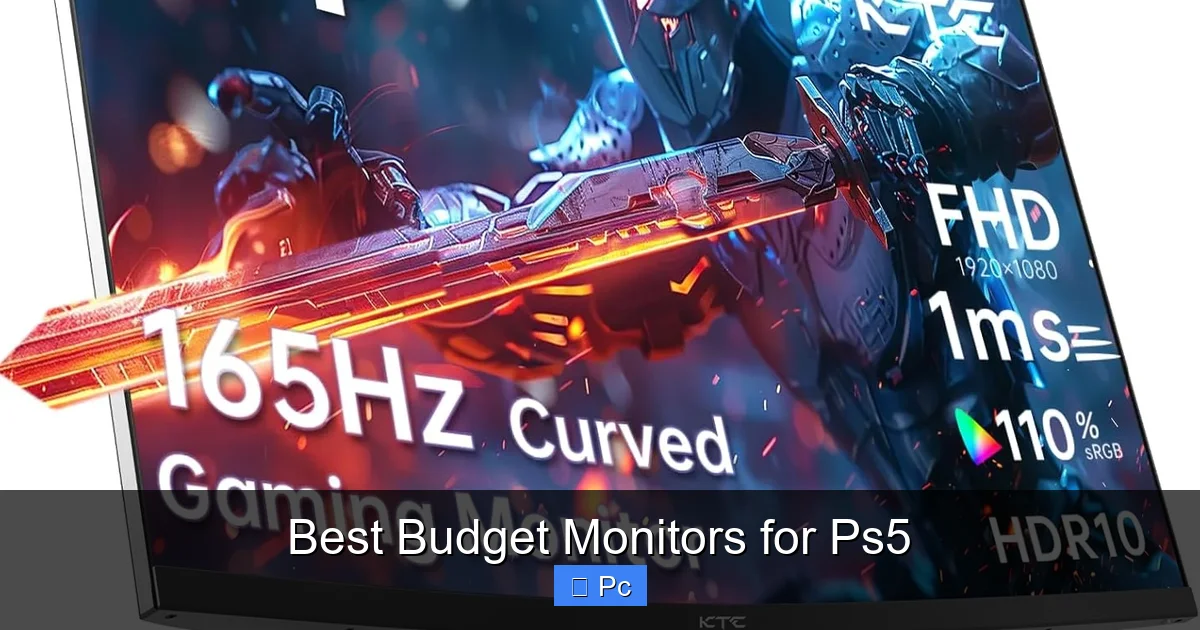
Visual guide about Best Budget Monitors for Ps5
Image source: m.media-amazon.com
Resolution: 1440p or 4K?
The PS5 supports both 1080p and 4K output, but for the best visual experience, you’ll want a monitor that can handle 4K. However, 4K monitors with HDMI 2.1 can be pricey. A smart compromise? Go for a 1440p (QHD) monitor. It’s sharper than 1080p and easier on your wallet, while still looking fantastic on a 27-inch screen. Many budget 1440p monitors also support upscaling, so your PS5 games will still look crisp and detailed.
Refresh Rate: Aim for 120Hz or Higher
The PS5 can output up to 120 frames per second in supported games—like Call of Duty: Warzone, Fortnite, or Spider-Man: Miles Morales. To take full advantage of that, you need a monitor with a 120Hz refresh rate or higher. While 60Hz is fine for casual gaming, 120Hz makes everything feel smoother, more responsive, and more immersive. Look for monitors labeled “120Hz” or “144Hz”—even if they’re budget models, many now include this feature.
HDMI 2.1: The Game-Changer
Here’s a big one: HDMI 2.1. This is the latest HDMI standard, and it’s essential if you want to play PS5 games at 4K and 120Hz. Older HDMI 2.0 ports can’t handle that bandwidth—they max out at 4K/60Hz. So, if you’re serious about high-frame-rate gaming, make sure your monitor has at least one HDMI 2.1 port. The good news? More budget monitors are starting to include HDMI 2.1, so it’s becoming easier to find affordable options.
Input Lag: Keep It Low
Input lag is the delay between pressing a button and seeing the action on screen. For gaming, lower is better. Aim for a monitor with input lag under 10ms. Most modern gaming monitors list this spec, and many budget models now achieve sub-5ms lag. This is especially important for fast-paced games where split-second reactions matter.
Adaptive Sync: FreeSync or G-Sync?
Screen tearing and stuttering can ruin an otherwise great gaming session. Adaptive sync technologies like AMD FreeSync or NVIDIA G-Sync help eliminate these issues by syncing the monitor’s refresh rate with the console’s frame rate. The PS5 supports FreeSync, so look for monitors with FreeSync Premium or FreeSync Premium Pro. Even budget models often include this feature, so it’s worth checking.
Panel Type: IPS vs. VA vs. TN
Monitors use different panel technologies, each with pros and cons:
- IPS (In-Plane Switching): Best color accuracy and viewing angles. Great for vibrant PS5 visuals, but can have slightly higher input lag.
- VA (Vertical Alignment): Better contrast and deeper blacks than IPS, but slower response times. Good for cinematic games.
- TN (Twisted Nematic): Fastest response times and lowest input lag, but poor color and viewing angles. Rare in budget 1440p/4K monitors.
For most PS5 gamers, IPS is the sweet spot—offering great colors and decent speed at an affordable price.
Top Budget Monitors for PS5 in 2024
Now that you know what to look for, let’s dive into some of the best budget monitors for PS5. These picks balance price, performance, and features—so you get the most value without overspending.

Visual guide about Best Budget Monitors for Ps5
Image source: howtotechinfo.com
1. LG 27GP850-B – Best Overall Budget Pick
The LG 27GP850-B is a fan favorite for a reason. It’s a 27-inch 1440p monitor with a 165Hz refresh rate, making it perfect for high-frame-rate PS5 gaming. It supports AMD FreeSync Premium, has HDMI 2.0 (not 2.1, so 4K/120Hz isn’t possible), but still delivers smooth 1440p/120Hz gameplay. Input lag is under 5ms, and the IPS panel offers vibrant colors and wide viewing angles. At around $300, it’s a steal for the performance.
Why it’s great for PS5: Smooth 120Hz gameplay, excellent color, and low lag. Ideal for competitive and single-player games alike.
2. Gigabyte M28U – Best Budget 4K Option
If you want true 4K gaming on a budget, the Gigabyte M28U is hard to beat. This 28-inch monitor offers 4K resolution, a 144Hz refresh rate, and—most importantly—HDMI 2.1. That means you can play PS5 games at 4K/120Hz, unlocking the console’s full potential. It also supports FreeSync Premium Pro and has a fast 1ms response time. The VA panel gives deep blacks and high contrast, perfect for dark, atmospheric games.
Why it’s great for PS5: Full 4K/120Hz support with HDMI 2.1. One of the most affordable ways to get next-gen visuals.
3. Acer Nitro XV282K KV – Best Value 4K Monitor
Another excellent 4K option, the Acer Nitro XV282K KV offers 4K resolution, 144Hz refresh rate, and HDMI 2.1—all for under $500. It uses an IPS panel, so colors are accurate and viewing angles are wide. It also supports FreeSync and has low input lag. The design is sleek and minimal, with thin bezels and a sturdy stand. While it’s a bit pricier than some others, it’s still a budget-friendly way to get premium 4K gaming.
Why it’s great for PS5: Great balance of price, performance, and features. A solid upgrade for PS5 owners wanting 4K.
4. ASUS TUF Gaming VG27AQ – Best for Competitive Gaming
The ASUS TUF VG27AQ is a 27-inch 1440p monitor with a 165Hz refresh rate and 1ms response time. It’s built for speed, making it ideal for fast-paced PS5 titles. It supports FreeSync and has ASUS’s GamePlus features, like crosshairs and FPS counters. The IPS panel delivers strong colors, and the ergonomic stand allows for height, tilt, and swivel adjustments. At around $280, it’s a top pick for gamers who prioritize responsiveness.
Why it’s great for PS5: Fast, responsive, and packed with gaming features. Perfect for shooters and action games.
5. Samsung Odyssey G5 (27”) – Best Curved Budget Monitor
If you prefer a curved screen for immersion, the Samsung Odyssey G5 is a great budget choice. This 27-inch 1440p monitor has a 1000R curve, 144Hz refresh rate, and 1ms response time. It uses a VA panel, so contrast is excellent—great for horror or fantasy games. It supports FreeSync and has HDMI 2.0 (so no 4K/120Hz), but still delivers smooth 1440p/120Hz gameplay. At under $250, it’s one of the most affordable curved monitors with gaming specs.
Why it’s great for PS5: Immersive curved design, strong contrast, and solid performance at a low price.
Setting Up Your PS5 with a Budget Monitor
Once you’ve picked your monitor, it’s time to connect and optimize your PS5. Here’s how to get the best experience:
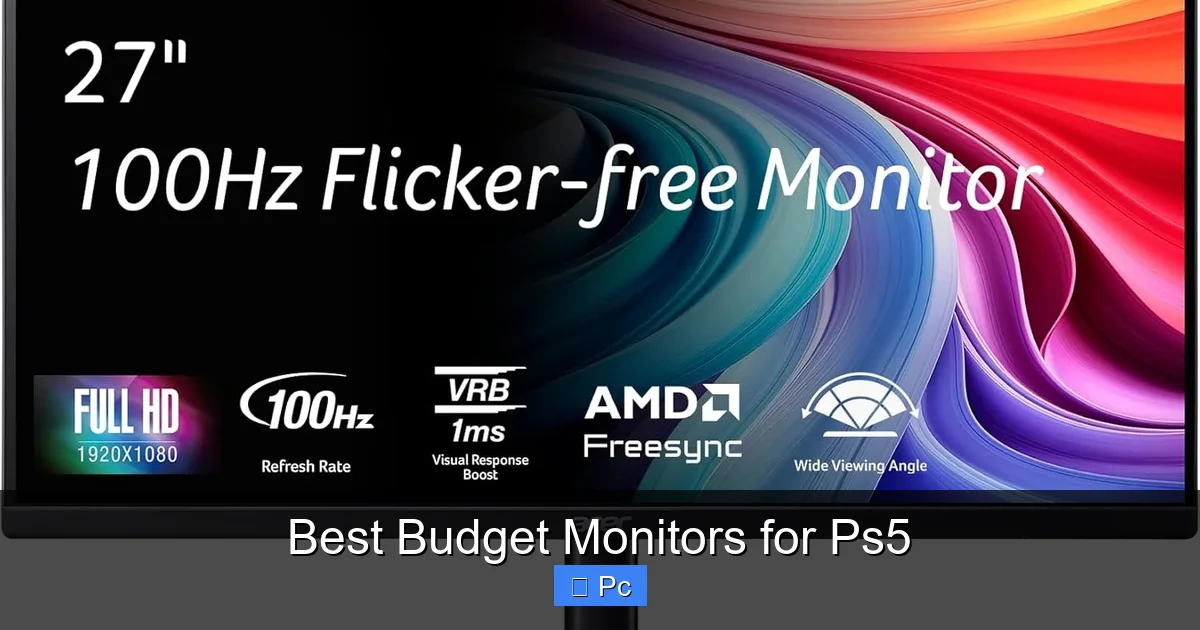
Visual guide about Best Budget Monitors for Ps5
Image source: m.media-amazon.com
Step 1: Use the Right HDMI Cable
The PS5 comes with an HDMI 2.1 cable, so use it! Even if your monitor only has HDMI 2.0, the cable ensures you get the best possible signal. Avoid cheap, low-quality cables—they can cause flickering or signal drops.
Step 2: Enable Performance Mode
Go to Settings > Screen and Video > Video Output on your PS5. Make sure “Performance Mode” is enabled. This prioritizes frame rate over resolution, giving you smoother gameplay. If your monitor supports 120Hz, also enable “120Hz Output” in the same menu.
Step 3: Adjust HDR Settings
If your monitor supports HDR, calibrate it in the PS5 settings. Go to Settings > Screen and Video > Video Output > HDR and follow the on-screen guide. This ensures colors are vibrant and details are clear in dark and bright scenes.
Step 4: Enable FreeSync (If Supported)
In the PS5 settings, go to Settings > Screen and Video > Video Output > VRR and turn it on. This enables FreeSync (called VRR on PS5), which reduces screen tearing and stuttering.
Step 5: Fine-Tune In-Game Settings
Many PS5 games let you choose between “Fidelity Mode” (higher resolution, lower frame rate) and “Performance Mode” (lower resolution, higher frame rate). For fast-paced games, choose Performance Mode to take full advantage of your monitor’s high refresh rate.
Common Mistakes to Avoid
Even with a great monitor, a few common mistakes can hurt your gaming experience. Here’s what to watch out for:
Buying a Monitor Without HDMI 2.1 (If You Want 4K/120Hz)
If you’re aiming for 4K at 120Hz, don’t settle for HDMI 2.0. You’ll be limited to 60Hz, which defeats the purpose of the PS5’s capabilities. Always check the HDMI version before buying.
Ignoring Input Lag Specs
A monitor might look great on paper, but if input lag is high, it will feel sluggish. Always check reviews or specs for input lag—aim for under 10ms.
Overlooking Ergonomics
A monitor that’s too low, too high, or can’t be adjusted can cause neck strain. Look for tilt, height, and swivel adjustments—or consider a monitor arm if your budget allows.
Skipping Adaptive Sync
Even on a budget, FreeSync is widely available and makes a big difference. Don’t skip it—especially if you play games with variable frame rates.
Future-Proofing Your Setup
While budget monitors are great today, technology keeps advancing. Here’s how to future-proof your setup:
- Choose HDMI 2.1 if possible: Even if you don’t need 4K/120Hz now, you might later.
- Look for firmware updates: Some monitors can be updated to support new features.
- Consider modular stands: Easier to replace or upgrade later.
- Keep an eye on Mini-LED and OLED: These technologies are getting more affordable and offer even better contrast and response times.
Final Thoughts: You Don’t Need to Break the Bank
Gaming on a budget doesn’t mean sacrificing quality. With the right monitor, you can enjoy smooth, vibrant, and responsive PS5 gameplay without spending a fortune. Whether you go for a 1440p 165Hz model like the LG 27GP850-B or a 4K 144Hz beast like the Gigabyte M28U, there’s a budget-friendly option that fits your needs.
Remember: focus on the essentials—resolution, refresh rate, HDMI 2.1, input lag, and adaptive sync. Skip the flashy extras and invest in performance. Your PS5 (and your gaming skills) will thank you.
Frequently Asked Questions
Can I use a budget monitor for PS5 gaming?
Absolutely! Many budget monitors now offer 1440p or 4K resolution, 120Hz+ refresh rates, and low input lag—perfect for PS5 gaming. You don’t need a high-end model to enjoy smooth, responsive gameplay.
Do I need HDMI 2.1 for PS5?
Only if you want to play at 4K and 120Hz. If you’re okay with 1440p or 4K/60Hz, HDMI 2.0 is sufficient. But for full PS5 performance, HDMI 2.1 is recommended.
Is 60Hz enough for PS5?
60Hz is fine for casual gaming, but the PS5 supports up to 120Hz. For smoother motion and better responsiveness, especially in fast-paced games, a 120Hz monitor is ideal.
What size monitor is best for PS5?
A 27-inch monitor is the sweet spot—big enough for immersion, small enough to fit on most desks. 32-inch models are great too, but may require more space.
Can I use a FreeSync monitor with PS5?
Yes! The PS5 supports AMD FreeSync (called VRR). Just enable it in the console’s video settings for tear-free gameplay.
Are curved monitors good for PS5?
Curved monitors can enhance immersion, especially for single-player games. Just make sure the curve isn’t too aggressive—1000R or 1500R is ideal for 27-inch screens.
