

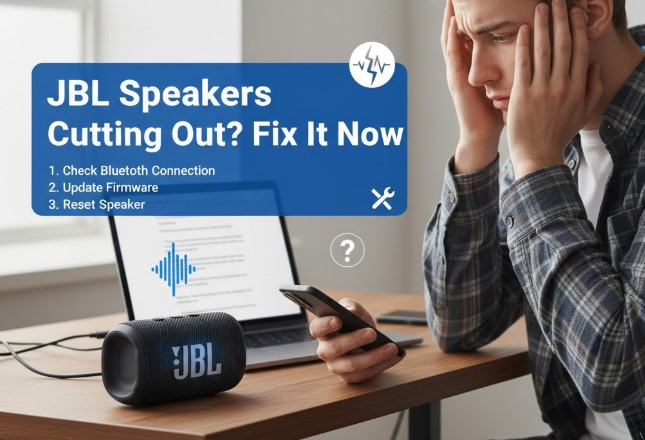
Is your JBL speaker cutting out intermittently? Don’t worry! This guide offers easy-to-follow solutions to troubleshoot and fix common JBL speaker audio issues, from connection problems to firmware glitches.
Key Takeaways
- Check JBL speaker connections and power.
- Update JBL speaker firmware for bug fixes.
- Restart your JBL speaker and device.
- Adjust volume and audio settings.
- Address Bluetooth interference for stable sound.
It’s incredibly frustrating when your favorite music or important podcast suddenly cuts out. You’ve invested in a JBL speaker for its sound quality, and when it starts acting up, it can really disrupt your listening experience. Whether it’s a new model or an older favorite, JBL speakers cutting out can be caused by a variety of simple issues. This guide is designed to help you, even if you’re not a tech expert. We’ll walk you through the most common reasons why your JBL speaker might be cutting out and provide straightforward, step-by-step solutions to get your sound back on track. Let’s dive in and fix that audio!
Why Is My JBL Speaker Cutting Out? Common Causes
Understanding why your JBL speaker is cutting out is the first step to fixing it. Often, the culprit isn’t a faulty speaker but rather something external affecting its performance. Let’s explore the most frequent culprits:
1. Connection Issues: The Unsung Hero of Audio
A stable connection is vital for uninterrupted sound. This applies whether you’re using Bluetooth, an auxiliary (AUX) cable, or Wi-Fi. Loose wires, weak Bluetooth signals, or network problems can all lead to audio dropouts. Think of it like a water hose – if it’s not securely connected, the water won’t flow smoothly. The same principle applies to your speaker’s audio signal.
2. Power Problems: More Than Just “Is It Plugged In?”
It sounds basic, but power is crucial. A JBL speaker cutting out might be due to insufficient power. This could mean a low battery, a faulty charger, or even an overloaded power outlet. Similar to how a phone struggles to run when its battery is critically low, your speaker needs consistent power to operate correctly.
3. Bluetooth Interference: The Invisible Roadblock
Bluetooth technology, while convenient, can be susceptible to interference. Other electronic devices like microwaves, Wi-Fi routers, and even other Bluetooth devices can disrupt the wireless signal. It’s like trying to have a quiet conversation in a crowded, noisy room – it’s hard to hear clearly. The further your JBL speaker is from the source device, the weaker the signal can become, leading to cutouts.
4. Firmware Glitches: The Speaker’s Internal Bug
Like any electronic device, JBL speakers run on software called firmware. Sometimes, this firmware can have bugs or become outdated. These glitches can cause unexpected behavior, including audio interruptions. Keeping your speaker’s firmware up to date is like giving it a software update for your computer or phone – it can fix problems and improve performance.
5. Device Settings and Volume: It’s All About Balance
Sometimes, the issue might not be with the speaker itself, but with the device you’re playing audio from. For instance, if your phone is set to save battery by limiting background activity, it might cut out the audio stream. Extreme volume levels can also strain some speakers, though this is less common with modern JBL models.
Troubleshooting Your JBL Speaker: Step-by-Step Fixes
Now that we understand the potential causes, let’s get hands-on and fix your JBL speaker cutting out. Follow these steps in order, and you’ll likely find the solution.
Step 1: Perform the Classic Power Cycle (Restart)
This is the most common and often most effective fix for many electronic glitches. A power cycle simply means turning the device off, waiting a bit, and then turning it back on. This can clear temporary memory issues and reset connections.
- Turn off your JBL speaker: Press and hold the power button until the indicator lights turn off.
- Turn off your audio source device: This could be your phone, tablet, computer, or TV.
- Wait for 30 seconds: This gives the devices enough time to fully discharge any residual power.
- Turn on your audio source device: Ensure it’s fully booted up.
- Turn on your JBL speaker: Press the power button again.
- Reconnect: If using Bluetooth, re-pair your devices (explained later).
This simple restart can resolve many transient issues. It’s like giving your speaker and its source a fresh start.
Step 2: Check All Physical Connections
If you’re using a wired connection (like an AUX cable) or charging your speaker, ensure everything is securely plugged in. A loose cable is a frequent offender for audio problems.
- Inspect cables: Look for any visible damage, kinks, or fraying on your AUX cable or charging cable. Damaged cables should be replaced.
- Ensure secure fit: Push the AUX cable firmly into both the speaker and the audio source device. Do the same for the charging cable and power adapter.
- Try a different cable: If you suspect a cable issue, try using a different, known-good AUX or charging cable to see if the problem persists.
Step 3: Troubleshoot Bluetooth Connectivity
Bluetooth is convenient but can be finicky. JBL speakers cutting out often trace back to Bluetooth issues. Here’s how to improve your wireless connection:
- Get closer: Move your audio source device closer to your JBL speaker. The ideal Bluetooth range is typically around 30 feet (10 meters), but this can be affected by obstructions.
- Reduce interference: Move away from other wireless devices like Wi-Fi routers, microwaves, and cordless phones. Try turning off other nearby Bluetooth devices temporarily.
- Unpair and re-pair: Sometimes, the Bluetooth connection itself needs to be refreshed.
- On your audio source device (phone, tablet, etc.), go to Bluetooth settings.
- Find your JBL speaker in the list of paired devices.
- Tap “Forget Device” or “Unpair.”
- Put your JBL speaker back into pairing mode (usually by holding the Bluetooth button or referring to your speaker’s manual).
- On your audio source device, scan for new Bluetooth devices and select your JBL speaker to pair again.
- Clear Bluetooth cache (Android): On Android devices, you can sometimes clear the Bluetooth cache to resolve issues. Go to Settings > Apps > Show System > Bluetooth > Storage > Clear Cache.
Step 4: Update Your JBL Speaker’s Firmware
Manufacturers release firmware updates to fix bugs, improve performance, and add new features. An outdated firmware could be the reason your JBL speaker is cutting out.
JBL typically provides firmware updates through a dedicated app. The exact process varies slightly by model, but here’s a general guide:
- Download the JBL App: Search for the official “JBL Headphones” app (for portable speakers and headphones) or the “JBL Portable” app (for some newer portable speakers) in your device’s app store.
- Connect your speaker: Open the app and follow the on-screen instructions to connect your JBL speaker. You might need to put the speaker in pairing mode.
- Check for updates: The app will usually notify you if a firmware update is available for your connected speaker.
- Install the update: Follow the app’s prompts to download and install the firmware. Make sure your speaker is powered on and has sufficient battery, and that your phone/tablet stays connected to the internet during the process.
Refer to your specific JBL speaker model’s manual or the JBL support website for precise instructions.
Step 5: Check Battery and Power Supply
A drained or unstable power supply can cause erratic behavior. Ensure your JBL speaker is adequately charged or properly connected to power.
- Charge fully: If your speaker is battery-powered, plug it in and let it charge completely. Check the charging indicator light to confirm.
- Inspect charger/adapter: Ensure the charger or power adapter is functioning correctly and is compatible with your JBL speaker.
- Try a different outlet: If plugged into a wall outlet, try a different socket to rule out an issue with the outlet itself.
Step 6: Adjust Volume and Audio Output
Sometimes, the issue might be with how the audio is being sent. Overdriving the audio signal can cause distortion or dropouts.
- Lower the volume on the source: Try reducing the volume on your phone, tablet, or computer.
- Increase volume on the speaker: Gradually increase the JBL speaker’s volume to find a comfortable listening level. Avoid pushing it to its absolute maximum for extended periods if you suspect it’s struggling.
- Check audio balance: Ensure the audio balance on your source device isn’t skewed entirely to one side, which could cause audio to drop out on the other.
Step 7: Reset Your JBL Speaker to Factory Settings
If none of the above steps work, a factory reset can often resolve persistent software issues. This will revert your speaker’s settings to how they were when you first bought it. Note: This will erase any custom settings or paired devices.
The reset procedure varies by JBL model. Common methods include:
- Pressing and holding a combination of buttons (e.g., Volume Up + Bluetooth button) for several seconds.
- Using a pin to press a recessed reset button.
Always consult your specific JBL speaker’s user manual or the JBL support website for the exact factory reset instructions for your model. After a reset, you will need to re-pair it with your devices.
Comparing Troubleshooting Steps
Here’s a quick summary to help you identify the most likely solution based on your symptoms:
| Symptom | Likely Cause | Recommended Steps |
|---|---|---|
| Audio cutting out occasionally, especially when moving around. | Weak Bluetooth signal or interference. | Get closer, reduce interference, re-pair Bluetooth. |
| Audio cuts out immediately or very frequently. | Power issue, poor cable connection, or severe interference. | Check power/battery, check physical cables, move away from interfering devices. |
| Sound is distorted or choppy at high volumes. | Source device volume too high, or speaker pushed to limits. | Lower source volume, adjust speaker volume. |
| Intermittent cutouts that don’t seem related to distance or interference. | Firmware glitch or software bug. | Update firmware, perform factory reset. |
| Speaker won’t turn on or connect at all. | Power issue or complete system failure. | Check charging, try different power source, contact support if needed. |
Pro Tips for Maintaining Your JBL Speaker
Here are some extra tips to keep your JBL speaker performing at its best and minimize future audio cutouts:
- Keep firmware updated: Regularly check for firmware updates via the JBL app. This is one of the easiest ways to prevent issues.
- Store properly: Avoid storing your speaker in extreme temperatures or humid conditions, as this can damage the electronics.
- Clean regularly: Dust and debris can accumulate in ports. Gently clean them with compressed air or a soft brush.
- Manage battery health: For rechargeable speakers, avoid frequently draining the battery completely to prolong its lifespan.
Frequently Asked Questions (FAQ)
Q1: How do I put my JBL speaker in pairing mode?
A: Most JBL speakers have a dedicated Bluetooth button. You typically need to press and hold this button for a few seconds until you hear a pairing tone or see a flashing Bluetooth indicator light. Check your specific model’s manual for exact instructions.
Q2: Can my phone’s battery saving mode affect my JBL speaker audio?
A: Yes, sometimes aggressive battery saving modes on smartphones can limit background processes, including Bluetooth audio streaming. This can lead to audio cutting out. Try disabling battery saver mode or ensuring your music app is allowed to run in the background.
Q3: My JBL speaker keeps disconnecting from my laptop. What should I do?
A: Ensure your laptop’s Bluetooth drivers are up to date. Try unpairing and re-pairing the speaker. Also, check for interference from other wireless devices or ensure the laptop isn’t too far from the speaker. Restarting both devices can also help.
Q4: Is it normal for my JBL speaker to get warm while charging or playing?
A: It’s normal for speakers to get slightly warm during charging or heavy use, but it should not become excessively hot to the touch. If it gets very hot, unplug it immediately and contact JBL support, as this could indicate a serious issue.
Q5: How do I know if my JBL speaker’s firmware is outdated?
A: The easiest way is to use the official JBL app (like JBL Headphones or JBL Portable). When you connect your speaker, the app will usually inform you if a firmware update is available. You can also check the JBL support website for your specific model.
Q6: My JBL Flip 5 is cutting out. Is there a specific fix for this model?
A: For the JBL Flip 5, common fixes include ensuring it’s fully charged, checking the Bluetooth connection (distance and interference), unpairing and re-pairing, and making sure the firmware is updated via the JBL Portable app. A factory reset (often holding Volume Up + Play/Pause for a few seconds) can also resolve persistent issues.
Conclusion
Dealing with a JBL speaker cutting out can be a nuisance, but as we’ve seen, the solutions are often simple and straightforward. From checking basic connections and power to managing Bluetooth interference and updating firmware, most issues can be resolved with a few troubleshooting steps. By systematically working through this guide, you should be able to identify the cause of the audio interruptions and enjoy your music or podcasts without them cutting out. Keep these steps in mind, and your JBL speaker will be back to delivering crisp, clear sound in no time!
