

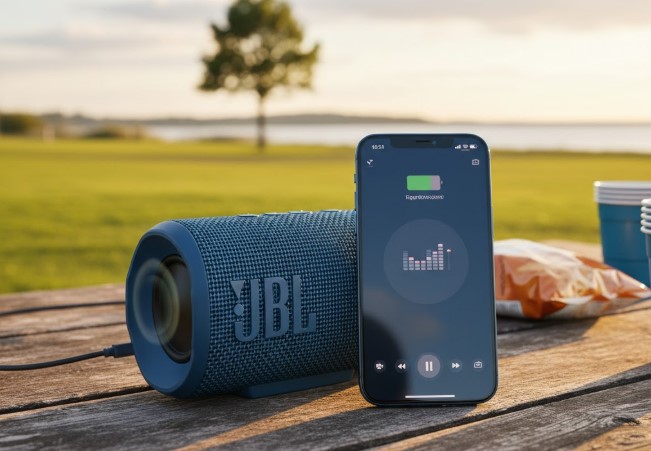
Is your iPhone audio not playing through your JBL speaker? Don’t worry! This guide provides simple, step-by-step solutions to fix common connection and audio issues, getting your music back on track quickly.
Key Takeaways
- Check iPhone and JBL speaker volume levels.
- Ensure Bluetooth is active and connected.
- Restart both iPhone and JBL speaker.
- Forget and re-pair the JBL speaker.
- Update iPhone iOS and JBL firmware.
- Test with another audio source or device.
Introduction
It’s a bummer when you’re ready to blast your favorite tunes or take an important call, and your iPhone audio decides not to play through your trusty JBL speaker. This common issue can be frustrating, but the good news is that most—Audio Not Playing Through JBL Speaker iPhone—problems have straightforward fixes. You don’t need to be a tech wizard to get your JBL speaker working again. This guide will walk you through simple, step-by-step solutions, from checking basic settings to troubleshooting connection glitches, so you can enjoy your audio without interruption.
Troubleshooting Steps to Get Your JBL Speaker Working Again
When your iPhone audio isn’t channeling through your JBL speaker, it’s usually a sign of a minor hiccup. We’ll cover the most common causes and their solutions below. Follow these steps methodically, and you’ll likely resolve the issue.
1. Check the Volume Levels on Both Devices
This sounds simple, but it’s the most frequent culprit. Sometimes, the volume on either your iPhone or the JBL speaker is simply turned down too low or muted entirely.
- On your iPhone: Press the volume up button on the side of your phone. You can also swipe down from the top-right corner (on newer iPhones) or swipe up from the bottom (on older iPhones) to access the Control Center and adjust the volume slider.
- On your JBL speaker: Look for physical volume buttons on the speaker itself (usually marked with ‘+’ and ‘-‘). Press them to increase the volume. Make sure the speaker isn’t also on mute if it has that function.
If either volume is at zero or very low, turn it up and see if audio plays through the JBL speaker.
2. Ensure Bluetooth is Enabled and Connected
JBL speakers typically connect to iPhones via Bluetooth. If Bluetooth is off or not properly connected, audio won’t transmit.
- On your iPhone: Go to Settings > Bluetooth. Make sure the toggle switch for Bluetooth is green (turned on).
- Check Connection: Under the list of devices, you should see your JBL speaker. If it says “Not Connected,” tap its name to connect. If it’s already connected, try tapping it to disconnect and then reconnect again.
If your JBL speaker isn’t listed, ensure it’s in pairing mode (usually by pressing and holding a Bluetooth button until a light flashes or a sound is heard) and then try to find it in the list of available devices on your iPhone.
3. Restart Your iPhone and JBL Speaker
A simple restart can resolve many temporary software glitches that might be preventing your devices from communicating correctly. This is a classic IT solution for a reason – it often works!
- Restart your iPhone: The method varies slightly by model. Generally, press and hold the side button and either volume button until the power off slider appears, then drag the slider. Wait 30 seconds, then press and hold the side button again to turn it back on.
- Restart your JBL speaker: Most portable JBL speakers have a power button. Press and hold it for a few seconds until the unit powers off. Wait a few seconds, then press and hold the power button again to turn it back on. Some models might require unplugging them from the power source and plugging them back in.
Once both devices are back on, try connecting them via Bluetooth again and playing audio.
4. Forget the JBL Speaker and Re-pair It
Sometimes, the Bluetooth connection profile can become corrupted. “Forgetting” the device on your iPhone removes the old connection, allowing you to create a fresh, clean pairing.
- On your iPhone: Go to Settings > Bluetooth.
- Find your JBL speaker in the list of “My Devices.”
- Tap the “i” icon next to your JBL speaker’s name.
- Tap “Forget This Device” and confirm.
- Put your JBL speaker back into pairing mode.
- On your iPhone, search for available Bluetooth devices again and select your JBL speaker to pair.
This process essentially wipes the slate clean for the Bluetooth connection.
5. Check the Audio Output Source on Your iPhone
Even when connected to Bluetooth, your iPhone might still be trying to send audio to its internal speaker or another connected device. It’s important to ensure the JBL speaker is selected as the output.
- While playing audio: Open the Control Center on your iPhone.
- Tap the AirPlay icon (it looks like a triangle with a circle above it) in the Now Playing widget.
- You’ll see a list of available audio output devices. Make sure your JBL speaker is selected.
If you don’t see the AirPlay icon, ensure you have audio playing (e.g., music or a podcast). The icon usually appears when media is actively being played.
6. Test with Another App or Audio Source
To rule out an issue with a specific app, try playing audio from a different source.
- If you were using Spotify, try playing a YouTube video or a song from Apple Music.
- If you were playing a downloaded file, try streaming something online.
This helps determine if the problem is with the app itself or the connection to your JBL speaker.
7. Update Your iPhone’s iOS Software
Apple regularly releases software updates that include bug fixes and performance improvements. An outdated iOS version could be causing compatibility issues with your JBL speaker.
- Go to Settings > General > Software Update.
- If an update is available, tap Download and Install. Ensure your iPhone is connected to Wi-Fi and has sufficient battery charge.
Software updates are crucial for maintaining smooth operation between your devices. For more on iOS updates and their impact, you can refer to Apple’s official support pages.
8. Check for JBL Speaker Firmware Updates
Some JBL speakers can also receive firmware updates, which can resolve connectivity or audio playback issues. The method for updating varies by JBL model.
- Check the JBL website for your specific speaker model. Look for a “Support” or “Downloads” section.
- You might need to download a JBL app (like the JBL Portable app or JBL Connect app, depending on your model) on your iPhone to check for and install firmware updates.
- Follow the instructions provided by JBL carefully.
Firmware updates are like software updates for your speaker, ensuring it has the latest performance enhancements and bug fixes.
9. Reset Network Settings on Your iPhone
This is a more advanced step that resets all network-related settings, including Wi-Fi passwords, cellular settings, VPN configurations, and Bluetooth pairings. It can often fix stubborn connectivity issues.
- Go to Settings > General > Transfer or Reset iPhone.
- Tap Reset > Reset Network Settings.
- You’ll need to enter your iPhone passcode.
After the reset, your iPhone will restart. You’ll need to re-enter Wi-Fi passwords and re-pair all your Bluetooth devices, including your JBL speaker. This is a bit of a reset, but it can be very effective.
10. Test the JBL Speaker with Another Device
To determine if the problem lies with your iPhone or the JBL speaker and its connection capabilities, try pairing the speaker with a different smartphone, tablet, or laptop.
- Turn on your JBL speaker and put it in pairing mode.
- On another device (e.g., an Android phone or a laptop), go to its Bluetooth settings.
- Look for your JBL speaker and try to connect.
- If the speaker works with another device, the issue is likely with your iPhone. If it doesn’t work with any device, the problem might be with the JBL speaker itself.
This isolation step is crucial for pinpointing the source of the problem.
11. Check for Physical Damage or Obstructions
While less common for audio not playing, physical issues can sometimes affect Bluetooth connectivity or speaker function.
- Inspect the charging port of your JBL speaker and the Lightning/USB-C port of your iPhone for any lint, dust, or debris. Gently clean them with a dry, soft brush or compressed air if necessary.
- Ensure there are no obstructions blocking the speaker grille on your JBL.
- Check the charging cable if you’re using one, ensuring it’s not damaged.
Physical issues can sometimes lead to unexpected problems that simple software or connection checks won’t fix.
12. Contact JBL Support or Apple Support
If you’ve gone through all these steps and your iPhone audio still isn’t playing through your JBL speaker, it might be time to seek professional help.
- JBL Support: Visit the official JBL website and look for their customer support contact information or troubleshooting guides specific to your speaker model.
- Apple Support: If you suspect the issue is with your iPhone, you can contact Apple Support or visit an Apple Store.
They can offer advanced troubleshooting or advise on potential hardware issues.
Common JBL Speaker Models and Their Features
JBL offers a wide range of speakers, each with slightly different features that might affect connectivity. Here’s a quick look at some popular models and what to keep in mind:
| JBL Model Examples | Connectivity | Typical Features | Troubleshooting Note |
|---|---|---|---|
| JBL Flip Series (e.g., Flip 5, Flip 6) | Bluetooth | Portable, waterproof, durable | Ensure correct Bluetooth pairing and volume. Check JBL Portable app for updates. |
| JBL Charge Series (e.g., Charge 5) | Bluetooth | Portable, waterproof, power bank feature | Similar to Flip series. Power bank feature generally doesn’t impact audio output. |
| JBL Xtreme Series (e.g., Xtreme 3) | Bluetooth | Larger, powerful sound, waterproof | Requires stable Bluetooth connection. Can connect multiple devices via JBL Connect app. |
| JBL Go Series (e.g., Go 3) | Bluetooth | Ultra-portable, compact, carabiner clip | Simple pairing. Check for interference if connection is spotty. |
Understanding your specific model can help you find tailored troubleshooting advice on the JBL official website.
Pro Tips for Seamless Audio Streaming
To avoid encountering the “Audio Not Playing Through JBL Speaker iPhone” issue again, here are some preventative measures:
- Keep Devices Charged: Low battery can sometimes cause Bluetooth instability for both your iPhone and JBL speaker.
- Maintain Proximity: Keep your iPhone relatively close to your JBL speaker. Bluetooth has a range, and obstructions can weaken the signal.
- Avoid Interference: Other wireless devices (microwaves, other Bluetooth devices) can sometimes interfere with the signal. Try to minimize such interference.
- Regularly Update: Keep both your iPhone’s iOS and your JBL speaker’s firmware up to date.
Frequently Asked Questions (FAQ)
Q1: Why is my JBL speaker not showing up in my iPhone’s Bluetooth list?
Ensure your JBL speaker is turned on and in pairing mode. For most JBL speakers, you press and hold the Bluetooth button until you hear a sound or see a flashing light. Also, make sure Bluetooth is enabled on your iPhone and that the speaker isn’t already connected to another device.
Q2: Can I use my JBL speaker while it’s charging?
Yes, most JBL portable speakers can be used while they are charging. However, very old or damaged charging cables could potentially cause issues.
Q3: My iPhone is connected to my JBL speaker, but there’s no sound. What should I do?
First, check the volume levels on both your iPhone and the JBL speaker. Then, verify that the JBL speaker is selected as the audio output in your iPhone’s Control Center (using the AirPlay icon). Restarting both devices is also a good next step.
Q4: How do I reset my JBL speaker to factory settings?
The reset process varies by model. Some JBL speakers have a hidden reset button, while others might require you to press and hold certain buttons simultaneously. Always consult your JBL speaker’s user manual or the JBL website for specific instructions on how to perform a factory reset.
Q5: Is it possible for my iPhone’s settings to block audio from my JBL speaker?
Yes, certain iPhone settings could interfere. For example, if you have very restrictive privacy settings or if a specific app has been denied Bluetooth access, it might affect audio streaming. Resetting Network Settings (Settings > General > Transfer or Reset iPhone > Reset Network Settings) can often resolve these types of persistent issues.
Q6: My JBL speaker connects, but the audio is choppy or cutting out. What’s wrong?
Choppy audio usually indicates a weak Bluetooth signal or interference. Try bringing your iPhone closer to the JBL speaker, moving away from other wireless devices or potential sources of interference. Ensure both devices’ software is up-to-date.
Conclusion
Experiencing issues with your iPhone audio not playing through your JBL speaker can be a temporary setback. By systematically working through these troubleshooting steps—from checking the basic volume and Bluetooth connections to more advanced software updates and resets—you can effectively diagnose and resolve most common problems. Remember to keep your devices updated and to test with other sources if you’re still facing difficulties. With a bit of patience, you’ll have your JBL speaker delivering your favorite sounds again in no time. Enjoy your music!
