

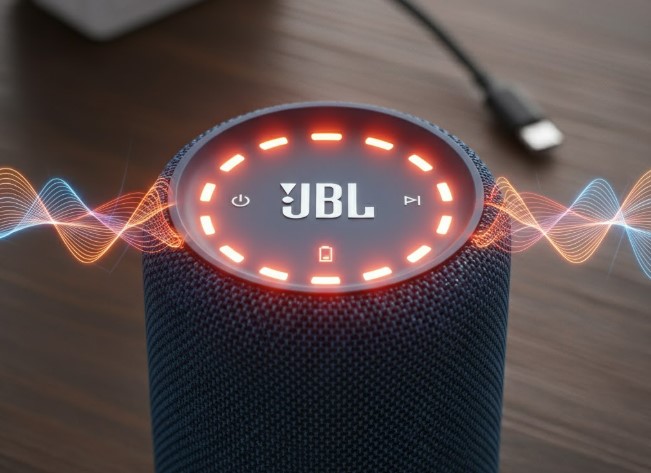
If your JBL Flip 6 is beeping or blinking while charging, it usually indicates a charging issue, a low battery, or a firmware problem. Here’s how to troubleshoot and fix it.
Key Takeaways
- Identify the charging indicator light.
- Check the charging cable and adapter.
- Ensure a stable power source.
- Perform a factory reset if needed.
- Update your JBL Flip 6 firmware.
- Contact JBL support for persistent issues.
It can be quite puzzling when your trusty JBL Flip 6 starts beeping or blinking erratically while you’re trying to charge it. You plug it in, expecting a steady charging light, but instead, you’re met with a chorus of beeps or a blinking pattern that leaves you scratching your head. Is it broken? Is it not charging at all? Don’t worry, these signs often point to common, fixable issues. This guide will walk you through, step-by-step, how to understand what these beeps and blinks mean and how to get your JBL Flip 6 back to full power.
Understanding JBL Flip 6 Charging Indicators
Your JBL Flip 6 speaker uses a system of lights and sounds to communicate its status, especially when it comes to charging. Knowing what these signals mean is the first step to solving the problem. The primary indicator for charging is usually an LED light on the speaker itself. When it’s charging, this light typically shows a specific color (often amber or red) and might pulse or remain solid depending on the battery level and charging status.
The beeping or unusual blinking often signals that something is preventing a normal charge. This could be as simple as a loose connection or as complex as a software glitch. Let’s break down the common scenarios and what they might be telling you.
Common Charging Light Behaviors
When your JBL Flip 6 is charging correctly, you’ll usually see a consistent indicator. For example:
- Solid Red/Amber Light: Typically means the speaker is charging.
- Solid Green/White Light: Often indicates the speaker is fully charged.
However, when the JBL Flip 6 beeps or blinks in a way that isn’t normal, it’s trying to alert you. This can include patterns like rapid blinking, alternating colors, or a persistent beep that doesn’t stop.
Why Your JBL Flip 6 Might Be Beeping or Blinking When Charging
Several factors can cause your JBL Flip 6 to beep or blink instead of showing a standard charging light. Understanding these common culprits will help you diagnose the issue quickly.
1. Low Battery Threshold
Sometimes, if the battery is critically low, the speaker might emit a beep or a specific light pattern to signal that it needs immediate attention and charging. Think of it like a car’s low fuel warning light – it’s an alert to take action.
2. Faulty Charging Cable or Adapter
A damaged or incompatible charging cable and adapter are frequent offenders. If the cable is frayed, or the adapter isn’t providing enough power, the speaker might struggle to charge and signal this by beeping or blinking. Using a third-party cable that doesn’t meet the correct specifications can also cause issues.
3. Unstable Power Source
Plugging your speaker into a power source that experiences fluctuations, like a worn-out wall outlet or a low-power USB port on a computer, can interrupt the charging process. This inconsistency can trigger error signals on the speaker.
4. Overheating
While less common, if your JBL Flip 6 or its charging adapter gets too hot during charging, it might beep or blink as a safety measure to prevent damage. This is especially true if you’re charging it in direct sunlight or a very warm environment.
5. Firmware Glitches
Like any electronic device, your JBL Flip 6 runs on software (firmware). Sometimes, a temporary glitch in this software can cause unexpected behavior, including incorrect charging indicators and beeping sounds.
6. Physical Damage
In rare cases, physical damage to the charging port or the internal components could lead to charging problems and the subsequent beeping or blinking. This might happen if the speaker has been dropped or exposed to moisture.
Troubleshooting Steps: How to Fix the JBL Flip 6 Beeping or Blinking
Now that we understand the potential causes, let’s dive into the practical steps you can take to resolve the issue and get your JBL Flip 6 charging properly.
Step 1: Inspect the Charging Setup
This is always the first and easiest step. A simple visual check can reveal a lot.
- Check the USB Cable: Look for any signs of damage, such as fraying, cuts, or bent pins on the connectors. Ensure it’s securely plugged into both the speaker and the power adapter.
- Examine the Power Adapter: Make sure the adapter is the one recommended by JBL or a reputable brand. Check for any visible damage.
- Test with Another Cable/Adapter: If possible, try using a different, known-good USB-C cable and a compatible power adapter. This is a crucial step to rule out faulty accessories.
Step 2: Try a Different Power Outlet or Source
Your wall socket or the device you’re using for power might be the issue.
- Switch Wall Outlets: Try plugging into a different wall socket in your home.
- Use a High-Power USB Adapter: If you’re charging via a computer’s USB port, try a dedicated USB wall adapter (typically 5V/2A or higher) for a more stable power supply.
- Avoid Power Strips (Temporarily): Sometimes, surge protectors or power strips can interfere. Try plugging directly into the wall.
Step 3: Clean the Charging Port
Dust, lint, or debris can accumulate in the USB-C port, preventing a proper connection.
- Power Off the Speaker: Ensure your JBL Flip 6 is turned off.
- Use Compressed Air: Gently spray a short burst of compressed air into the charging port.
- Use a Non-Metallic Tool: If debris is visible and doesn’t come out with air, carefully use a wooden toothpick or a plastic dental pick (never metal) to dislodge any obstructions. Be gentle to avoid damaging the port.
- Check for Moisture: Ensure the port is completely dry before attempting to charge again.
Step 4: Allow Sufficient Charging Time
Sometimes, a completely drained battery needs a bit of time to “wake up” before showing a consistent charge indicator. Leave your speaker plugged in for at least 30 minutes to an hour, even if you don’t see an immediate change in the lights. If it starts charging normally after this period, the issue might have been a very low battery state.
Step 5: Perform a Factory Reset
A factory reset can clear temporary software glitches that might be causing the charging issues. The process for resetting the JBL Flip 6 is usually straightforward.
- Turn on the JBL Flip 6.
- Press and hold the Play/Pause button and the Volume Down button simultaneously for about 5-10 seconds.
- You should hear a sound or see a light flash indicating the reset is complete.
After the reset, try charging your speaker again. Note that this will erase any custom settings or paired devices.
Step 6: Update the Firmware
Outdated firmware can sometimes lead to operational quirks. JBL regularly releases firmware updates to improve performance and fix bugs. You can update your JBL Flip 6 using the JBL Portable app.
- Download the JBL Portable App: Get it from the App Store (iOS) or Google Play Store (Android).
- Connect Your Speaker: Ensure your JBL Flip 6 is turned on and connected to your phone via Bluetooth.
- Open the App: Launch the JBL Portable app.
- Check for Updates: The app should automatically detect your connected speaker. Look for an option to check for firmware updates within the app’s settings or device menu.
- Install Update: If an update is available, follow the on-screen instructions. Make sure your speaker is plugged in and has a stable internet connection for your phone during the update process. Do not disconnect or turn off the speaker during the update.
A stable connection during firmware updates is crucial. According to Intel’s guidance on wireless connectivity, a stable connection ensures data integrity, which is vital for firmware installations.
Step 7: Check for Overheating
If the speaker feels unusually hot to the touch while charging, or if it’s in a very warm environment, remove it from the power source and let it cool down completely. Once cooled, try charging it again in a cooler, well-ventilated area.
Step 8: Consider Physical Damage
If you’ve tried all the above steps and your JBL Flip 6 is still beeping or blinking, there’s a possibility of internal damage to the charging port or battery. This is more likely if the speaker has a history of being dropped or exposed to water.
JBL Flip 6 Charging Troubleshooting Summary Table
Here’s a quick guide to help you match the symptom with a potential solution:
| Symptom | Possible Cause | Recommended Action |
|---|---|---|
| Beeping continuously while plugged in. | Faulty cable or adapter, unstable power, low battery alert. | Test with different cable & adapter, try another outlet, charge for 30+ mins. |
| Blinking red light that doesn’t turn solid. | Poor connection, insufficient power, charging port issue. | Clean charging port, try another cable/adapter, check for debris. |
| Speaker won’t turn on after charging alert. | Battery completely depleted, firmware issue. | Charge for at least 1 hour, perform factory reset, update firmware. |
| Speaker becomes very hot during charging. | Overheating, faulty battery, or charger. | Remove from power, let cool, charge in a cool place, try different charger. |
When to Contact JBL Support
If you’ve gone through all the troubleshooting steps above, including testing with different cables and adapters, performing a factory reset, and updating the firmware, and your JBL Flip 6 is still beeping or blinking persistently when charging, it’s time to seek professional help. There might be an internal hardware issue that requires repair or replacement.
To contact JBL support:
- Visit the Official JBL Support Website: Look for the “Support” or “Contact Us” section.
- Check Your Warranty: If your speaker is still under warranty, you may be eligible for a repair or replacement.
- Provide Details: When you contact them, be ready to explain the exact blinking or beeping pattern you’re experiencing, the troubleshooting steps you’ve already tried, and your speaker’s serial number.
JBL customer service can provide further guidance or initiate a service request if necessary. For instance, warranty policies are often detailed by manufacturers to ensure customers are aware of their rights and the process for repairs, similar to how consumer protection laws are outlined by government bodies like the Federal Trade Commission (FTC) in the U.S.
Frequently Asked Questions (FAQ)
Q1: What does a blinking red light mean on my JBL Flip 6 when charging?
A blinking red light typically indicates that the battery is critically low and needs charging. If it continues to blink or doesn’t turn solid, it might signal a connection issue or insufficient power.
Q2: Can I use any USB-C cable to charge my JBL Flip 6?
While most USB-C cables will fit, it’s best to use the original JBL cable or a high-quality, certified USB-C cable. Cheap or non-compliant cables may not deliver the correct power and can cause charging problems or even damage your speaker.
Q3: How long does it take to charge a JBL Flip 6?
A full charge for the JBL Flip 6 typically takes around 2.5 to 4 hours, depending on the power adapter used and the battery’s current level. For example, using a lower-power USB port on a computer might take longer than a dedicated 5V/2A wall adapter.
Q4: My JBL Flip 6 won’t charge at all, what should I do?
Start by checking your charging cable, adapter, and power source. Clean the charging port, try a different cable/adapter, and then consider performing a factory reset and updating the firmware. If these steps don’t work, it might be a hardware issue.
Q5: Is it bad to leave my JBL Flip 6 plugged in all the time?
Modern lithium-ion batteries, like those in the JBL Flip 6, have overcharge protection. Leaving it plugged in after it’s fully charged will not typically damage the battery. However, prolonging battery life is often best achieved by avoiding keeping it at 100% charge constantly if possible, though the device is designed to manage this.
Q6: How do I know if my JBL Flip 6 is charging?
When charging, you should see a specific LED indicator light on the speaker. This is usually a red or amber light that might pulse or stay solid, indicating that the battery is receiving power.
Conclusion
Encountering a beeping or blinking JBL Flip 6 while charging can be frustrating, but it’s usually a sign that something simple needs attention. By systematically working through the troubleshooting steps—from checking your charging accessories and power source to cleaning the port, resetting the device, and updating its firmware—you can often resolve the issue yourself. Remember that a stable connection is key for any electronic device’s optimal function, whether it’s charging or receiving software updates.
If these steps don’t bring your speaker back to normal charging behavior, don’t hesitate to reach out to JBL’s customer support. They are there to help you get your favorite tunes playing again. With a little patience and the right approach, you’ll have your JBL Flip 6 fully charged and ready for your next adventure in no time.
