

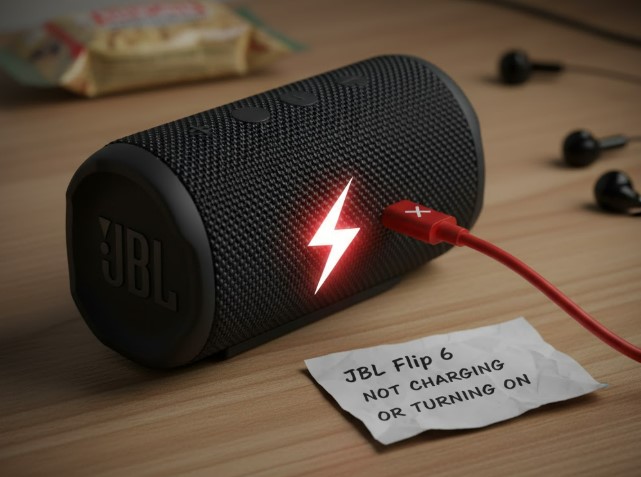
JBL Flip 6 not charging or turning on? This guide provides simple, step-by-step fixes to get your speaker working again. We cover common issues like faulty cables, charging port problems, and battery concerns, offering practical solutions for beginners.
Key Takeaways
- Check charging cable and adapter for damage.
- Clean JBL Flip 6 charging port carefully.
- Try a different power source.
- Reset your JBL Flip 6 speaker.
- Contact JBL Support if issues persist.
Introduction
It can be frustrating when your JBL Flip 6 speaker won’t charge or turn on, especially when you’re ready to enjoy your favorite tunes. Many users encounter this problem, leaving them wondering what went wrong. The good news is that most of these issues have simple solutions. In this easy-to-follow guide, we’ll walk you through common causes and provide clear, actionable steps to fix your JBL Flip 6 not charging or turning on. Let’s get your music playing again!
Common Reasons Why Your JBL Flip 6 Won’t Charge or Turn On
Before diving into the fixes, understanding why your JBL Flip 6 might be acting up can be helpful. It’s often a combination of simple factors that can be easily resolved. Think of it like a car that won’t start – sometimes it’s just the battery, sometimes it’s something more complex, but often it’s a simple fix.
Here are some of the most common culprits:
- Charging Equipment Issues: A damaged USB cable or a faulty power adapter is frequently the reason a device won’t charge.
- Dirty or Damaged Charging Port: Lint, dust, or debris can accumulate in the charging port, preventing a proper connection. Physical damage to the port can also cause charging problems.
- Software Glitches: Like any electronic device, your JBL Flip 6 can sometimes experience temporary software hiccups that prevent it from powering on or charging correctly.
- Battery Problems: While less common, the internal battery might be depleted to a point where it needs a prolonged charge or may eventually fail.
- Overheating: If the speaker has been exposed to extreme temperatures, it might have shut down for protection and won’t turn back on until it cools down.
Step-by-Step Fixes for JBL Flip 6 Charging and Power Issues
Now that we have an idea of what might be causing the problem, let’s get hands-on and try some troubleshooting steps. We’ll start with the easiest solutions and move towards more involved ones. Follow these steps carefully to revive your JBL Flip 6.
Step 1: Check Your Charging Cable and Power Adapter
This is the most frequent reason a JBL Flip 6 won’t charge. Think of the charging cable and adapter as the lifeline to power for your speaker. If this lifeline is broken, nothing gets through.
What to do:
- Inspect the USB Cable: Look for any visible damage to the cable, such as fraying, cuts, or bent connector pins. Try bending the cable gently at both ends to see if it causes any intermittent connection.
- Inspect the Power Adapter: Ensure the adapter is not damaged and is compatible with your JBL Flip 6’s charging requirements (usually 5V/2A).
- Try a Different Cable and Adapter: The best way to confirm if your charging equipment is the issue is to test it with another known-good USB-C cable and a compatible power adapter. You can often use a phone charger if it meets the specified voltage and ampere requirements.
Pro Tip: Always use reputable charging accessories. Cheap, uncertified cables and adapters can not only damage your device but also pose a safety risk. For your JBL Flip 6, ensure you’re using a USB-C cable and a power adapter that meets at least 5V/2A for optimal charging. For more information on power delivery standards, you can refer to resources from the ENERGY STAR program.
Step 2: Clean the JBL Flip 6 Charging Port
Over time, the USB-C port on your JBL Flip 6 can collect dust, lint, and other debris. This buildup can prevent the charging cable from making a solid connection, leading to charging issues. Imagine trying to plug a key into a lock that’s full of dirt – it just won’t go in properly.
What to do:
- Visual Inspection: Carefully look inside the USB-C port with a flashlight to see if there’s any visible debris.
- Gentle Cleaning: Use a dry, non-metallic tool like a toothpick or a fine-bristled brush (like an old, clean toothbrush) to gently dislodge any debris. Be very careful not to bend or damage the internal pins.
- Compressed Air: A short burst of compressed air can also be effective at blowing out loose dust. Hold the can upright and spray from a distance.
- Avoid Liquids: Never use liquids or metal objects (like paperclips) to clean the charging port, as this can cause further damage or a short circuit.
Step 3: Try a Different Power Outlet or USB Port
Sometimes, the problem isn’t with the speaker or its charger but with the power source itself. A faulty electrical outlet or a malfunctioning USB port on a computer can prevent charging.
What to do:
- Test Another Outlet: Plug your JBL Flip 6 charger into a different wall outlet to rule out issues with the first one.
- Use a Different USB Port (if applicable): If you’re charging via a computer or power bank, try a different USB port. Some computer USB ports may not provide enough power for charging a speaker.
- Consider a Wall Adapter: Wall adapters generally provide a more stable and sufficient power supply than computer USB ports.
Step 4: Let the Speaker Charge for an Extended Period
If your JBL Flip 6’s battery has been completely drained, it might need a longer charging time before it shows any signs of life or before the power indicator lights up. This is common for lithium-ion batteries that have been discharged very deeply.
What to do:
- Connect and Wait: Plug your JBL Flip 6 into a known-good charger and power outlet.
- Patience is Key: Leave it to charge for at least 30 minutes to an hour, even if there are no immediate visual cues. Sometimes the battery needs a little “wake-up” time.
- Check Indicator Light: After this period, try pressing the power button again. See if the charging indicator light on the speaker turns on.
Step 5: Perform a Factory Reset
A software glitch can sometimes cause your JBL Flip 6 to become unresponsive. Performing a factory reset can often clear these temporary issues and restore the speaker to its default settings, which might resolve the charging or power problem.
What to do:
- Power Button Hold: For many JBL speakers, including the Flip series, a factory reset can be initiated by pressing and holding the Power button and the Volume Down button simultaneously for about 10-15 seconds.
- Listen for a Sound: You might hear a sound or see a light flash indicating that the reset has been performed.
- Important Note: A factory reset will erase all paired Bluetooth devices and custom settings. You’ll need to re-pair your devices after the reset.
Note: The exact reset procedure can vary slightly between JBL models. If the button combination above doesn’t work, consult your JBL Flip 6 user manual or the official JBL support website for the precise instructions for your model.
Step 6: Check for Overheating
JBL Flip 6, like most electronics, has built-in protection against overheating. If the speaker has been left in direct sunlight, a hot car, or used intensely for hours in a warm environment, it might have shut down to prevent damage.
What to do:
- Cool Down: Move the speaker to a cooler environment, away from direct heat sources.
- Wait: Allow it to cool down for at least 30-60 minutes.
- Attempt to Power On: Once it’s cooled down, try pressing the power button to see if it turns on. If it does, try charging it afterward.
Step 7: Test with Another Device
To further isolate the problem, you can try charging another USB-C device with the same cable and adapter you’re using for the JBL Flip 6. If the other device charges fine, it points more strongly to an issue with the JBL speaker itself.
What to do:
- Use Your Usual Charger: Take the USB-C cable and power adapter that you use for your JBL Flip 6.
- Charge a Different Device: Plug them into another USB-C compatible device, such as a smartphone or tablet.
- Observe: If the other device charges without any problems, it indicates that your charging accessories are likely working correctly, and the issue is more specific to your JBL Flip 6.
Troubleshooting Table: JBL Flip 6 Charging & Power Issues
This table summarizes the common problems and their corresponding quick fixes for your JBL Flip 6 not charging or turning on.
| Symptom | Possible Cause | Quick Fix |
|---|---|---|
| No power indicator light when plugged in. | Faulty cable/adapter, dirty port, no power. | Check/replace cable/adapter, clean port, try different outlet. |
| Speaker turns off immediately after turning on. | Low battery, software glitch. | Charge for 30 mins, perform factory reset. |
| Charging light on but battery not increasing. | Faulty charger, software issue. | Try different charger, perform reset. |
| Speaker won’t turn on even after charging. | Deeply discharged battery, hardware failure. | Charge for 1-2 hours, try reset, contact support. |
When to Contact JBL Support or Seek Professional Help
If you’ve gone through all the troubleshooting steps above and your JBL Flip 6 still refuses to charge or turn on, it’s likely a more serious issue. This could be a faulty battery, an internal hardware defect, or significant damage to the charging port that can’t be fixed with simple cleaning.
What to do:
- Gather Information: Note down all the troubleshooting steps you’ve already tried. This will be helpful when you contact support.
- Check Warranty: See if your JBL Flip 6 is still under warranty. You can usually check this on the JBL website using your product’s serial number.
- Contact JBL Support: Visit the official JBL Support website. They offer various ways to get in touch, including live chat, email, and phone support. Explain the problem clearly and the steps you’ve taken.
- Professional Repair: If the device is out of warranty, JBL might offer out-of-warranty repair services for a fee, or you can look for a reputable local electronics repair shop.
Remember, attempting to open the speaker yourself if you’re not experienced could void any remaining warranty and potentially cause more damage.
Frequently Asked Questions (FAQ)
Q1: My JBL Flip 6 just stopped working. What’s the first thing I should check?
The very first thing you should check is your charging cable and the power adapter. Ensure they are not damaged and are properly connected. Trying a different, known-good cable and adapter is the quickest way to rule this out.
Q2: How long does it typically take to charge a JBL Flip 6?
A full charge for the JBL Flip 6 typically takes around 2.5 hours from empty. However, if you only need a quick boost, charging for about 15-20 minutes can give you a few hours of playback.
Q3: Can I use my phone’s fast charger to charge the JBL Flip 6?
While you can often use your phone’s charger, it’s best to use one that outputs 5V/2A. Rapid or “fast” charging protocols designed for phones might not be ideal for the speaker’s battery management system and could potentially cause issues if they exceed the recommended power input.
Q4: What does the JBL Flip 6 charging light mean?
The charging indicator light on the JBL Flip 6 provides feedback on its power status. Typically, a blinking light indicates charging, and a solid light means it’s fully charged. Refer to your user manual, as light patterns can sometimes indicate other statuses too.
Q5: My JBL Flip 6 is wet. Can I charge it?
No. Never attempt to charge your JBL Flip 6 if it is wet, especially if water has entered the charging port. Water and electronics don’t mix, and charging a wet device can cause short circuits and permanent damage. Ensure the speaker is completely dry, including the charging port, before attempting to charge it.
Q6: Is there a way to check the battery health of my JBL Flip 6?
The JBL Flip 6 doesn’t have a built-in feature to check specific battery health percentage like a smartphone. However, if you notice significantly reduced playtime compared to when it was new, or if it drains very quickly even after a full charge, it might indicate that the battery is aging or degrading.
Conclusion
Dealing with a JBL Flip 6 that won’t charge or turn on can be a solvable puzzle. By systematically working through these troubleshooting steps – from ensuring your charging equipment is in good order and cleaning the port, to performing a reset and considering external factors – you can often restore your speaker to full working order. Remember, patience and careful attention to detail are your best allies in bringing your music back to life. If all else fails, don’t hesitate to reach out to JBL’s dedicated support team for further assistance.
