

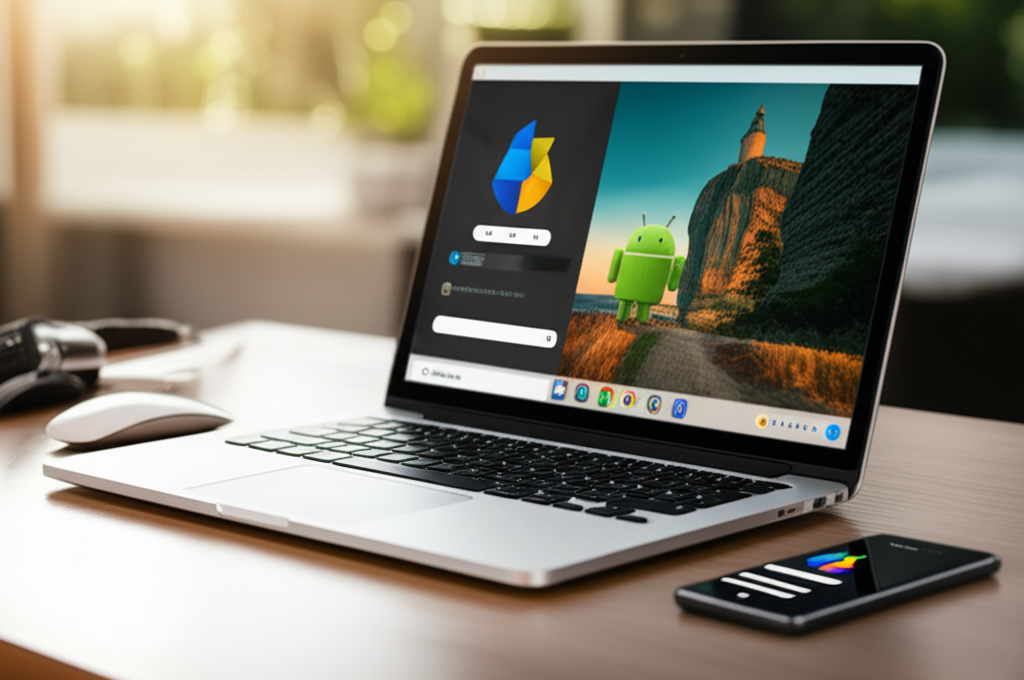
The Android PC represents Google’s ambitious vision for a unified computing experience, merging the power of desktop productivity with the vast Android ecosystem. It’s about bringing your favorite mobile apps and a streamlined interface to your computer, aiming to simplify how you work, play, and connect.
Key Takeaways
- Explore Google’s journey towards a unified Android PC.
- Understand the benefits of an Android-powered computer.
- Learn how to get an Android PC experience today.
- Discover the future potential of Google’s unified dream.
- Grasp the technological leap involved in Android on PC.
Introduction
Have you ever wished you could seamlessly use your favorite Android apps on your laptop or desktop? Or wondered if Google could truly deliver on its long-held dream of a unified computing experience? You’re not alone. For years, the idea of an “Android PC” has been a tantalizing prospect, a promise of a more connected and flexible digital life. It might seem complex, but understanding Google’s evolving approach to bringing Android to PCs is simpler than you think. This guide breaks down Google’s vision, the challenges they’ve faced, and how you can experience this unified dream today, paving the way for a future where your devices work together in perfect harmony.
The Genesis of the Android PC Dream
Google’s journey into the realm of desktop computing has been a long and winding one, marked by several ambitious attempts to bridge the gap between mobile and traditional PC experiences. The desire to unify computing platforms isn’t new for Google. They’ve consistently sought ways to make their services and applications accessible and powerful across a range of devices.
Early Explorations: Chrome OS and Android Convergence
The first significant step towards this unified dream was the introduction of Chrome OS. Launched in 2011, Chrome OS was designed to be a lightweight, cloud-centric operating system that ran web applications primarily through the Chrome browser. Chromebooks, the devices running Chrome OS, gained popularity for their simplicity, security, and affordability, especially in educational settings. However, they lacked native support for the vast library of Android applications, a significant limitation for many users.
Recognizing this gap, Google began exploring ways to integrate Android into Chrome OS. This wasn’t just about running a few select apps; it was about a deeper convergence. The goal was to leverage the strengths of both operating systems: the robust app ecosystem of Android and the productivity features and familiar interface of Chrome OS.
The Nexus and Pixel Tablet Experiments
Google’s hardware initiatives have also played a crucial role in testing and shaping their unified vision. Devices like the Nexus Q, though a commercial failure, hinted at a desire to bring the Android experience into the living room and connect it with other devices. More recently, the Pixel Tablet, released in 2023, showcases a refined approach. While not a traditional PC, the Pixel Tablet serves as a versatile hub, acting as a smart display when docked and a portable Android tablet when undocked. This dual functionality demonstrates Google’s ongoing efforts to create devices that can adapt to various computing needs, blurring the lines between dedicated devices.
The development of Android itself has also been geared towards larger screens and more desktop-like experiences. With each iteration, Android has introduced features that improve multitasking, window management, and stylus support, making it more capable of handling productivity tasks that were once the exclusive domain of PCs.
Why the Android PC Matters: Unifying Your Digital Life
The allure of an “Android PC” lies in its potential to simplify and enhance our digital lives by bringing together the best of both worlds. Imagine a single platform that offers the intuitive interface and massive app selection of Android alongside the robust productivity tools and processing power you expect from a desktop or laptop.
Seamless App Ecosystem Integration
One of the most compelling benefits of an Android PC is the ability to run Android applications natively. This means you could potentially use your favorite mobile games, social media apps, photo editors, and productivity tools directly on your computer without needing emulators or workarounds. This access to millions of apps from the Google Play Store would instantly expand the functionality of any PC.
Google has been steadily working on making this a reality. For instance, the integration of Android apps into Chrome OS on Chromebooks allows users to download and run apps from the Google Play Store, effectively turning many Chromebooks into a form of Android PC. This convergence aims to provide a more cohesive user experience, where the lines between mobile and desktop applications become almost invisible.
Enhanced Productivity and Multitasking
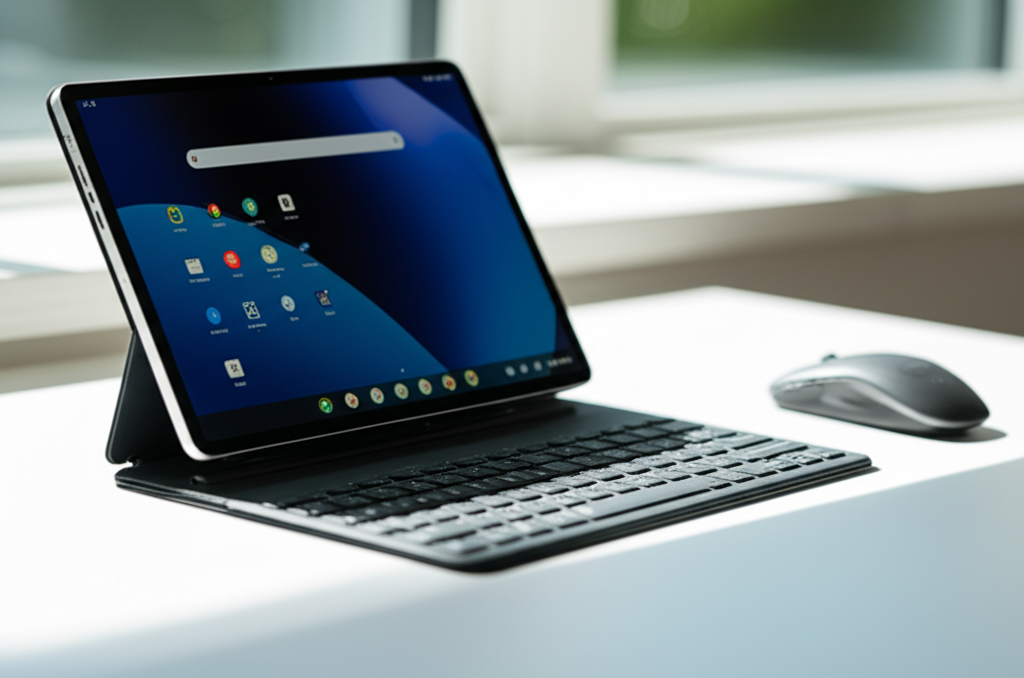
Traditional PCs excel at multitasking, with features like multiple windows, keyboard shortcuts, and advanced file management. Android, while improving, has historically been more focused on single-app experiences. The vision for an Android PC is to marry Android’s accessibility with desktop-level productivity. This means enhanced multitasking capabilities, better window management, and improved integration with peripherals like keyboards and mice.
Google’s development of Android for larger screens and its work on Chrome OS with features like split-screen multitasking and app pinning are steps in this direction. The goal is to create an environment where you can effortlessly switch between browsing the web, editing a document, and video conferencing, all within a familiar Android interface.
Cost-Effectiveness and Accessibility
Chromebooks have already demonstrated the potential for cost-effective computing. By leveraging the Android platform, Google can continue to offer affordable devices that are powerful enough for everyday tasks and even some professional workloads. This accessibility could bring advanced computing capabilities to a broader audience, including students, small businesses, and users in emerging markets.
The ability to run Android apps also means that users might not need separate devices for different tasks. A single Android PC could serve as a primary computing device for work, entertainment, and communication, reducing the need for multiple gadgets and simplifying overall device management.
Implementing the Android PC Experience Today
While a dedicated “Google Android PC” operating system that replaces Windows or macOS isn’t widely available as a standalone product, Google has made significant strides in enabling an Android PC-like experience across various platforms. Here’s how you can tap into this unified dream right now.
The Power of Chrome OS and Chromebooks
Chromebooks are perhaps the closest you can get to Google’s vision of an Android PC today. Running on Chrome OS, these laptops are designed to be simple, secure, and fast. The key feature that brings the Android PC experience to life on Chromebooks is the integration of the Google Play Store.
How it works: Many modern Chromebooks come with the Google Play Store pre-installed. This allows you to download and run millions of Android apps directly on your Chromebook, just as you would on your Android phone or tablet. You can use them in windows, full-screen, or even resize them to fit your workflow. This seamless integration means you can enjoy your favorite mobile games, use productivity apps like Microsoft Office or Google Workspace, and connect with friends through social media apps all on one device.
Benefits:
- Access to millions of Android apps.
- Simple, secure, and fast operating system.
- Often more affordable than traditional laptops.
- Automatic updates and cloud integration.
To get started: Purchase a modern Chromebook that supports the Google Play Store and log in with your Google account. You can then browse and install apps directly from the Play Store on your device. Resources for checking Chromebook compatibility with the Play Store can be found on Google’s official Chrome OS support pages [external link needed – e.g., Google Chrome OS Help Center].
Android Emulators for Windows and macOS
For users who prefer to stick with their existing Windows or macOS computers, Android emulators offer a way to run Android applications on their desktop. Emulators create a virtual Android environment within your computer’s operating system, allowing you to install and use Android apps just as you would on a physical Android device.
Popular Emulators:
- BlueStacks: One of the most popular emulators, known for its gaming performance and user-friendly interface.
- NoxPlayer: Another robust option, offering good performance for both gaming and productivity apps.
- Android Studio Emulator: Developed by Google, this is the official emulator for Android developers, offering deep customization and testing capabilities. While powerful, it can be more complex for average users compared to others.
How it works: You download and install an emulator software on your Windows or macOS computer. Once installed, you can access the Google Play Store (or sideload APK files) to download and run Android apps. These apps will appear as separate windows on your desktop.
Benefits:
- Run Android apps on your existing PC/Mac.
- Test apps or play games on a larger screen.
- Utilize your computer’s more powerful hardware.
Considerations: Performance can vary depending on your computer’s specifications. Some emulators might consume significant system resources. It’s important to download emulators from their official websites to avoid malware.
Windows Subsystem for Android (WSA)
Microsoft has also taken steps towards integrating Android app capabilities into Windows. The Windows Subsystem for Android (WSA) allows Windows 11 users to run Android apps directly on their PCs. This feature is powered by the Amazon Appstore, though users can also sideload Android applications.
How it works: WSA is pre-installed on some newer Windows 11 devices or can be manually installed. It creates a virtual machine environment that runs Android, enabling apps to integrate with the Windows interface. You can pin Android apps to the taskbar, resize their windows, and use them alongside your other Windows applications.
Benefits:
- Native integration with Windows 11.
- Access to apps via Amazon Appstore or sideloading.
- Potential for seamless multitasking.
Limitations: The current implementation primarily relies on the Amazon Appstore, which has a more limited selection than the Google Play Store. Google Play Services are not natively supported, which can affect the functionality of some apps. However, community efforts are exploring ways to enable Google Play Store access.
The Technicalities: How Android Runs on a PC
Bringing an operating system designed for mobile devices to the diverse hardware landscape of personal computers involves significant technical challenges and innovative solutions. Google and its partners have employed various strategies to achieve this, focusing on compatibility, performance, and user experience.
Architecture and Hardware Compatibility
Android’s core architecture is built around the Linux kernel, which is also the foundation for Chrome OS and many Linux distributions. This shared heritage provides a degree of compatibility. However, the hardware components in smartphones and tablets (like ARM processors, specific graphics chips, and touchscreens) differ significantly from those found in PCs (typically x86 processors from Intel or AMD, different GPUs, and keyboard/mouse input).
For Chromebooks: Google works closely with hardware manufacturers to ensure that Chrome OS is optimized for specific chipsets and components used in Chromebooks. This often involves custom drivers and kernel modifications to ensure smooth performance and battery efficiency. The use of ARM-based processors in some Chromebooks also aligns more closely with the typical Android hardware architecture.
For Emulators and WSA: These solutions work by virtualizing the Android environment. They create a software layer that mimics Android hardware, translating instructions from Android apps into commands that the PC’s hardware can understand. This requires powerful processing and graphics capabilities on the host PC to run smoothly. The x86 architecture is also more common in PCs, and Android has been adapted to run on x86 processors, which aids emulators.
Performance Optimization
Running Android apps on a PC can be resource-intensive. Developers must optimize their applications and the Android runtime environment to perform well on a wider range of hardware. This includes:
- Graphics Rendering: Ensuring that Android apps can leverage PC graphics cards for smooth visuals, especially in games.
- Memory Management: Efficiently allocating and managing RAM to prevent slowdowns when running multiple apps.
- Input Handling: Adapting touch-based gestures and controls to work effectively with a keyboard and mouse, or even stylus input.
Google’s own Android for x86 project and its ongoing work with Chrome OS developers aim to improve these aspects, making the Android experience on non-mobile hardware more seamless and responsive.
The Role of Google Play Services
Google Play Services is a background service and API package that enables Google’s services on Android devices. It provides features like location services, push notifications, authentication, and access to Google Play services for apps. For many Android apps to function correctly, especially those that rely on cloud features or Google integration, Google Play Services are essential.
Challenges: Emulators and subsystems like WSA often face difficulties in fully replicating or integrating Google Play Services. This can lead to certain apps not working as expected or lacking full functionality. While some emulators include a version of Play Services, and community efforts are underway to integrate it with WSA, it remains a technical hurdle to achieving a truly native Android experience on PC.
Challenges and the Future of Google’s Unified Dream
Despite the progress, achieving Google’s ultimate “Android PC” vision faces several hurdles. The company has navigated these challenges through iterative development and strategic partnerships.
Market Competition and Strategy
Google operates in a highly competitive landscape. Microsoft dominates the traditional PC market with Windows, while Apple commands a significant share of the premium laptop and desktop space with macOS. Google’s strategy has been to carve out niches where its strengths are most relevant.
Chromebooks: These have found their footing in education and as budget-friendly alternatives for general use. By integrating Android apps, Google aims to make Chromebooks more versatile and appealing to a broader audience, competing with entry-level Windows laptops.
Android on other Platforms: The development of WSA by Microsoft shows a potential for deeper collaboration, where Android apps can coexist within Windows. This hybrid approach might be more practical than a complete desktop overhaul. Google’s own Android development also includes features for larger screens and productivity, hinting at a future where Android could be a more robust desktop OS in its own right.
User Adoption and Perceived Value
Convincing users to adopt a new computing paradigm is always a challenge. Many users are accustomed to Windows or macOS and may not see the immediate benefit of switching to an Android-centric PC experience, especially if it means compromising on certain professional software or workflows.
Google’s approach of gradual integration, particularly through Chrome OS, aims to ease users into this experience. By offering the familiar Android app ecosystem alongside web-based productivity tools, they hope to demonstrate the value of a more unified platform without forcing a drastic change.
The Evolution Towards a Unified Operating System
Google has a history of exploring unified operating systems. Remember Andromeda, the rumored hybrid OS that aimed to merge Android and Chrome OS? While Andromeda as a distinct project may not have materialized publicly, its underlying principles seem to be driving the current convergence efforts.
The future likely holds a more seamless integration. We might see:
- Enhanced Chrome OS: Further refinement of Android app integration, improved desktop-like features, and potentially support for more powerful applications.
- Android for Desktops: An evolution of Android itself, with more robust multitasking, windowing, and desktop-specific features, making it a viable alternative to Windows and macOS for certain user segments.
- Cloud-Based Computing: Google’s strong focus on cloud services means that many applications and data could be accessed seamlessly across any device running a compatible Google client, further unifying the experience regardless of the underlying OS.
The journey to the ultimate Android PC is ongoing, marked by innovation and a clear vision for a more connected and flexible computing future. As Google continues to refine its operating systems and hardware strategies, the line between mobile and desktop computing will undoubtedly blur further.
Frequently Asked Questions (FAQ)
What is an Android PC?
An Android PC refers to a personal computer that runs the Android operating system or offers significant integration with Android applications and services. This allows users to access the vast Android app ecosystem on a desktop or laptop.
Can I run Android apps on my Windows PC?
Yes, you can run Android apps on your Windows PC using Android emulators like BlueStacks or NoxPlayer, or through the Windows Subsystem for Android (WSA) on Windows 11.
Are Chromebooks considered Android PCs?
Chromebooks are the closest embodiment of Google’s Android PC vision. They run Chrome OS and have integrated access to the Google Play Store, allowing them to run millions of Android apps natively.
Is it difficult to set up an Android emulator?
Setting up most Android emulators is quite straightforward. You typically download the emulator software from its official website, install it like any other application, and then log in with your Google account to access the Play Store.
Will my favorite Android apps work on an emulator or WSA?
Most popular Android apps will work well. However, some apps that heavily rely on specific hardware features or Google Play Services might have compatibility issues or reduced functionality. This is an area of ongoing improvement.
Is an Android PC good for gaming?
Many Android emulators are optimized for gaming and can offer a good experience on a PC, especially if your computer has a capable graphics card. Chromebooks with Play Store support also allow for Android gaming on a larger screen.
What are the advantages of using an Android PC over a traditional PC?
Advantages include access to the extensive Android app library, often lower cost (especially with Chromebooks), and a simplified, cloud-focused user experience. It can offer a more unified platform for users heavily invested in the Android ecosystem.
Conclusion
Google’s pursuit of the “Android PC” is more than just a technical endeavor; it’s a strategic vision to unify the computing experience. By seamlessly blending the robust app ecosystem of Android with the productivity power of personal computers, Google aims to offer a more flexible, accessible, and interconnected digital life. While the concept of a singular “Android PC” operating system has evolved, the reality is that this unified dream is increasingly attainable. Through Chrome OS devices, Android emulators, and emerging technologies like Windows Subsystem for Android, users can already experience the benefits of running their favorite mobile apps on larger screens and leveraging powerful desktop hardware. The journey continues, with Google consistently pushing the boundaries to make our devices work together harmoniously, hinting at a future where computing is more fluid, integrated, and tailored to our every need.
